Getting Started — from nothing to a working chatbot
This is the complete path: install the platform, give it a model, create a Topic, feed it documents, and ask it a question. Every step links to the detailed page for that subject — read this one to know what to do and in which order, and follow a link whenever you need the full field-by-field explanation.
What you get at the end: one running RAG Topic that answers questions from your own documents and cites the files it used.
Time: roughly 30–60 minutes, most of it spent downloading a language model.
| Step | Result | |
|---|---|---|
1 |
The web UI on |
|
2 |
A model provider, a vector DB, a Docling server if needed |
|
3 |
A Topic in status |
|
4 |
Your files indexed and retrievable |
|
5 |
Grounded answers with source citations |
|
New to the concepts? What the platform does explains Topics, Agents, and Pipelines in two minutes. This guide only covers Topics — the RAG chatbot side. |
1. Install the frontend with Docker Compose
The platform ships as two containers: the management frontend and a PostgreSQL configuration store. Everything else — Topic containers, Docling, Ollama — is created later by the application itself, which is why it needs the Docker socket.
-
Create an installation directory and put
docker-compose.ymlin it. -
Create an
.envnext to it. Set at leastDB_PASSWORDandMETRICS_API_KEYbefore the first start. -
docker compose up -d, then wait for the images to pull (one to three minutes). -
Open
<your-host>:8080and log in withadmin/admin. -
Change the admin password immediately under Profile → Change Password.
|
Plain Linux Docker works too. The app and every container it starts know the host as
|
Check: you are logged in and see the Topic list.
📖 Detail: Docker Compose installation — prerequisites, every environment variable, reverse proxy, backup, upgrades
2. Prepare for a Topic
A Topic cannot be created without a chat model, an embedding model and a registered vector database. The rest of this step is about having those ready — plus Docling if your documents are PDFs or Office files.
2a. Install LM Studio for the models
LM Studio is the quickest fully local option: no API key, no cost, no data leaving your machine. Skip this if you intend to use a cloud provider instead (see 2b).
-
Download and install LM Studio. A 7B model needs roughly 6–8 GB of free RAM or VRAM.
-
In the Discover tab, download two models:
Model Role qwen2.5-coder-7b-instructChat model — writes the answers
text-embedding-nomic-embed-text-v1.5Embedding model — turns documents into vectors (768 dimensions)
-
In the Developer tab, switch the server to Running (port
1234) and enable Serve on Local Network.
|
"Serve on Local Network" is not optional. By default LM Studio binds to |
Check: curl localhost:1234/v1/models lists both models.
📖 Detail: Getting started with a local model —
installation, quantisation choice, the lms CLI, headless mode
2b. Connect the AI server
Register the endpoint so its models appear in the Topic wizard: Admin → AI Servers → Add AI Server.
| Field | LM Studio | Cloud provider (e.g. Anthropic) |
|---|---|---|
Server Type |
|
|
Provider |
|
|
Host |
|
Filled in for you |
Port |
|
None — cloud providers always use HTTPS |
API Key |
(empty) |
Required |
|
You may paste the full address as LM Studio shows it, for example |
There is a third option: Managed (deployed by this app) starts an Ollama container for you. Use it when you want the platform to own the model server’s lifecycle; it is locked to Ollama.
Check: open the new server, go to the Models tab. Both models are listed. An empty list means the endpoint is not reachable — the Error status in the list means the same thing.
📖 Detail: Connect LM Studio · Connect Claude (Anthropic)
2c. Connect or install the Docling server
Docling converts PDF, DOCX, PPTX and XLSX into clean text before embedding. Without it, a PDF cannot be indexed at all — and the Topic wizard requires a server as soon as you tick Binary documents among the accepted file types (or allow them as chat attachments).
Go to Admin → Docling Servers. No server is seeded by default, so add one:
| You want | Do this |
|---|---|
The platform to run Docling for you |
Add Docling Server → Server Type |
To use a Docling instance you already run |
Add Docling Server → Server Type |
The first start pulls a multi-GB image; the status cell names the current phase (Downloading the
Docling image (several GB) → Starting the container → Waiting for the Docling server to answer)
together with the elapsed time. A managed server has no Host field — its address is filled in
when it starts. With Docker you still choose its Port (default 5001; change it only if another
program or another managed Docling server already uses that port). With Kubernetes there is no Port
field either. 📖 Detail: Docling Servers
|
Plain text only? Docling is not needed. You can skip this and leave only Plain text ticked among the wizard’s file types. |
Check: the server’s status is RUNNING (managed) or reachable (external).
|
Long or scanned PDFs can exceed the 5-minute default conversion timeout. Raise Docling Timeout under Admin → LLM Configuration, globally or per Topic. |
2d. Connect a vector database
Every Topic needs a registered vector database. It stores the searchable form of your documents. Register one under Admin → Vector Databases before you create your first Topic. You need an administrator for this. Qdrant, Milvus, Weaviate and CYROCK.DB are supported. Several Topics can share one database — each Topic uses its own collection in it.
If you do not run a vector database yet, start one first, for example a Qdrant container next to the platform.
|
The Qdrant trap: the port is 6334 (gRPC), not the 6333 its dashboard and docs show. The platform reaches Qdrant, Milvus and CYROCK.DB over gRPC, and only Weaviate over HTTP. Use Test Connection in the dialog — it probes with the protocol that type actually uses. |
📖 Detail: Connect a Vector DB — supported types, TLS, the connection test, collection naming, sharing one instance
2e. Check the LLM settings
One look at Admin → LLM Configuration before you build anything, because two of these bite later:
| Setting | Why look now |
|---|---|
Timeouts (chat, embedding, picture description, Docling) |
The defaults assume a cloud API. Local models on CPU are far slower — 10 minutes or more is realistic for a 7B model. A too-tight timeout surfaces as a failed chat, not a slow one |
System Prompt |
The global template every Topic’s own prompt is inserted into, at |
No-Answer Response |
What the chatbot says when retrieval finds nothing. Worth phrasing in your own voice |
Everything here is a default that each Topic can override: the timeouts and the context memory on its LLM Overrides tab, the system prompt and the no-answer response on its Prompts tab.
3. Create the Topic
Topics → New Topic opens a five-step wizard. Next validates each step before advancing.
3a. The wizard, step by step
Step 1 — Common Information
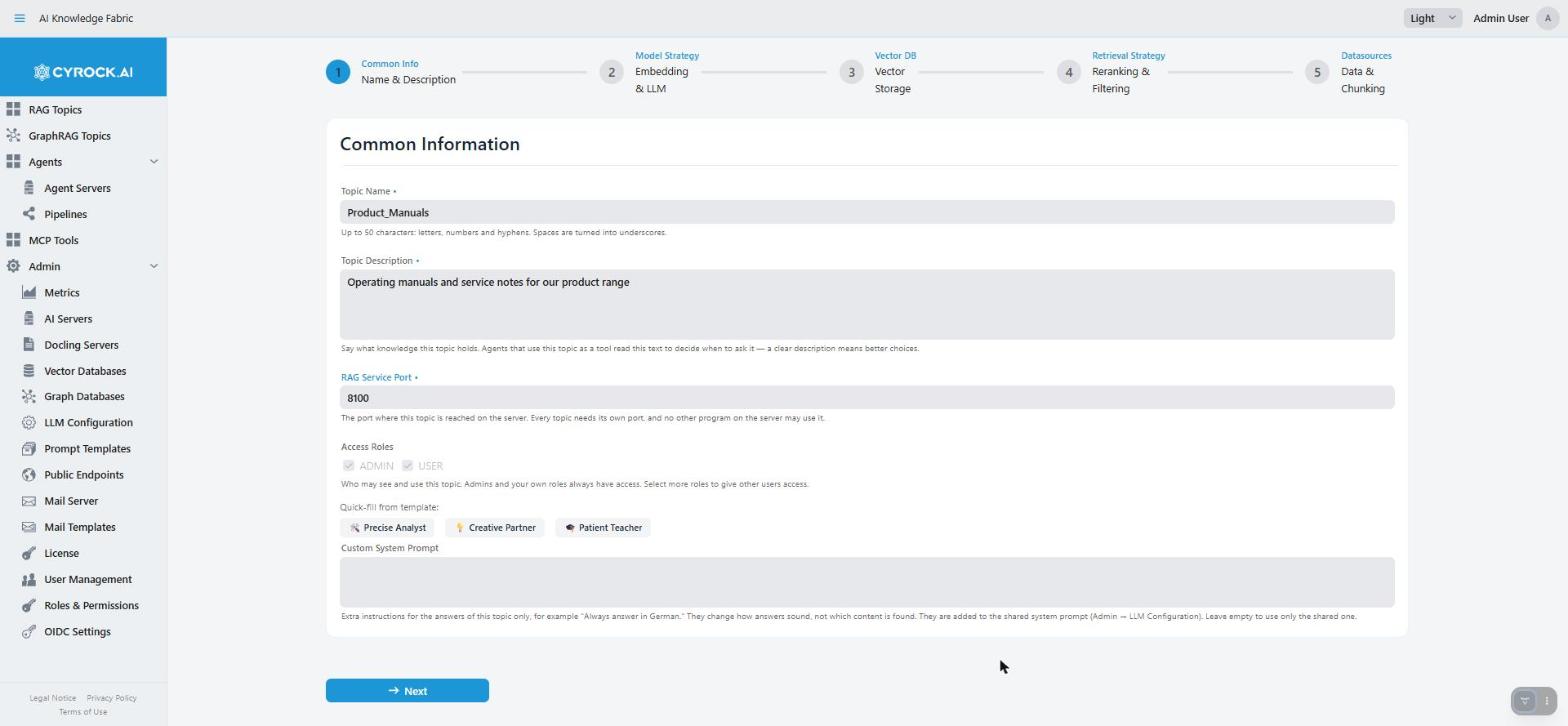
Name (letters, digits, hyphens and underscores; spaces become underscores), description, the Custom System Prompt that gives the Topic its character, a free RAG Service Port on the host (8081, 8082, …), and the Access Roles allowed to use it. The prompt is inserted into the global template, so write only what is specific to this Topic — "You are an HR assistant. Answer only from the policy documents."
Step 2 — Models · the step that blocks progress
Tick the File Types you accept first, because it reshapes the rest of the step: ticking Binary documents brings in the Docling section, ticking Images brings in Image Handling and forces "Describe" so ingested images actually get processed. This step also carries the Topic’s Chat Attachments settings, since a binary or image attachment needs the same Docling/vision infrastructure as an upload. Then select the embedding model (it asks for the output dimension — keep the pre-filled native size) and the chat model.
|
If Next appears to do nothing here, one of the two models is not selected. Scroll to the bottom of the step — both selectors and their inline errors are down there. |
|
The embedding model is the one choice you cannot revise painlessly. Vectors from one model are meaningless to another, so changing it later invalidates everything indexed and forces a full re-ingestion. |
Step 3 — Vector Storage — one dropdown, and you must pick a database (see 2d). The choice is fixed once the Topic is created.
Step 4 — Retrieval Strategy — everything is pre-filled with working defaults (HYBRID, Top-K 3,
reranking NONE, minimum similarity 0.6); you can pass straight through.
Step 5 — Data Source — storage mode and the chunking settings covered in 4a. The primary button reads Save instead of Next — that is how you know you are on the last step.
After saving, the Topic is in status CREATED. Press Start: STARTING → RUNNING. The first
start downloads the Topic image and can take a few minutes.
Check: the Topic shows RUNNING in the list.
📖 Detail: Creation step by step — every field of all five steps, with the validation rules · Topic overview — what actually runs per Topic
4. Upload documents
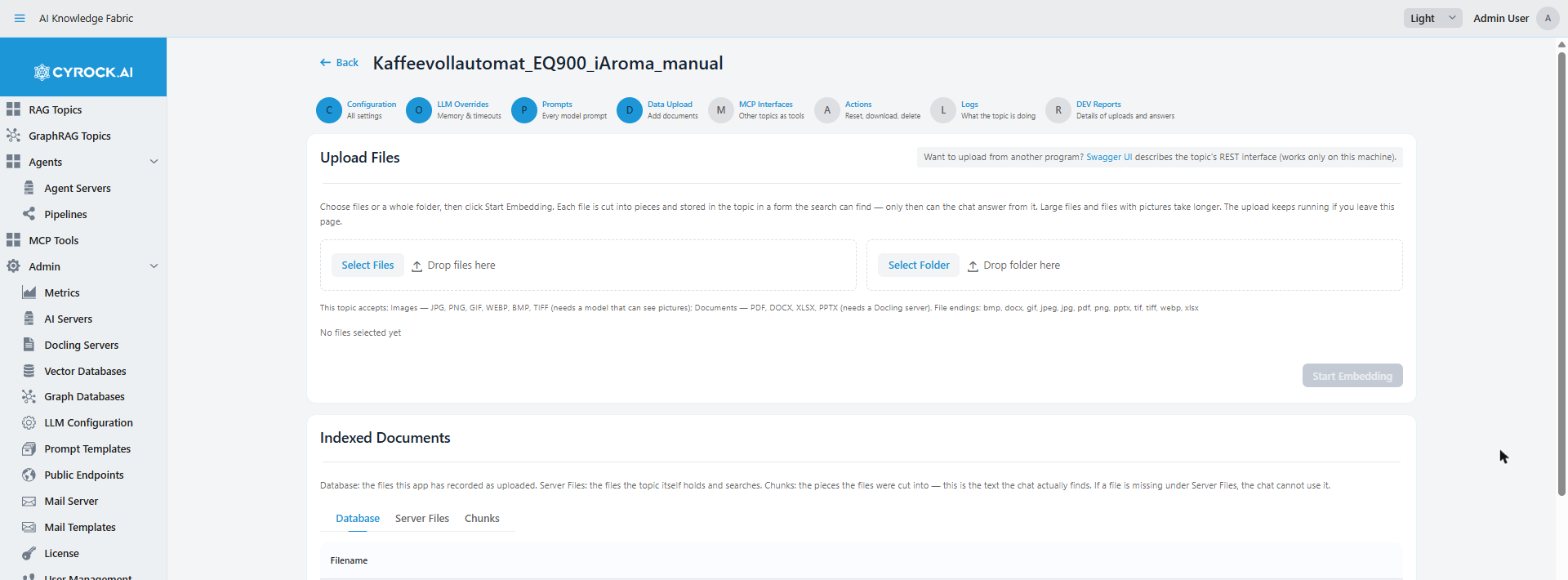
Open the Topic (click its row) → Data Upload tab. Requires TOPIC_UPLOAD.
-
Select Files (or Select Folder, up to 500 files at once), or drop them onto the zone.
-
Press Start Embedding.
|
Uploading is not indexing. Selecting files only stages them — nothing is embedded until you press Start Embedding. This is the single most common "why does it not know my document" moment. |
Files are processed one by one with a progress line. The batch is tracked server-side, so you can navigate away and come back; closing the browser does not cancel it. If something fails, an amber banner explains why and ↻ Retry upload resumes rather than restarting.
Check: open Indexed Documents → Chunks. Your document’s text should be there, readable.
4a. Chunking of the documents
Documents are not embedded whole — they are split into overlapping chunks, and a chunk is the unit that gets retrieved and handed to the model. The settings live in wizard step 5 (and on the Topic’s Configuration tab afterwards):
| Field | Default | What it does |
|---|---|---|
Chunk Size |
|
Characters per chunk. Smaller = more precise retrieval but more fragmented context; larger = more context per hit but more noise and a longer prompt |
Chunk Overlap |
|
Characters repeated between neighbouring chunks, so a sentence spanning a boundary is not lost |
Chunking Strategy |
|
See below |
Storage Mode |
|
Stores the file content alongside its vectors. This is the only mode the upload UI can drive — |
The two chunking strategies:
| Strategy | What happens | Cost |
|---|---|---|
|
Splits along paragraph, then sentence, then word boundaries until the chunk size is reached. Fenced code blocks are kept intact |
None beyond embedding |
|
The same split, plus one LLM call per chunk that prepends a sentence placing that chunk in the whole document ("contextual retrieval") |
One chat-model call per chunk — a 200-chunk PDF means 200 calls |
SEMANTIC is worth it when a chunk means little on its own — a table row, a numbered clause, a
paragraph that says "it must not exceed this value" without naming what it is. Despite the name it
does not split on semantic similarity; it improves what each chunk says about itself.
|
Ingestion with |
Chunk size and overlap are fixed at creation — changing them would leave old and new embeddings inconsistent, so create a new Topic instead. The strategy can be changed later on the Topic’s Configuration tab: it travels with each upload rather than with the container, so it applies from the next upload on without a restart. Documents already indexed keep the chunking they were given; re-upload them to convert.
The Chunks tab is the most useful diagnostic in the product. It shows exactly what the model can retrieve: garbled text means the conversion failed (usually Docling), chunks cut mid-sentence explain incoherent answers, and a document missing entirely means ingestion failed silently rather than retrieval being at fault.
📖 Detail: Configuration and functions — the upload tab, the three inspection tabs, and what a Database/Server Files mismatch means
5. Use the chat
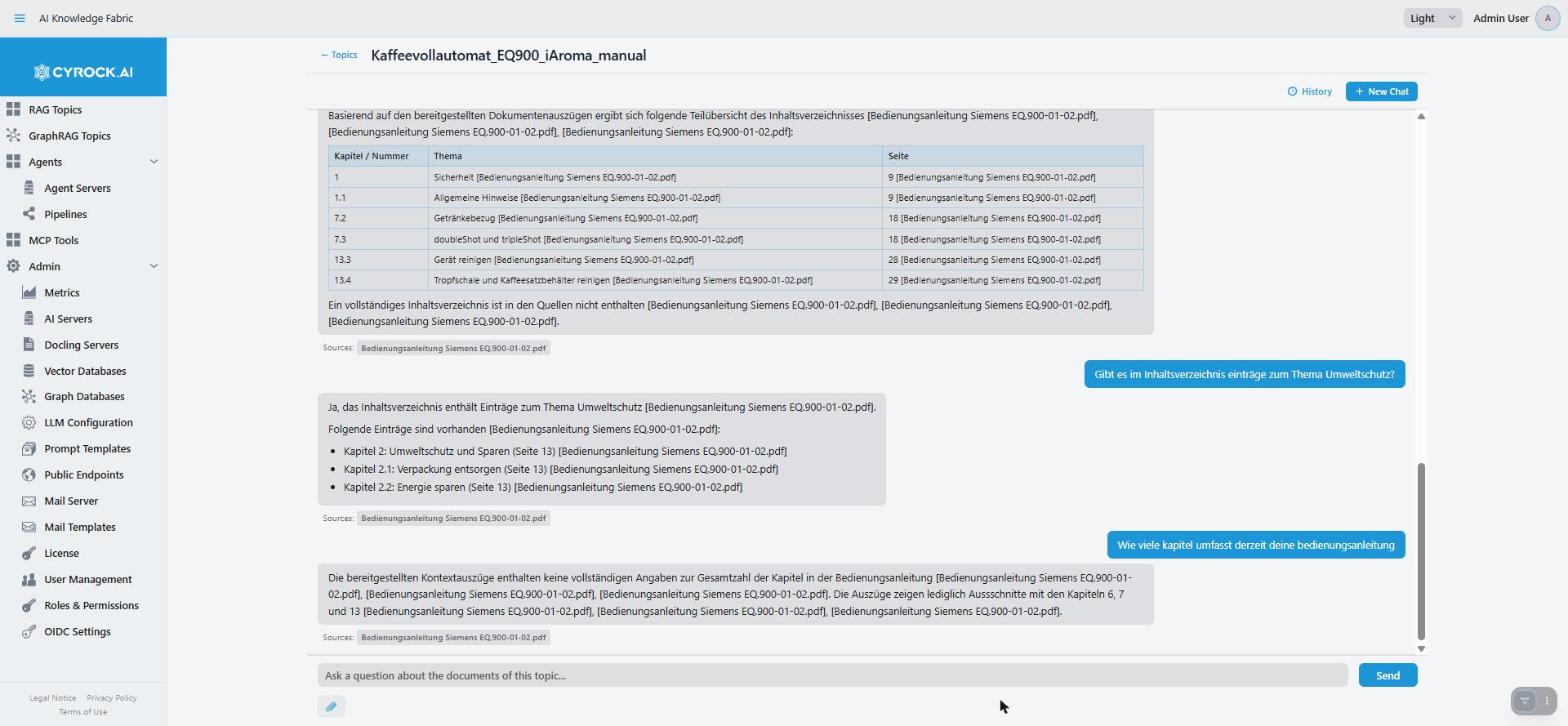
Click the Topic name in the list to open the chat. Requires TOPIC_CHAT and a RUNNING Topic.
5a. Prompt input
Type into the input bar and press Enter or Send. While an answer is being generated the input is disabled and a Stop button appears — or press Esc. A local model taking a minute or more is normal; if it aborts itself, the Chat Timeout is too low.
Under each answer, a Sources: row lists the documents the passages came from, one badge per file. That row is what makes an answer verifiable — if it looks wrong, open the cited file and check. No sources listed means the model answered without retrieval.
|
Source badges are download links that carry a one-off key, valid for about 10 minutes. After that the badge turns grey and clicking it says the link expired; ask the question again for a fresh one. The links are saved with the answer: reopened from History or after a reload, a badge still works for the rest of its 10 minutes, and turns grey after that. |
Conversations are persistent and per user: + New Chat starts a fresh context, History reopens an earlier one. Deleting a conversation deletes its messages with it.
5b. File attachments
The 📎 paperclip below the input attaches files to a single question. You can also drag files onto the input field, and pasting more than 300 characters turns the text into an attachment chip instead of flooding the field.
| Type | Requirement |
|---|---|
Plain text (txt, md, json, yaml, csv, source code) |
None |
Binary documents (PDF, DOCX, XLSX, PPTX) |
Docling, plus the type enabled in wizard step 2 |
Images (JPG, PNG, GIF, WEBP, …) |
Allow images as chat attachments ticked in wizard step 2 — the chat model itself must be able to see images; nothing verifies that automatically |
|
Attachments are ephemeral. They are folded into the context for that one reply and never added to the knowledge base. To add a document permanently, upload it on the Data Upload tab (step 4). A rejected attachment usually means the type was not enabled in wizard step 2. |
📖 Detail: Chat window — layout, sessions, sources, attachments, error handling, and how to get better answers
First-run troubleshooting
The five things that most often go wrong on a first install:
| Symptom | Cause and fix |
|---|---|
Topic stays |
The app cannot reach the Docker daemon, or the chosen RAG Service Port is already taken |
Model picker in the wizard is empty |
The AI server is unreachable. LM Studio: Serve on Local Network is off. Check the server’s Models tab |
Topic runs, but chat fails to connect |
The Topic cannot reach the AI server. Check its address under Admin → AI Servers ( |
Upload succeeds, but answers ignore the document |
Look at the Chunks tab. Nothing there = ingestion failed (check the Logs tab); garbled text = Docling conversion failed |
"There is no valid license" |
A license key is required to create or start anything — see License |
Every Topic has a Logs tab with a live tail of its rag-service. When the UI message is not specific enough, the log names the downstream call that actually failed.
Where to go next
| Next | Page |
|---|---|
Tune retrieval quality, timeouts, prompts per Topic |
|
Drive upload and chat from a script |
|
Give the Topic external tools |
|
Create real users instead of |
|
Build multi-step agents instead of a chatbot |
Related
-
What the platform does — Topics, Agents, Pipelines and how they relate
-
Feature list — everything the platform supports
-
RAG Topics overview — the architecture behind a Topic