Topic Configuration and Functions
You open the Topic detail page from the Topic list. It needs the permission View Topics
(TOPIC_VIEW), and one of your roles must have access to the Topic. The page has eight tabs:
| Tab | What you do there |
|---|---|
Configuration |
See all settings of the Topic and change most of them |
LLM Overrides |
Change the chat memory and the timeouts for this Topic only |
Prompts |
Change the texts that tell the models what to do |
Data Upload |
Upload documents and check what the Topic holds |
MCP Interfaces |
Connect other Topics as tools |
Actions |
Download the start file, reset the Topic data, delete the Topic |
Logs |
Read the technical log of the Topic |
DEV Reports |
Detailed reports of single uploads and answers, for developers |
|
Most settings take effect only after a restart. The Topic gets its settings when it starts. If you change a setting while it runs, it keeps working with the old value until you stop and start it. The Configuration tab tells you which changes need a restart (see When a restart is needed). Uploads and MCP connections work right away. |
1. Configuration
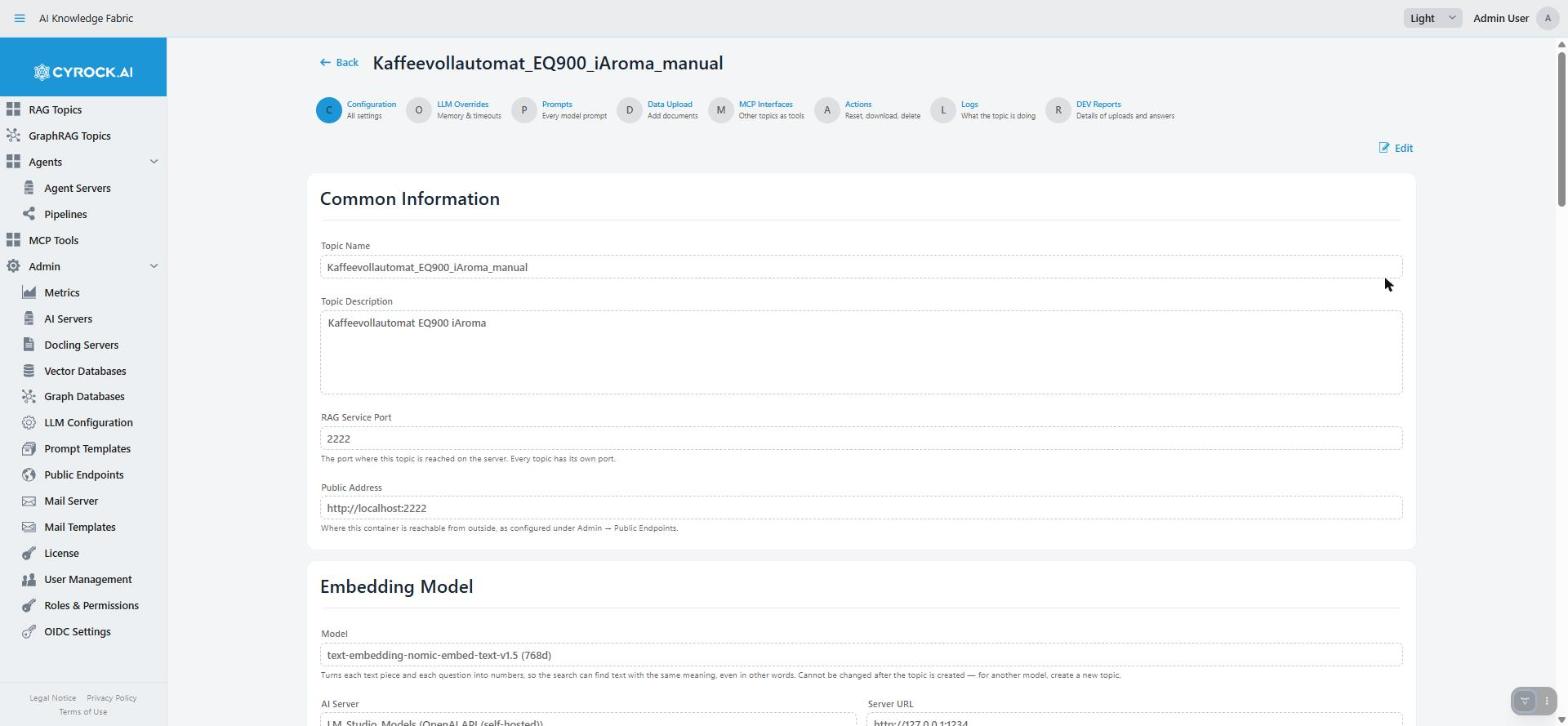
The tab first shows all settings read-only. Click Edit in the top right to change them. The
Edit button is shown only with the permission Edit Topics (TOPIC_EDIT). In edit mode you
leave with Cancel or Save Changes.
In edit mode, every section has a badge next to its title:
| Badge | Meaning |
|---|---|
Saved immediately |
The change works as soon as you save |
Requires restart |
The change works after the next stop and start of the Topic |
Not changeable |
Fixed when the Topic was created |
The settings mean the same as in the creation wizard. See Creation step by step for more detail.
Basic Information — saved immediately
-
Topic Name — up to 50 characters. It must be different from the names of other Topics.
-
Topic Description — say what knowledge the Topic holds. Agents that use this Topic as a tool read this text to decide when to ask it. A clear description means better choices.
Embedding Model and Vector Storage — not changeable
The Embedding Model turns text into numbers for the search. The Vector Database stores your documents in that form. Both are fixed when the Topic is created. All documents were stored with this model in this database, so a change would make them unusable. For another model or database, create a new Topic.
If the Vector Database shows None — this topic cannot start. Create it again with a vector database., the Topic was created without a vector database. Such a Topic cannot start. Create a new Topic with a vector database and upload the documents again.
Service Configuration — requires restart
-
Custom System Prompt — extra instructions for the answers of this Topic only, for example "Always answer in German." They change how answers sound, not which content is found. They are added to the shared system prompt from Admin → LLM Configuration. Leave it empty to use only the shared one. In view mode this section is shown only when the prompt is not empty.
-
RAG Service Port — the port where the Topic is reached on the server. Every Topic needs its own port, and no other program on the server may use it.
-
Public Address Override — where the Topic is reached from outside, if it is published differently from the pattern under Admin → Public Endpoints. Leave it empty to use the pattern. The placeholders
{id},{port}and{slug}are allowed. Below the field you see the address that results. In view mode the field is called Public Address. See Public Endpoints. -
Large Language Model — the AI Server and the LLM Model that write the answers. The model also does the other model steps of the Topic unless they have their own model. A larger model gives better answers, but is slower and costs more. The refresh button loads the model list from the server again.
-
Docling Server — Docling turns PDF, Office files and scanned pages into text that can be searched. Leave it empty to turn it off. PDF and Office files are then refused at upload and in the chat. See Docling Servers.
-
Docling Settings (advanced) — how Docling reads PDF and Office files, for example text recognition in scans (OCR), its languages, tables and small pictures. Click Edit to open the editor. The template switches nothing on, so Docling keeps the settings of its server. Remove the
//in front of a setting to use it. Apply takes the settings into the form. Save the form to keep them. These settings are used at every upload, not for files attached in the chat. They do not need a restart: a change works from the next upload on. Files already uploaded stay as they are until you upload them again. -
Structured Data Import — for JSON, XML, YAML, TOML, CSV and TSV files. Such files are always split into records, for example one table row each, so a record is never cut in the middle.
-
Flatten (default) stores each record as "key: value" lines. It is fast, and good for questions that use the exact field names or values.
-
Narrate lets a model rewrite each record as a short paragraph. Questions in normal language find it better, but large files take much longer, because there is one model call per record. You can pick a Narrator Server and a Narrator Model ID. A small, fast model keeps large uploads short. Leave both empty to use the Language Model.
The change applies to documents uploaded after the next restart.
-
-
Image Handling — two separate decisions for the pictures inside your documents:
-
Describe pictures with a vision model. On: during upload, a vision model describes each picture. The description is placed in the text where the picture was, so the content of pictures can be found. Uploads get slower. Off: only the caption of a picture can be found. This box is always on while Images is one of the Upload File Types, because an uploaded picture without a description cannot be found. When it is on, choose the model: either tick Use the topic’s Language Model, or click Select Model and pick one. The model must be able to read images. A larger model sees more details, but makes uploads slower.
-
Store pictures in the database. On: each picture is kept, so an answer can show it and name it as a source. This needs more storage. Off: the answer names only the document. Show pictures in answers can only be switched on while storing is on. On: answers can show stored pictures in the text and list them below. Off: answers are text only.
Changes to describing and storing apply only to documents uploaded after the next restart. To change the pictures of a document already uploaded, upload it again. Show pictures in answers needs a restart, but no new upload.
-
Retrieval Configuration — requires restart
These settings decide how the chat searches your documents for each question. They also decide which of the found text pieces the Language Model gets for its answer. In view mode the section is called Retrieval Strategy.
-
Retrieval Strategy — DENSE searches by meaning. It also finds text that uses other words than the question, and it is the fastest option. HYBRID (default) adds a keyword search and combines both results. It finds exact terms better, for example product codes, error numbers or names, but needs a little more time.
-
Keyword Enrichment — shown only with HYBRID. It decides which keywords the keyword search uses for each text piece. ALGORITHMIC (default) takes the words of the text itself: fast, but only exact words match. LLM lets the Language Model write keywords, also other words with the same meaning. You get better matches, but uploads get slower, because there is one model call per piece. A change applies to documents uploaded after the next restart. Earlier documents keep their keywords.
-
Top-K Results — how many found text pieces the model gets for one answer (1–50). Higher: more complete answers, but slower and with more unrelated content. Lower: faster and more focused, but facts can be missing.
-
Reranking Strategy — NONE (default) keeps the order of the search. LLM lets the Language Model read the found pieces again and sort them by how well they answer the question. Answers get more exact, but each question needs one more model call and takes longer.
-
Min. Similarity Score — how similar a text piece must be to the question to be used (0.0–1.0). Higher: only close matches; answers are more exact, but the Topic says "I don’t know" more often. Lower: weak matches are used too. Leave it empty to use every match.
-
Largest Chat Attachment (MB) — the largest file a chat user can attach to one question, 1–100 MB (default 10). Higher: bigger PDFs and pictures fit, but the whole text of a file goes to the Language Model, so a big file makes the answer slower and more expensive. Lower: bigger files are refused right away with a message. A change needs a restart of the Topic, because the Topic checks the limit itself.
-
Allowed Chat Attachment Types — which files a chat user may attach to a question. This is separate from the Upload File Types further down.
-
Text files are always allowed.
-
Documents (PDF and Office files) need a Docling server. Without one, the save is refused.
-
Images go directly to the Language Model of the Topic, not to the vision model for uploads. So the Language Model must be able to read images. This is not checked automatically. If it cannot, image attachments give poor or empty answers. In view mode, Chat LLM Vision Support shows Yes when Images are allowed.
-
Routing — requires restart
Before the search, the Language Model checks if a chat message needs your documents at all. Thanks, small talk or a request to rework an earlier answer, and a question that the attached file alone answers, are answered without a search. These answers come faster. All other messages, and every message the model is unsure about, are searched as usual.
-
Route before retrieval — on (default): messages that need no search are answered faster. Off: every message searches your documents. Each message needs one model call less, but small talk is slower.
-
Router Confidence Threshold — how sure the model must be (0.0–1.0, default 0.9) before a message is answered without a search. Higher: fewer messages skip the search. This is safer, but slower. Lower: more messages skip it. This is faster, but a real question may be answered without your documents.
Datasource Configuration
This section shows the Not changeable badge, but two settings in it can be changed, and both work without a restart:
-
Upload File Types — which files can be uploaded on the Data Upload tab. Other files are refused at upload. Leave it empty to accept every file. Documents need a Docling server; without one, the save is refused. If you tick Images, describing pictures is switched on and locked (see Image Handling). The change works right after saving.
-
Chunking Strategy — how a document is cut into pieces (chunks) during upload. RECURSIVE (default) cuts at paragraphs, then sentences, then words, and is fast. SEMANTIC also lets the Language Model add a short note to each piece about where it belongs in the document. Pieces are found better, but uploads take much longer, because there is one model call per piece. The change works from the next upload on, without a restart. Documents already uploaded keep their pieces. See the two chunking strategies.
Chunk Size, Chunk Overlap, Source Type and Storage Mode cannot be changed. The stored documents were cut with these values. For other values, create a new Topic.
Kubernetes Resources — requires restart
This section is shown only when the app runs on Kubernetes. It sets how much CPU and memory the Topic may use. The request is reserved for the Topic. The limit is the most it may use.
-
Higher values: faster with large uploads and many users, but fewer Topics fit on the cluster.
-
Lower values: you save resources, but the Topic can get slow, or is stopped when it runs out of memory.
Examples: CPU Request 250m (a quarter of a CPU) or 1, Memory Request 512Mi or 1Gi,
CPU Limit 2, Memory Limit 2Gi. Leave a field empty to use the default of this
installation. See CPU and memory.
Access Roles — saved immediately
Who may see and use this Topic. ADMIN is always ticked and cannot be removed. Tick more roles to give other users access. A role without access does not see the Topic in the list and cannot open its chat.
When a restart is needed
When you click Save Changes and a change needs a restart, the dialog Restart Required opens. It offers:
-
Save & Restart — saves, then stops and starts the Topic with the new settings. Shown only while the Topic is running.
-
Save Only — saves. The Topic keeps working with the old settings until you stop and start it.
-
Cancel — back to the form, nothing is saved.
These changes open the dialog: the Custom System Prompt, the port, the Public Address Override, the Language Model, the Docling server, Structured Data Import, Image Handling, everything under Retrieval Configuration and Routing, and the Kubernetes resources.
These changes are saved without the dialog and work at once: name, description, Docling Settings, Upload File Types, Chunking Strategy and Access Roles.
If the save is refused, a message says which value is wrong, and the form stays open. Cancel then shows the stored values again.
2. LLM Overrides
This tab changes values from Admin → LLM Configuration for this Topic only. Leave a field empty to use the global value. The empty field shows the global value in grey. An empty field also follows later changes of the global value.
Chat Settings
| Field | What it does |
|---|---|
Context Memory (messages) |
How many earlier messages of a chat the model sees with each new question (1–100). Higher: follow-up questions like "and what about the second one?" are understood better, but every answer costs more and takes a bit longer. Lower: faster, but the model forgets earlier parts of the chat sooner |
Timeouts (in minutes, 1–120)
| Field | What it does |
|---|---|
Chat Timeout |
How long the Topic waits for one answer of the Language Model. This also covers chunk enrichment (SEMANTIC chunking) and reranking, which use the same model. Higher: slow models and long answers can finish. Lower: a stuck model call fails sooner |
Embedding Timeout |
How long the Topic waits for the Embedding Model, during upload and for each question in the chat. Higher: large uploads on a slow or busy server can finish. Lower: a stuck call fails sooner |
Picture Description Timeout |
How long the Topic waits for the vision model to describe one picture. Used only while the Topic describes pictures. Higher: large or detailed pictures can finish. Lower: a stuck picture fails sooner |
Docling Timeout |
How long the Topic waits for Docling to read one whole document during upload. Used only when the Topic has a Docling server. Higher: long scanned PDFs can finish (they can take minutes without a GPU). Lower: a stuck upload fails sooner |
If the Docling server itself stops earlier than the Docling Timeout, a red warning says so. A longer timeout on this tab then has no effect. Raise the limit on the server instead (Admin → Docling Servers).
Click Save to keep the values. The changes take effect after the Topic is stopped and started again. This tab does not restart the Topic for you.
Typical use: a Topic with a slow local model gets a longer Chat Timeout. Topics with a cloud model keep the global value.
The system prompt, the context template and the no-answer text are no longer on this tab. They are on the Prompts tab.
3. Prompts
The Prompts tab shows every text that tells the models of this Topic what to do: the system prompt, the context template, the no-answer text and the prompts for single steps such as routing, reranking or picture description. You can replace each one for this Topic only. A change takes effect after the Topic is restarted. See Prompts for all prompts and the rules for changing them.
4. Data Upload
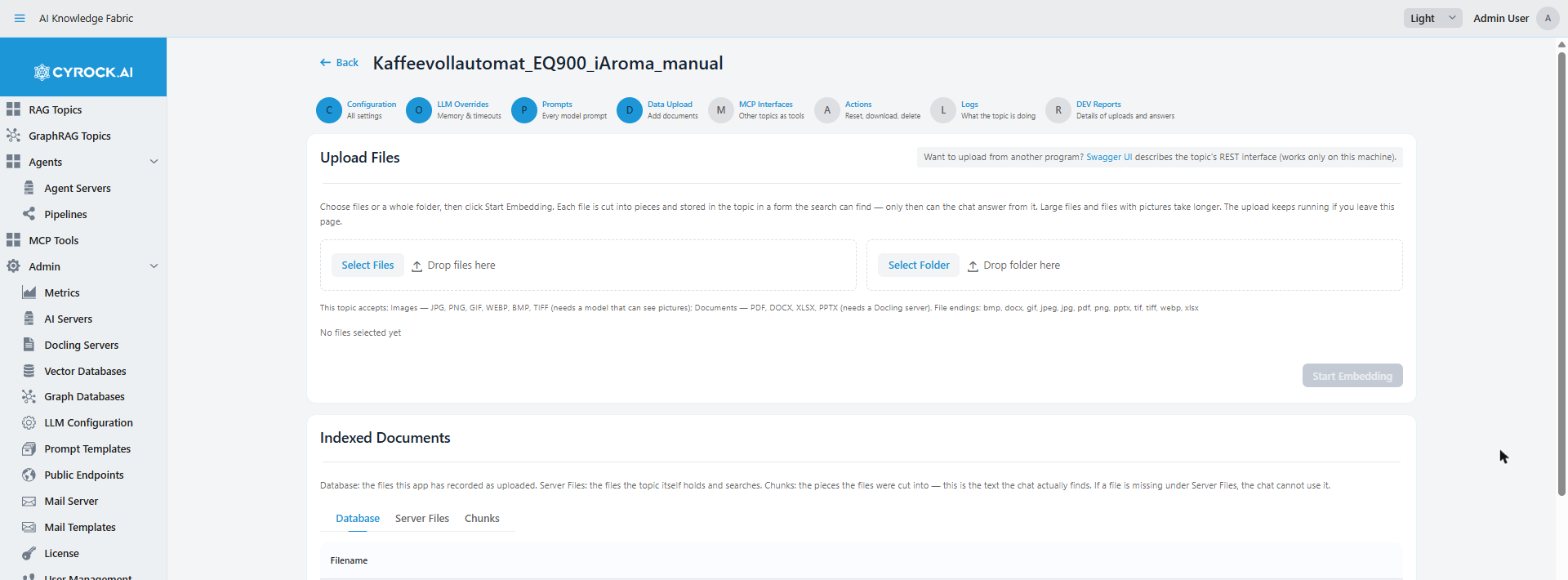
Here documents enter the Topic. The upload area needs the permission Upload Documents
(TOPIC_UPLOAD). Without it you see only the lists under Indexed Documents.
A Topic that gets its documents from another system through its REST interface shows only a note: uploading files here is not available for it.
Uploading
| Control | Use |
|---|---|
Select Files / Drop files here |
Single files |
Select Folder / Drop folder here |
A whole folder at once |
You can select up to 500 files at a time. Then click Start Embedding. Each file is cut into pieces and stored in the Topic in a form the search can find. Only then can the chat answer from it. Large files and files with pictures take longer.
-
Selecting is not uploading. Selected files wait until you click Start Embedding. The line below the drop zones shows how many files are ready and their total size. The ✕ next to a file removes it before the start.
-
Only allowed file types are taken. If the Topic has Upload File Types set (Configuration tab), a line lists what the Topic accepts and the file endings. A file with another ending is skipped with the message "Skipped … — this topic does not accept this type of file." If no type is set, every file is accepted.
-
Settings at upload time. Each file is sent with the Chunking Strategy and the Docling Settings saved for the Topic. So a change to these two works from the next upload on.
-
You can leave the page. The upload keeps running if you switch tabs or leave the page. When you come back, the progress line (Uploading… 3 / 12 done) is still there and still updating. The upload is kept in the memory of this app, so a restart of the app ends it.
-
Each file gets a mark: ✓ for done, ✗ for failed. A failed file shows the reason below its name. The other files still go on.
-
When all files are done, the line says Done — … file(s) successfully embedded. or Completed — … successful, … failed. Clear Results removes the result and shows an empty form again. You can also select new files and start the next upload right away.
When a service cannot be reached
If the embedding model or Docling cannot be reached, the upload stops and an amber banner shows the reason with ↻ Retry upload. Fix the cause, then click it. The upload goes on from the file where it stopped. Files already done are not sent again. Discard Batch drops the stopped upload instead.
Other typical causes of failed files: Docling is missing for a PDF, or the Embedding Timeout is too short for a large document. The Logs tab shows details.
The heading row also links to the Swagger UI of the Topic. It describes the REST interface for uploads from other programs. The link works only on the machine where the Topic runs.
Indexed Documents
| Tab | Shows | Read it when |
|---|---|---|
Database |
The files this app has recorded as uploaded |
You want to see what was sent |
Server Files |
The files the Topic itself holds and searches |
You want to check that an upload really arrived |
Chunks |
Every stored piece with its text and file |
You want to understand the quality of answers |
The Chunks tab is the most useful check. It shows exactly the text the chat can find. If answers are poor, look here first. Garbled text means the reading of the file failed (often Docling). Pieces cut mid-sentence explain unclear answers. A missing document means it was never stored.
|
Database and Server Files can disagree. A file listed under Database but not under Server Files was sent, but is not in the Topic. The chat cannot use it. |
Server Files and Chunks are read from the running Topic. If the Topic is stopped or cannot be reached, these lists stay empty — this does not mean the Topic has no documents.
5. MCP Interfaces
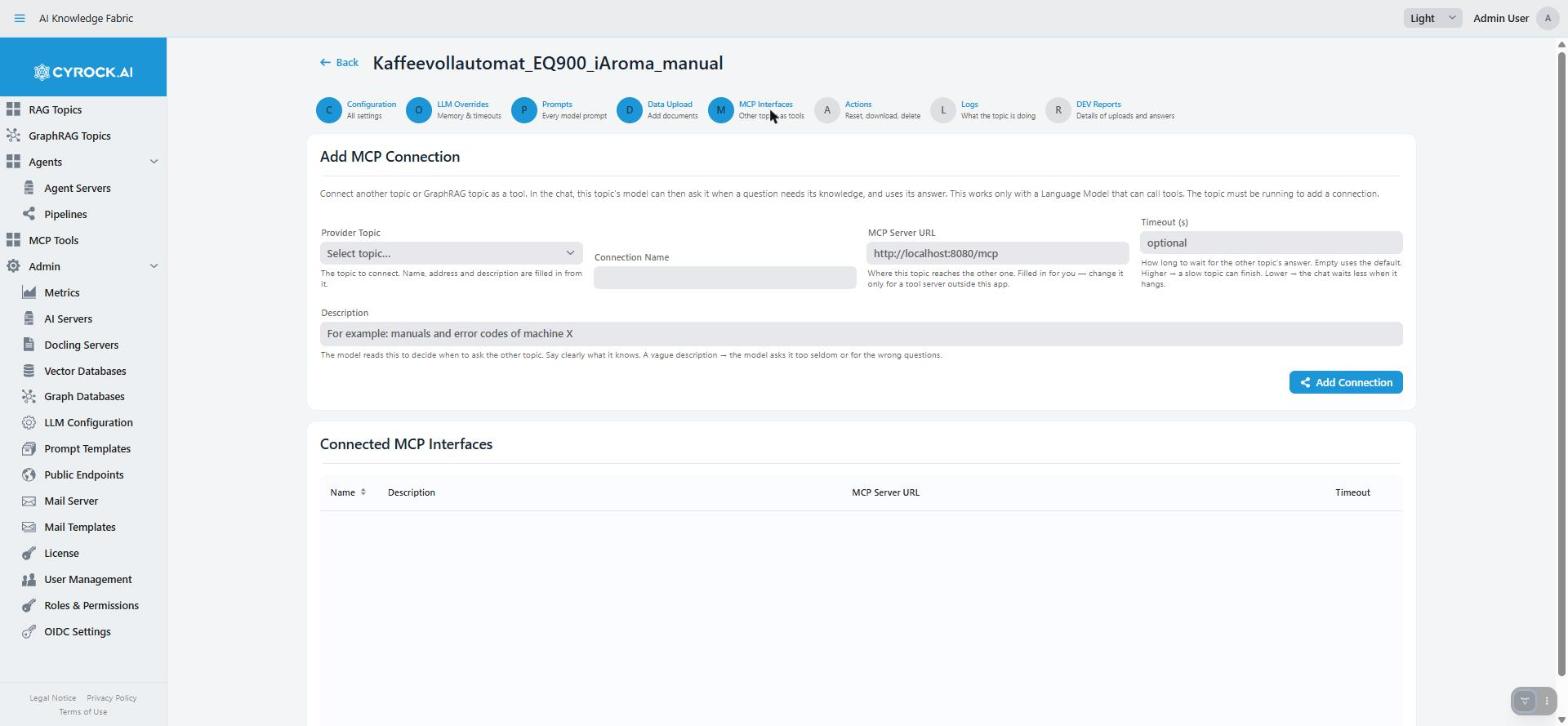
Here you connect another Topic or GraphRAG Topic as a tool. In the chat, the model of this Topic can
then ask it when a question needs its knowledge, and uses its answer. This keeps knowledge bases
separate, but still answers questions that span them. Connections work right away, without a
restart. Adding and disconnecting needs the permission Edit Topics (TOPIC_EDIT).
Adding a connection
-
Pick the Provider Topic. GraphRAG Topics are marked (GraphRAG). The Connection Name, the MCP Server URL and the Description are filled in from it.
-
Check the Description. The model reads it to decide when to ask the other Topic. Say clearly what it knows. With a vague description the model asks it too seldom, or for the wrong questions.
-
Optional: set a Timeout (s): how long to wait for the other Topic’s answer. Empty uses the default. Higher: a slow Topic can finish. Lower: the chat waits less when it hangs.
-
Click Add Connection.
Name, URL and description are required. The name must be unique within this Topic. Change the URL only for a tool server outside this app. The Topic must be running to add a connection.
|
Who can use the connected Topic? It is asked with the rights of the person who chats here. If some roles of this Topic have no access to the connected Topic, or lack the permission to chat with it, a warning appears after you pick it. It names those roles. For these users the connected Topic’s knowledge is left out of answers, and the answer says so. The connection is still added. |
|
A tool server outside this app gets no login data. When you pick a Topic and keep its address,
the Topic sends the login of the person who chats, so the other Topic knows who asks. When you type
or change the address, the server could belong to anyone, so the Topic sends it no login data at all.
Such a server must work without a login. Some addresses are refused when you type them, because the
Topic would reach what it must not: the machine the Topic runs on itself (for example |
Connected MCP Interfaces
The list shows name, description, URL and timeout of each connection. Disconnect removes a connection. The entry is always removed from the list, even if the running Topic cannot be reached at that moment.
Requirements
-
The Language Model must be able to call tools. A model without it ignores connected Topics. There is no error — the tool is simply never asked.
-
If a tool call fails with a message about
outputSchemavalidation, the real problem is usually the input the model sent, not the output of the tool. The message is misleading.
6. Actions
Docker Compose / Kubernetes YAML
Download docker-compose.yml (or Download Kubernetes YAML on Kubernetes) gives you the file this app uses to start the Topic. It holds all current settings and the full system prompt. Use it to check what the Topic really runs with, for example which model address and which timeouts it uses.
|
The file contains secrets. Do not share it. It holds every password and key of the Topic,
such as its model and database keys and the license key. That is why only users with the permission Download
Deployment Files ( |
Reset Topic Data
Shown only with the permission Delete Topics (TOPIC_DELETE). Reset Topic Data deletes:
-
this app’s list of uploaded files (the Database list on the Data Upload tab), and
-
all chats of this Topic.
The documents stay in the Topic, and the chat can still find them. Settings, MCP connections and stored data are not changed. Use it to start fresh, for example after testing. A confirmation dialog asks first. This cannot be undone.
Danger Zone
Stop & Delete Topic needs the permission Delete Topics (TOPIC_DELETE). After a confirmation,
it stops the Topic and deletes it from this app, together with its chats and tool connections. This
cannot be undone.
|
The Topic’s documents stay in its registered vector database. Remove them in that database if
you need the space. The collection is named |
7. Logs
A live view of the Topic’s technical log. Earlier lines come first, then new lines as they happen. The badge shows Live while the connection stands.
-
Level — shows this level and everything more serious. WARN shows warnings and errors. ALL shows everything.
-
Logger contains — shows only lines from parts of the program whose name contains this text.
-
Apply loads the log again with these filters. Clear empties the view; the log itself is not deleted.
Read the log when an upload fails and the message is not clear enough, when the chat shows an error or times out, or when a connected Topic is never asked. The log says which step failed and why.
Needs the permission Read Topic Logs (TOPIC_LOGS). It shows the lines of your own questions and
uploads and the lines that belong to no user; Read All Users' Topic Log Lines (TOPIC_LOGS_ALL,
admin role only) adds everyone else’s. See
Roles & Permissions.
8. DEV Reports
For developers and support. While a switch is on, every operation of that kind writes a detailed report: each step, each decision with the settings behind it, every model call with its full prompt and answer, and how long each part took. Use it to find out why an answer or an upload went wrong.
-
Report uploads writes a report for every upload. Report chat answers writes one for every chat answer.
-
All switches are off when the Topic starts. A switch stays on until you switch it off or the Topic restarts. While it is on, every operation of that kind is reported, whoever starts it — this app, an agent or another Topic.
-
The status line says where the reports are saved inside the Topic and how much space is free. Reports use that space — switch reporting off when you are done, and delete reports you no longer need (trash icon, or Delete all).
-
The Reports list shows start time, type, subject, status (
RUNNING,OK,ERROR, orINCOMPLETEwhen the Topic stopped during the operation), duration and size. Refresh loads it again. -
The eye icon shows the report on the page. The tab only displays it: nothing in the report reacts to a click. report.md downloads the report. In the downloaded file, the tables of contents are links. events.jsonl is the same report as raw data.
-
A report larger than 5 MB shows only its summary at the top, with Download report.md for the full report. A line at the end shows where the shown part stops.
-
report.mdcan also be read by an AI model: hand it over and ask which settings to change. Its Effective settings section says where each value came from.
Reports are kept inside the running Topic. The switches and the list work only while the Topic runs. Reports are gone when the Topic’s container is created again.
Needs the permission Use DEV Reporting (DEV_REPORTING). Reports contain full prompts and
document text, so give this permission with care. Everyone sees only the reports of their own
questions and uploads; Read All Users' DEV Reports (DEV_REPORTING_ALL, admin role only)
shows everyone’s.
How to read a report and how to use it to find a problem: DEV Reports — reading a report.
Troubleshooting
| Symptom | Cause and fix |
|---|---|
A configuration change has no effect |
It needs a restart. Stop and start the Topic, or use Save & Restart |
Edit or Save is missing |
You lack Edit Topics ( |
Save is refused with "PDF and Office … need a Docling server" |
Select a Docling server, or remove Documents from the file types |
The Describe pictures box cannot be switched off |
Images is an Upload File Type. Remove it first |
Image attachments in the chat give poor answers |
The Language Model cannot read images. Pick a model that can, or remove Images from the chat attachment types |
A longer Docling Timeout changes nothing |
The Docling server stops earlier. Raise its limit under Admin → Docling Servers |
Upload area not visible |
You lack Upload Documents ( |
Files selected, but nothing happens |
Click Start Embedding |
A file is skipped at selection |
Its type is not in the Topic’s Upload File Types |
The upload stopped with an amber banner |
A service could not be reached. Fix the cause, then click ↻ Retry upload |
A file has a ✗ |
Read the reason below the file name. The Logs tab has details |
Server Files or Chunks is empty |
The Topic is stopped or cannot be reached, or the upload failed. Check the status and the Logs tab |
Answers ignore an uploaded document |
Check the Chunks tab. If the document is not there, it was never stored |
Chunks show garbled text |
Reading the file failed — often a missing or failing Docling server, or Docling Settings that do not fit |
A connected Topic is never asked |
The Language Model cannot call tools, or the description does not say when to use it |
Adding a connection fails |
The Topic is not running, or the URL cannot be reached. The message says why — a wrong URL is shown at the URL field |
Some users get answers with a note that a Topic was left out |
Their roles cannot use the connected Topic. Give them access to it, or accept the gap |
Deleting the Topic left data behind |
The vector database is not cleaned up. Remove the |
The Topic cannot start, and Vector Database shows None |
The Topic was created without a vector database. Create it again with a vector database and upload the documents again |
DEV Reports says the image does not support DEV reporting |
The Topic runs an older image. Update the image and restart the Topic |
A DEV reporting switch cannot be switched on |
No reports can be written inside the Topic — the status line says why |
DEV reporting is off again |
The Topic restarted. Switches are always off after a start |