Pipelines — Creation, Editor, Import/Export, Deployment
A Pipeline describes step by step what an agent does: which models, topics and tools it uses, and in which order. You build it from modules on a visual canvas, the Pipeline Designer. This page covers creating a pipeline, working in the designer, and getting it onto an agent.
Permissions: PIPELINE_VIEW, PIPELINE_CREATE, PIPELINE_EDIT, PIPELINE_DELETE.
1. The pipeline list
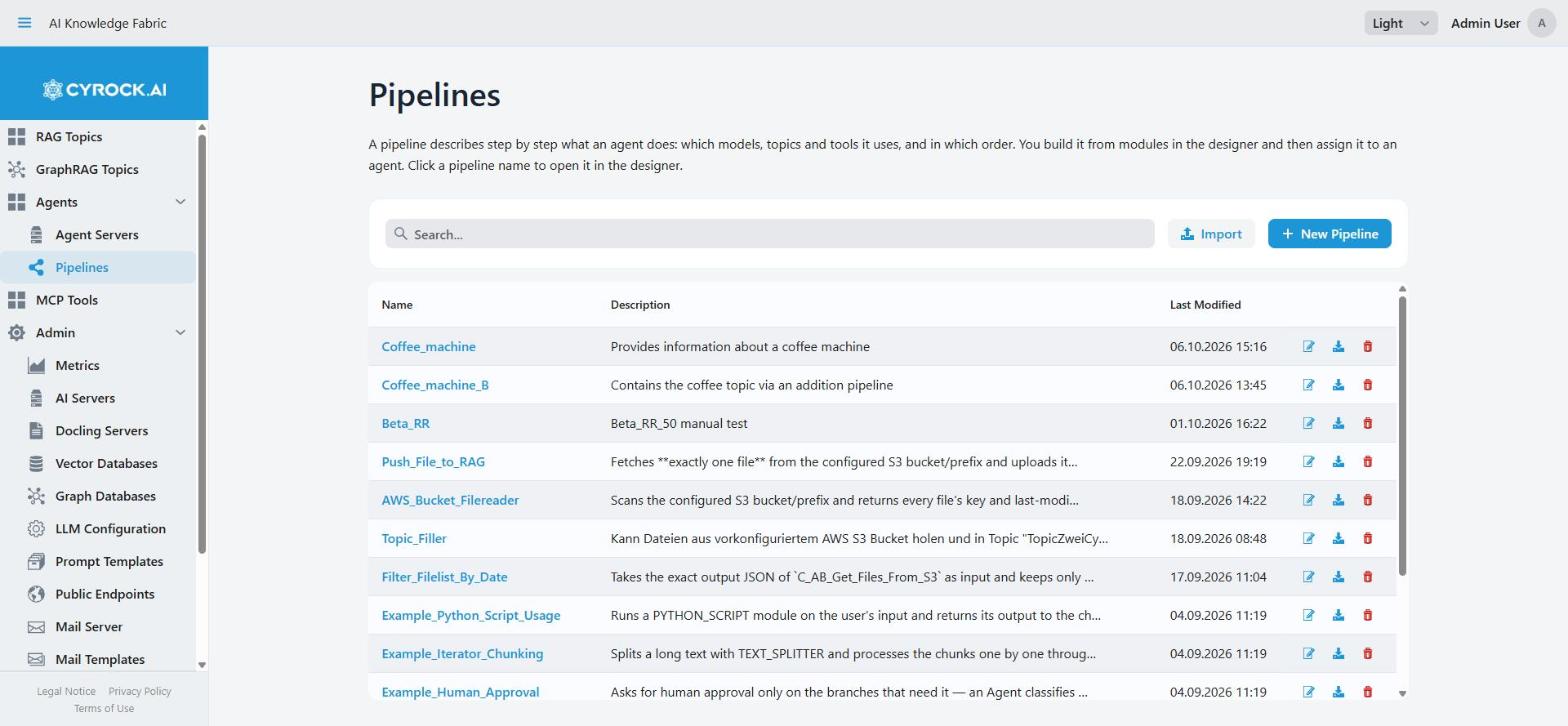
Pipelines lists every pipeline you have access to, newest change first. The search field filters by name and description. Each row has:
| Control | Effect |
|---|---|
The name |
Opens the pipeline in the designer |
Pencil icon (Open in editor) |
Same — opens the designer |
Download icon (Export pipeline) |
Downloads the pipeline as a file — see Import and Export |
Trash icon (Delete pipeline) |
Deletes it — see Deleting a pipeline |
A pipeline exists on its own. You can assign it to several agents, or to none while you work on it.
Creating a pipeline
New Pipeline opens a dialog with two fields:
-
Name — letters only, up to 50 characters. A space becomes
_. The name must be different from the names of all other pipelines. -
Description — say in one or two sentences what the pipeline does and when to use it. Other pipelines and programs that call this pipeline as a tool read this text to decide when to use it.
Create saves the empty pipeline and opens the designer.
How many pipelines you may create depends on your license. Without a valid license, or when the limit is reached, New Pipeline shows a message instead of the dialog.
Example pipelines
On a new installation the list is not empty. When the app starts and there are no pipelines at all,
it adds a set of example pipelines (their names start with Example_). They show, for example, human
approval, a guardrail, an MCP tool, cloud file storage, splitting a long text, and a Python script.
Users with the built-in roles ADMIN and USER can see them.
-
The examples count towards your licensed pipeline limit. The app always leaves room for at least one pipeline of your own, so it may add fewer examples. Without a valid license at that start, it adds none.
-
As soon as one pipeline exists, the app never adds examples again — also not after you delete them.
-
Some examples need your own credentials (for example a GitHub token or AWS keys) before they work.
|
Administrators can switch the examples off before the first start with the setting
|
2. The designer
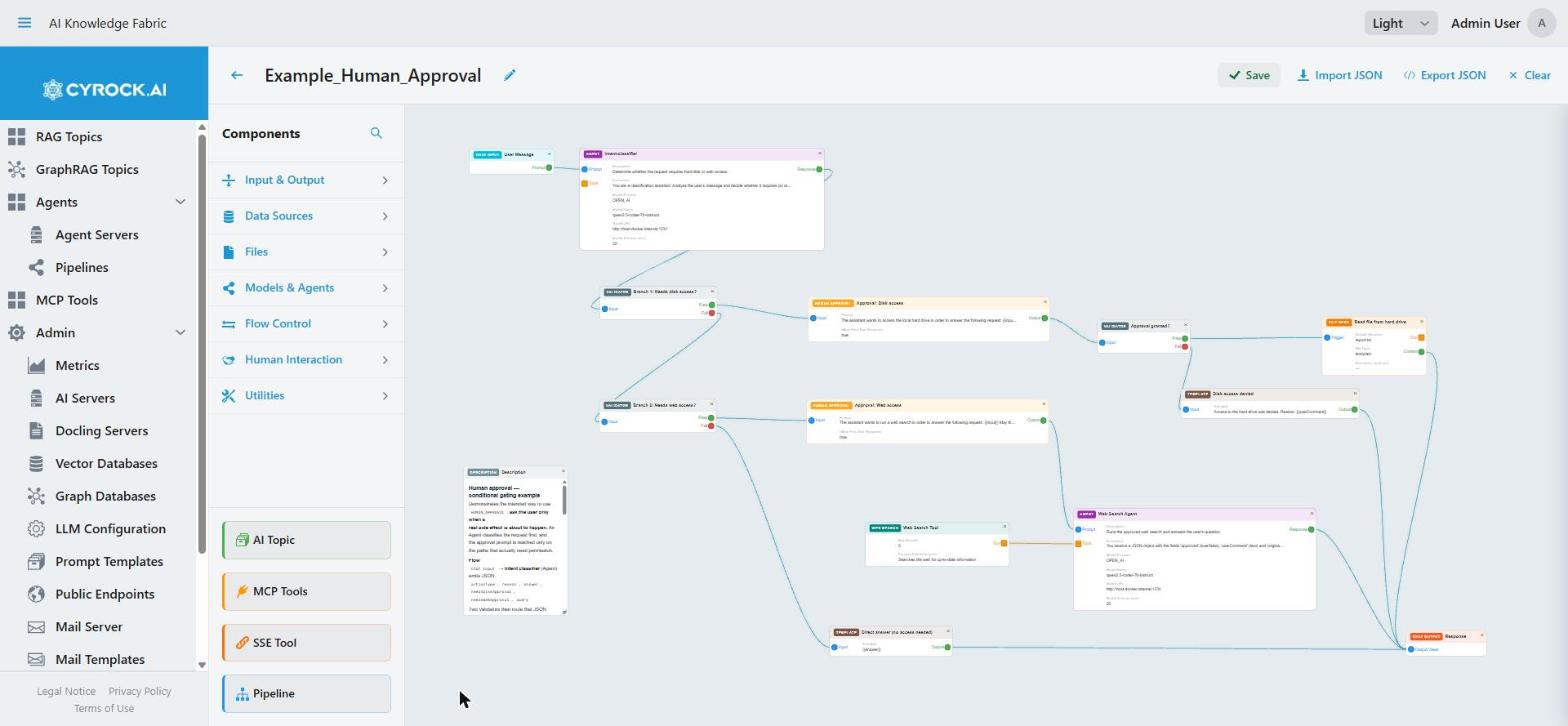
┌──────────────────────────────────────────────────────────────────────┐
│ ←  My_Pipeline  ✎  ● Unsaved changes   [Save] [Import JSON]          │
│                                         [Export JSON] [Clear]        │
├────────────┬──────────────────────────────────────┬──────────────────┤
│ Components │              Canvas                  │ Properties of the│
│ (palette)  │  Modules and the connections         │ selected module  │
│            │  between them                        │ (slides in)      │
└────────────┴──────────────────────────────────────┴──────────────────┘
-
← goes back to the pipeline list.
-
The pencil next to the name opens Edit Pipeline: name, description and access roles — see Access roles.
-
● Unsaved changes appears as soon as the canvas differs from what is saved.
-
Save stores the pipeline — see Saving and deploying.
-
Import JSON and Export JSON copy a pipeline as text — see Import and Export.
-
Clear removes all modules from the canvas. Nothing is lost until you save.
Without the PIPELINE_EDIT permission you see the pipeline read-only: there is no palette, no Save,
Import JSON or Clear, and the property fields cannot be changed. Export JSON stays available.
Leaving with unsaved changes
If you leave the designer with unsaved changes, the Unsaved Changes dialog asks what to do: Stay on Page, Discard Changes, or Save & Leave. If you reload or close the browser tab, the browser asks before it throws your changes away.
The palette
The palette on the left is titled Components. The search icon (Filter components) opens a filter field: it shows only modules whose name, category or description contains the text. Hover over a module to see what it does. Click a module to add it to the canvas.
The palette groups the modules into seven categories. Click a category to open or close it:
| Category | Modules |
|---|---|
Input & Output |
Chat Input, Chat Output |
Data Sources |
API Call, Data Faker, SQL Database, KV Store Read, KV Store Write, Structured Output |
Files |
File Read, File Write |
Models & Agents |
Agent, Embedding |
Flow Control |
Scheduler, Iterator, Loop, Validator, Guardrails |
Human Interaction |
Human Approval |
Utilities |
Template, Text Splitter, Web Search, Python Script, Description, Text Format |
Below the categories are four buttons for the modules that connect a pipeline to other things:
| Button | Adds |
|---|---|
AI Topic |
An AI Topic module. A dialog lists your topics and GraphRAG topics to choose from |
MCP Tools |
One MCP Tool module per tool server you choose from the MCP catalog |
SSE Tool |
An SSE Tool module, where you enter the tool server’s address yourself |
Pipeline |
A Pipeline module that runs another pipeline you already built |
The AI Topic, MCP Tools and Pipeline dialogs show one card per entry, with a filter field and a Sort by choice. Click several cards to select them all, then Add to Canvas adds one module for each. A new module is placed in the next free spot on the canvas.
All modules are described in the module reference.
|
Attachment Tool is a fifth connecting module. It lets an agent read a file that a user attached in the chat — see Attachment Tool. At the moment it has no entry in the palette. It can only come into a pipeline through an import (see Import and Export). |
Working on the canvas
| Action | How |
|---|---|
Add a module |
Click it in the palette |
Connect two modules |
Drag from an output port to an input port |
Configure a module |
Click it — its fields appear in the properties panel on the right |
Select several modules |
Hold Ctrl (Cmd on a Mac) and click them. Dragging one of them moves all of them |
Clear the selection |
Click an empty spot on the canvas |
Remove modules |
Select them and press Delete or Backspace, or use the × on a module |
Remove a connection |
Click the line and press Delete or Backspace, or click the × on the line |
Copy a module |
Duplicate module (copy icon) at the top of the properties panel. The copy gets the same settings and the label … Copy |
Start over |
Clear |
Delete and Backspace do not remove anything while you are typing in a field.
Changes in the properties panel apply as you type. There is no extra confirm step per field. The module on the canvas shows the change at once. Every module has a Label field: the name shown on the canvas and in messages about the pipeline.
Ports
The coloured dots on a module are its ports.
| Port | What it does |
|---|---|
Input (blue) |
Receives the result of the module before it |
Output (green; a Fail output is red) |
Passes this module’s result on to the next module |
Tool (orange) |
Connect it to an Agent module’s Tools port. The agent can then use the module as a tool |
The Tool port works differently from the others. A module connected there does not run as a step in a fixed order. The agent’s model decides whether to use it, when, and with what input. The module’s description tells the model what the tool is good for, so write it clearly.
These 14 modules have a Tool port: MCP Tool, SSE Tool, Attachment Tool, API Call, AI Topic, SQL Database, Data Faker, KV Store Read, KV Store Write, File Read, File Write, Pipeline, Web Search, Python Script.
Property panels that change shape
Most modules show a fixed list of fields. Five show a choice first, and the rest of the panel depends on it:
| Module | Choose first | Then you see |
|---|---|---|
Validator |
Validation Type — |
The fields for that kind of check |
Text Format |
Operation — Word Count / Case Conversion / Text Replace / Text Limit / Static Insert / Text Strip |
The fields that operation needs |
Web Search |
Search Engine — Tavily / Google Custom Search / SearchApi |
That engine’s fields, for example its API key |
File Read |
Storage Type — Local Filesystem / AWS S3 / Azure Blob Storage |
That storage’s location and access fields |
File Write |
Same as File Read |
Same, plus Write Mode and Allow empty content |
Make the choice first. Until you do, the rest of the panel is empty.
Choosing a model: "Select AI Server & Model"
Modules that use an AI model need a provider, a model name, an address and often an API key. These are
Agent, Embedding, Guardrails, Structured Output, and Validator with the type LLM.
The button Select AI Server & Model in their properties panel fills these fields for you. Pick a registered AI server, then a model (the refresh button loads the server’s model list again), then Apply. It fills:
-
Model Provider, Model Name and Model URL. An address with
localhostor127.0.0.1is changed tohost.docker.internal, so the agent’s container can reach your computer. -
API Key — only if the AI server has one.
|
The API key is a copy. The module keeps the key it got when you applied the dialog. If the key of the AI server changes later, the module still has the old one. Select the server again, then save and push the pipeline. If the new server has no key (for example Ollama), a key that is already in the module stays. Clear the API Key field yourself in that case. |
You can also type the fields yourself. The address must be reachable from the agent’s container.
In there, localhost means the container itself, not your computer.
Model Timeout (min) is always filled in: 20 minutes unless you change it (1–120). Higher lets slow models and long answers finish. Lower makes a stuck call fail sooner.
Long texts
Long text fields (for example an agent’s Instruction, a template, or a note) have an expand icon (Open in full editor). It opens a large editor. Apply writes the text back into the field. Cancel keeps the field as it was.
AI Topic and Pipeline modules
-
An AI Topic module has an Open Topic button that opens the topic’s page. When you add a topic, the designer warns you if some users of this pipeline cannot use that topic. For them the topic is skipped, and the answer says so. See Access roles.
-
A Pipeline module shows the description of the pipeline it runs, and has an Open Pipeline button.
3. Documenting a pipeline
The Description module is a note on the canvas. You write its text with Markdown (for example bold or lists), and the canvas shows it formatted. It has no ports, connects to nothing, and is never sent to the agent. It has no effect when the pipeline runs.
Use it freely. A larger pipeline is hard to understand months later, and the note costs nothing when the pipeline runs.
4. Saving and deploying
Save stores the pipeline. When no running agent uses it, that is all that happens.
When the pipeline is assigned to one or more running agents, the designer first checks it:
-
A required field is empty somewhere → the pipeline is saved, but not sent. You see: "Pipeline saved, but the running agents still use the old version, because some required fields are empty: … Fill them in and save again." The message names each module and its missing fields.
-
Everything is filled in → the Deploy Changes? dialog names the running agents and offers Push Now and Not Now.
-
Push Now sends the new version to each of those agents. A message says how many agents use it now, and names the agents it could not reach. Restart those agents to load the new version.
-
Not Now leaves the agents on the old version until they are restarted.
-
Edit → Save → Push Now → test in the agent chat → repeat
|
Save alone does not change a running agent. Without the push, the agent keeps the version it loaded when it started. If an edit seems to have no effect, this is almost always why. Restarting the agent also loads the newest version of all its pipelines. |
What is left out when the pipeline is sent
The designer checks for empty required fields only before a push. When an agent starts, or a pipeline is assigned to an agent, it gets the saved pipeline as it is, and incomplete parts are left out without a message on the canvas:
| Situation | Result |
|---|---|
A module with an empty required field |
The module is left out |
A Description note |
Always left out — it is only a note |
A tool module that was left out |
It is also missing from the agent’s tools |
A connection to an Agent’s Tools port from a module without a Tool port |
Ignored |
A pipeline that "does nothing" usually has a module with an empty required field. Required fields are marked as required in the properties panel. Click through each module and check them. The quickest check: save while an agent that uses the pipeline is running — the message lists every missing field.
5. Access roles
The pencil next to the pipeline name opens Edit Pipeline. There you change the name, the description and the Access Roles.
-
Users with one of the selected roles can see and edit this pipeline. Other users do not see it in the list.
-
ADMIN is always selected and cannot be removed.
-
A new pipeline gets ADMIN and the roles of the user who created it.
-
Topics used in the pipeline check their own access for whoever runs it. When you save the access roles, the designer warns about AI Topic modules that some of these users cannot use.
6. Import and Export
There are two ways to copy a pipeline.
A file, from the pipeline list
Export (download icon in the pipeline list) opens Export Pipeline. Download saves a file
named <name>_bundle.json. It contains the pipeline, its name, description and access roles.
If the pipeline runs other pipelines (Pipeline modules), the dialog offers Include … referenced pipeline(s) (on by default):
-
On — the other pipelines are in the file too. After an import, the copy runs the imported copies.
-
Off — the copy still points to the pipelines of this installation. In another installation those steps do not work.
Import (next to New Pipeline) opens Import Pipeline(s). Choose or drop a .json file. Files
copied from the designer’s Export JSON work too. Then:
-
You review the name of each pipeline in the file. A name must follow the usual rules and must not exist yet. Confirm Import stays disabled until every name is valid.
-
Confirm Import creates all pipelines from the file together — either all of them or none. Nothing that exists is changed.
-
The imported pipeline opens in the designer.
The import checks your license twice, when it reads the file and again on Confirm Import. Without a valid license, or when the pipelines in the file would go over your licensed limit, nothing is imported and a message says why.
Access roles are taken over by their name, if a role with that name exists here. ADMIN and your own roles are always added.
You need PIPELINE_CREATE for Import, and PIPELINE_EDIT for the export icon.
Text, in the designer
Export JSON shows the pipeline on the canvas as text, to copy. Import JSON takes such a text and puts it on the canvas: all modules, their positions, connections and settings. Everything on the canvas is replaced, but nothing is stored until you Save. Use this to move modules between pipelines or to restore an earlier state. The text has no name, description or access roles.
API keys and passwords are never exported
Both ways leave out API keys, passwords, secret keys, connection strings, and the secrets of MCP tools. After an import, enter them again before you save. A connection string or key that is a required field leaves its module out of the pipeline until you fill it in.
What to check after an import into another installation
| Comes along | Check after the import |
|---|---|
Modules, connections, positions, all other settings |
AI Topic modules — they point to a topic of the other installation. Select the topic again |
Pipeline modules — only fine when the referenced pipelines were included in the file |
|
Model addresses — host names often differ between installations |
|
API keys, passwords, connection strings — never in the file. Enter them again |
7. Deleting a pipeline
The trash icon in the pipeline list asks first: "Delete "…"? It is removed from every agent that uses it, also from running agents. This cannot be undone — export it first if you may need it again."
Delete removes the pipeline from each running agent that has it, removes all its agent assignments, and then deletes it. Agents that used it can no longer run it. Check which agents use a pipeline before you delete it.
8. Building a pipeline that works
A practical order of work:
-
Sketch the flow first — Chat Input, the steps, Chat Output. Get the shape right before you configure anything.
-
Fill in the required fields as you add each module. Leaving them for later is how modules end up left out without a message.
-
Decide for each module: step or tool. A step always runs. A tool runs only when the agent’s model chooses it.
-
Describe every tool clearly. The description tells the model when to use it.
-
Save and push, then test in the chat — 5.6.
-
Read the agent’s Logs tab when a run does not behave as expected. With the
DEV_REPORTINGpermission, the agent’s DEV Reports tab can also record pipeline runs. -
Add a Description note that explains what the pipeline is for.
9. Troubleshooting
| Symptom | Cause and fix |
|---|---|
A step never runs |
The module was left out because a required field is empty — see section 4 |
Edits have no effect |
Saved but not pushed. Choose Push Now, or restart the agent |
After Save: "…the running agents still use the old version…" |
Fill in the fields the message names and save again |
A tool is never used |
The module is not connected to the agent’s Tools port, its description does not say when to use it, or the model is not good at using tools |
The properties panel is almost empty |
The module needs a choice first — type, operation, engine or storage |
Model calls fail |
The model address is not reachable from the agent’s container, or the API key is missing or outdated — pick the server again with Select AI Server & Model |
An imported pipeline does not work |
Keys and passwords are not exported, and topic references and model addresses differ between installations. Fill them in and select the topics again |
Nothing appears in the chat |
No Chat Output, or the chain to it is broken |
No palette, no Save button |
You do not have the |
New Pipeline or Import missing |
You do not have the |
New Pipeline shows a message instead of the dialog |
No valid license, or the licensed number of pipelines is reached |
A pipeline is missing from the list |
None of your roles is in its access roles |