Creating a GraphRAG Topic — Step by Step
You create a GraphRAG Topic in a four-step wizard (GraphRAG Topics → New GraphRAG Topic). You
need the GRAPHRAG_CREATE permission.
The same wizard is also the edit form. On the Configuration tab of an existing Topic, Edit Configuration opens it with all values filled in. See Editing a Topic below.
The stepper at the top shows all four steps — Basic Information, Data Ingestion, Vector Settings, Retrieval. When you create a Topic, you can jump back to any step you have already reached. Next checks the current step before it lets you leave. On the last step the button reads Save.
|
This page walks through the wizard field by field. If you have not read Why GraphRAG and Models and their roles yet, several fields below make more sense after you have. |
The wizard has no prompts. Prompts are edited later on the Topic’s Prompts tab, because the built-in prompts work well for most Topics.
Before you start
You need everything a RAG Topic needs, plus a graph database. See Getting Started for the full table.
Two things block the wizard: a graph database must be registered under Admin → Graph Databases, and a vector database under Admin → Vector Databases. There is no built-in store for either. A Topic without both cannot be saved.
Step 1 — Basic Information
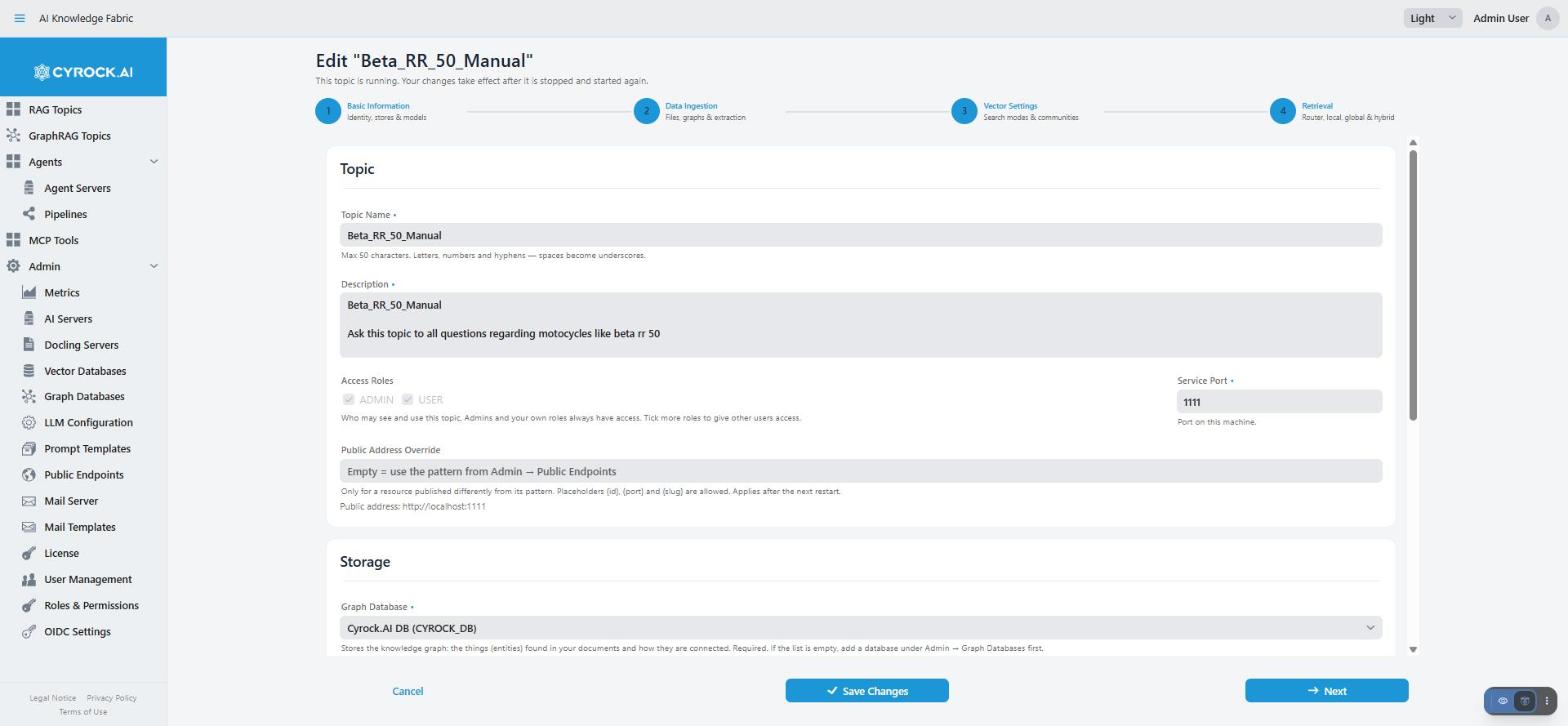
This step holds the name, who may use the Topic, where its data is stored, and the two models every Topic needs.
| Field | Required | Notes |
|---|---|---|
Topic Name |
Yes |
Up to 50 characters. Letters, numbers and hyphens. Spaces become underscores. The name must be new |
Description |
Yes |
Free text. It is shown in the GraphRAG Topics list |
Access Roles |
— |
Which roles may see and use this Topic. Admins and your own roles always have access, so you cannot untick them |
Service Port |
Yes |
The port on this machine through which the app and other tools reach the Topic (1–65535). Each Topic needs its own port, and nothing else may use it |
Public Address Override |
— |
Only for a Topic that is published at an address other than the one set under Admin → Public Endpoints. Leave it empty to use that setting. The field shows the resulting address. A change reaches a running Topic after the next restart |
Storage
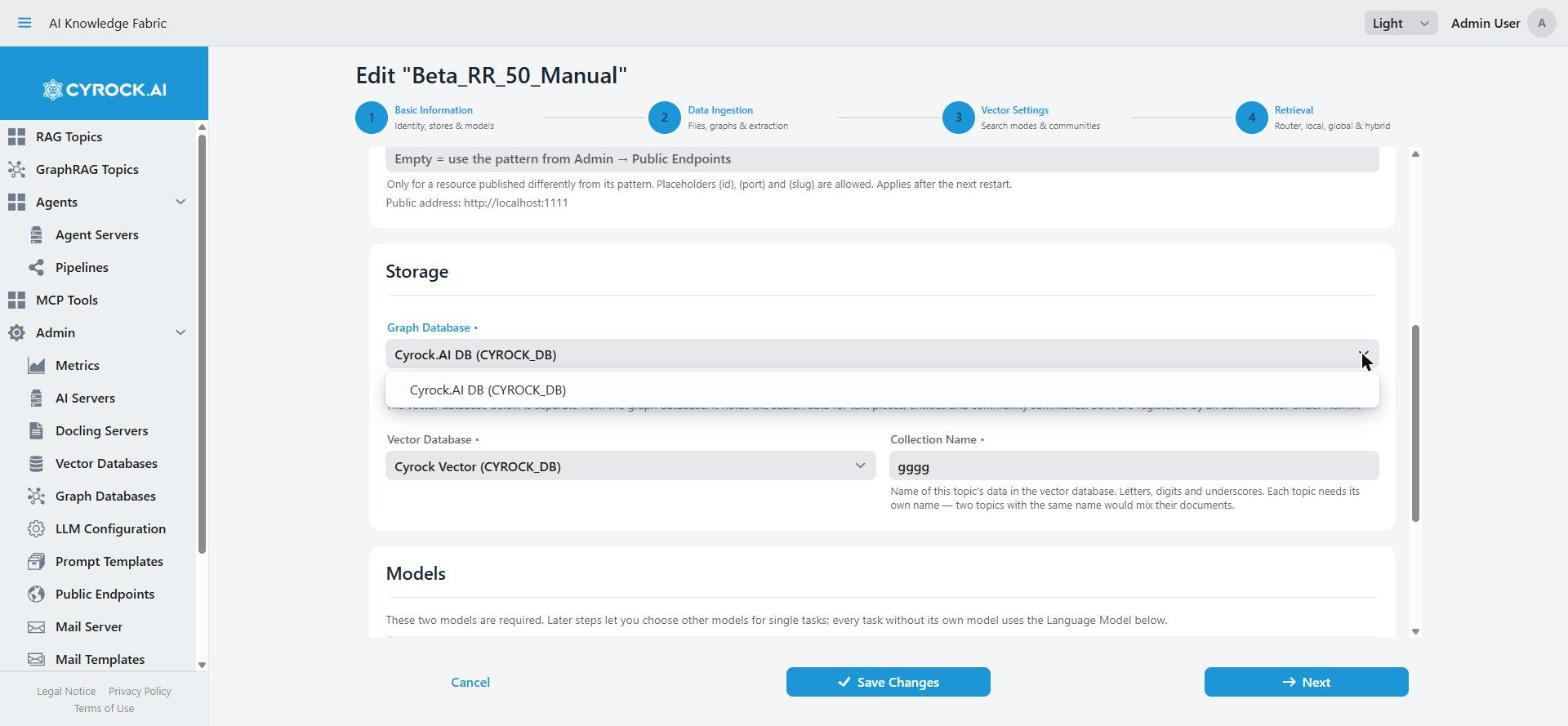
| Field | Required | Notes |
|---|---|---|
Graph Database |
Yes |
Stores the knowledge graph: the entities found in your documents and how they are connected. Pick one that is registered under Admin → Graph Databases. If the list is empty, register one first |
Vector Database |
Yes |
Stores the search data. Pick one that is registered under Admin → Vector Databases. If the list is empty, register one first. Unlike a RAG Topic, you can change it later in the edit wizard |
Collection Name |
Yes |
The name of this Topic’s data in the vector store. It must start with a letter and may contain only letters, digits and underscores. The app uses it exactly as you type it. Two Topics must never share a name, even on different databases, or the app refuses to save. Weaviate needs a capital first letter, so the app capitalises it for you |
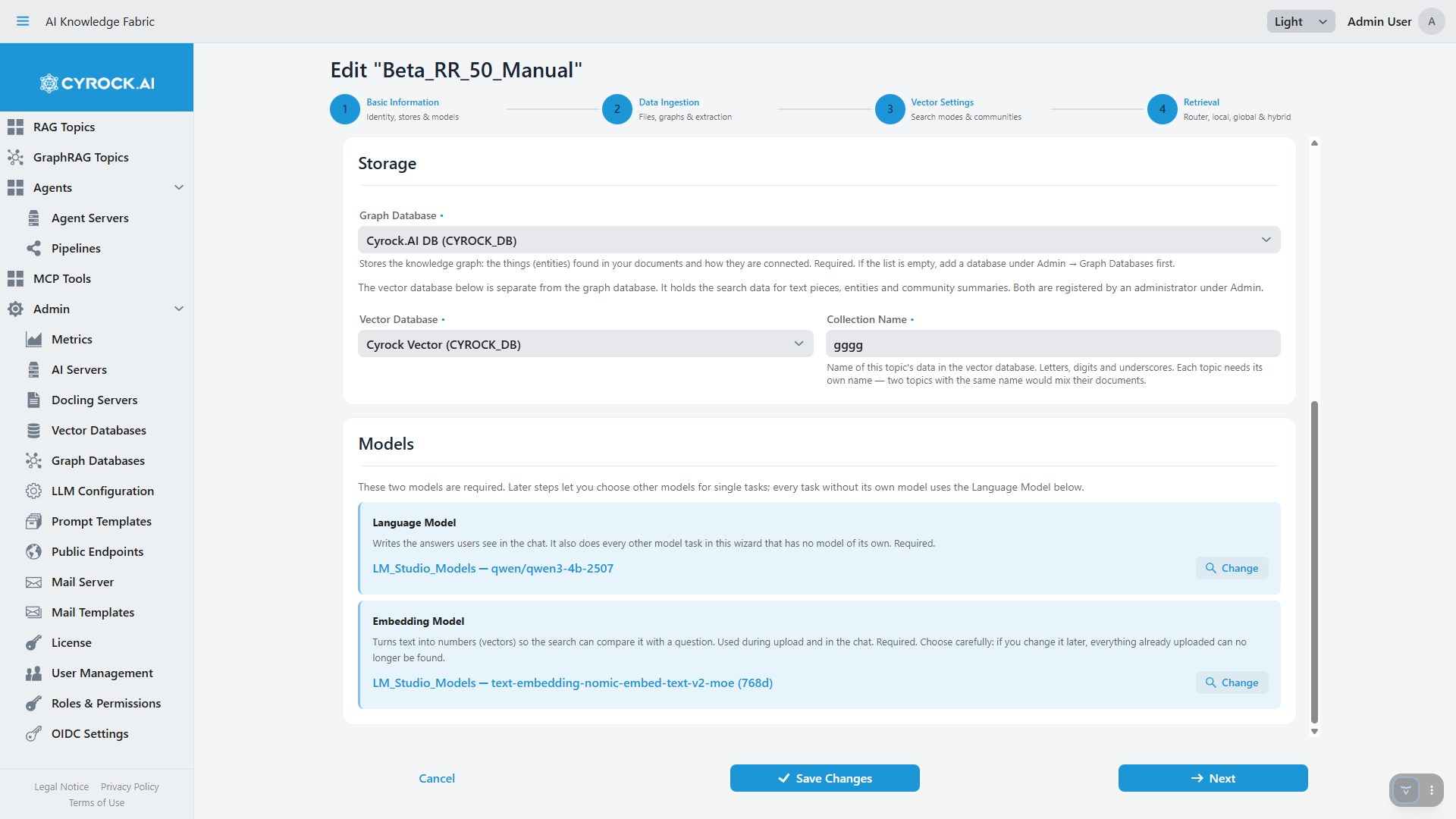
The vector database is separate from the graph database. It holds the search data for text pieces, entities and community summaries.
Models
Two models are required. There is no default for either.
| Field | Required | Notes |
|---|---|---|
Language Model |
Yes |
Writes the answers users see. It also does every other model task that you do not give its own model in the next steps |
Embedding Model |
Yes |
Turns text pieces, entities and community summaries into numbers (vectors) so a question can be compared with them. Choose it carefully. If you change it later, everything already uploaded can no longer be found until you upload it again and rebuild the communities |
|
Changing the Embedding Model later hides everything already uploaded. The old vectors no longer match new questions, and the Topic does not tell you this. Choose the model before your first upload, or plan to upload everything again and rebuild the communities. |
Select Model opens a picker with one tab per registered AI Server:
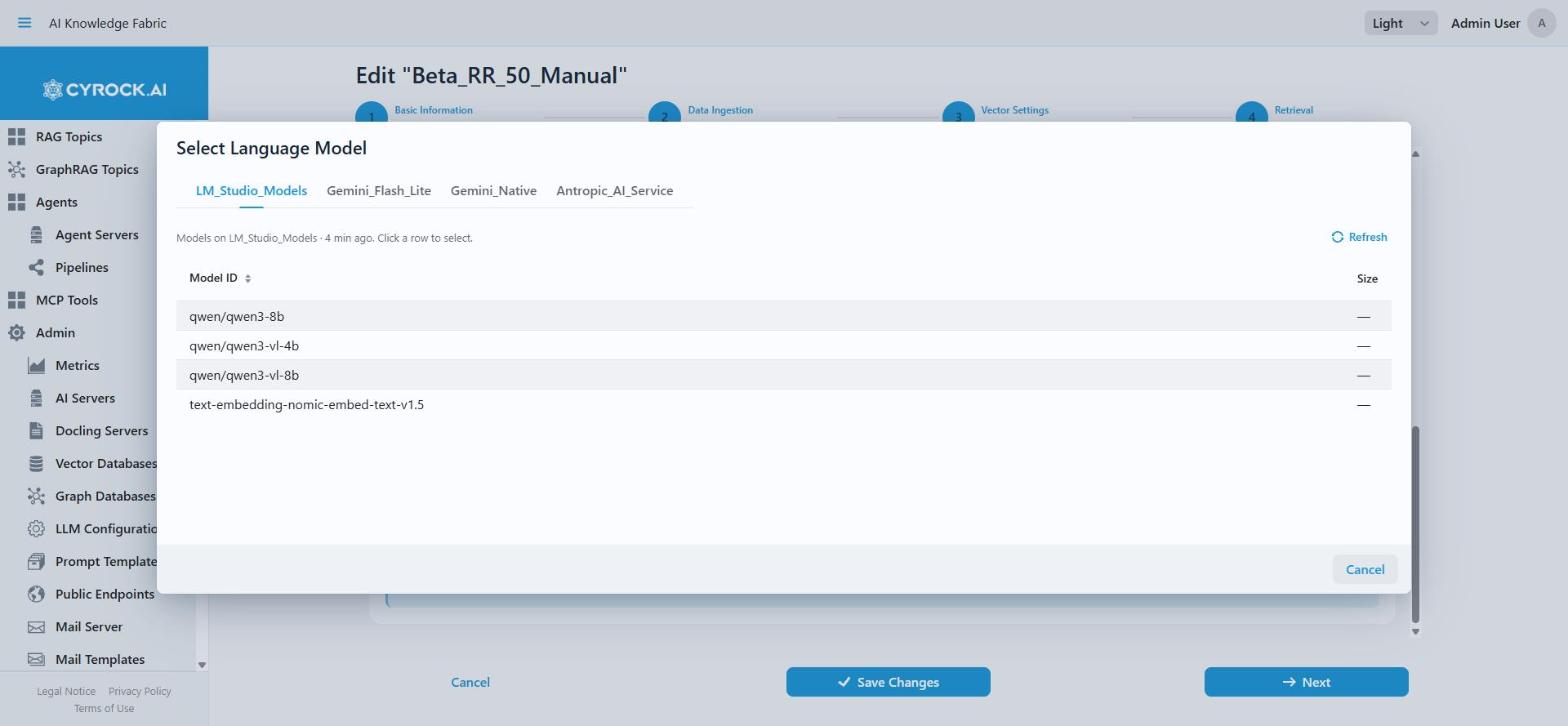
When you choose an embedding model, the wizard also asks for its output size (dimension). It is pre-filled with the model’s own size:
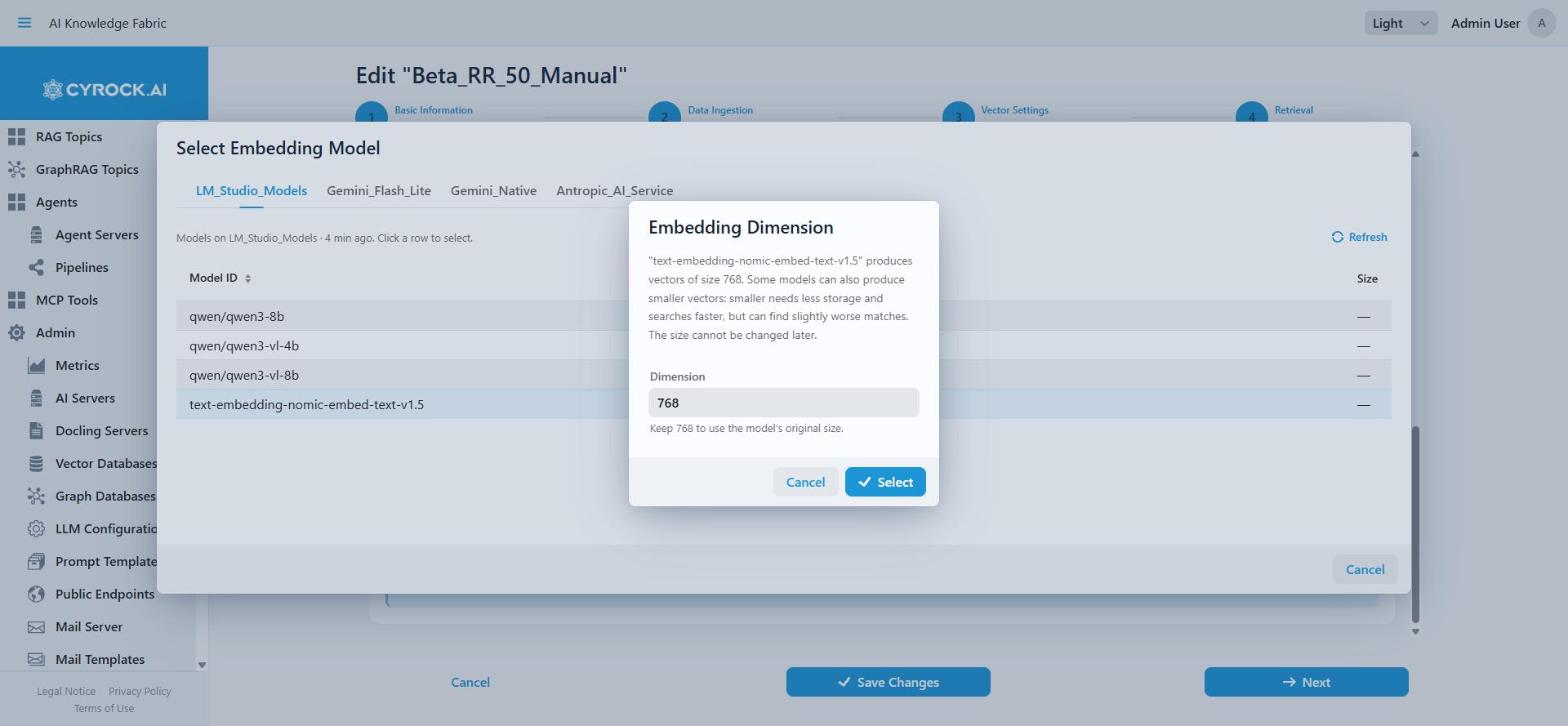
Leave it as it is unless you deliberately want a smaller, shortened vector. If you type a model name by hand, you must also enter its dimension.
Step 2 — Data Ingestion
This step decides what an upload accepts and how a document becomes graph.
Ingestion Paths
| Field | Meaning |
|---|---|
File Ingestion |
You upload documents. They are cut into text pieces (chunks), and a model finds the entities and their connections in each piece. Ticked by default. Everything else on this step is about this path |
Graph Ingestion |
Another system sends a finished graph, so no model reads any text. Its entries come from a database, not from files. Answers can name them as sources, but nobody can download them |
You must tick at least one. These switches only decide what this application offers. Other systems can still send data to the Topic directly through its API.
If you untick File Ingestion, the rest of this step disappears and the Topic keeps no Docling or picture settings. The Data Upload tab then offers no file upload.
Files
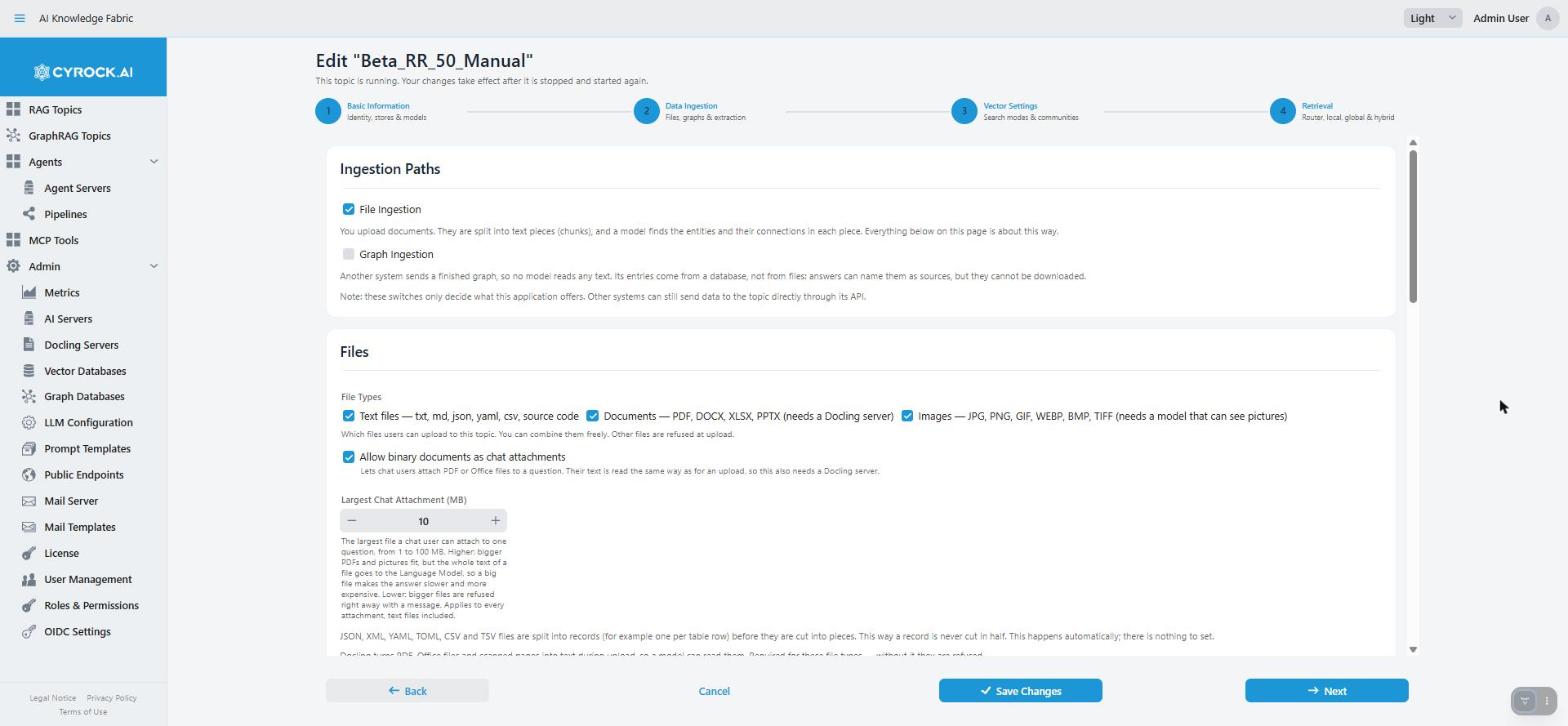
File Types is a group of checkboxes that you can combine freely. Files of any other type are refused at upload. For a new Topic, only Text files is ticked.
| Option | What it needs |
|---|---|
Text files — txt, md, json, yaml, csv, source code |
Nothing |
Documents — PDF, DOCX, XLSX, PPTX |
A Docling server |
Images — JPG, PNG, GIF, WEBP, BMP, TIFF |
A model that can read pictures (the Image Describer Model, see below) |
Two more settings concern files that chat users attach to a single question:
-
Allow binary documents as chat attachments lets chat users attach a PDF or Office file. The text is read the same way as for an upload, so this also needs a Docling server.
-
Largest Chat Attachment (MB) is the largest file a chat user can attach to one question: 1 to 100 MB (default 10). Higher: bigger PDFs and pictures fit, but the whole text of a file goes to the Language Model, so a big file makes the answer slower and more expensive. Lower: bigger files are refused right away with a message. The limit applies to every attachment, text files included. A change reaches a running Topic after a restart.
Text attachments are always allowed. Image attachments have their own checkbox in the Image Handling section below.
JSON, XML, YAML, TOML, CSV and TSV files are split into records (for example one per table row) before they are cut into pieces. This happens automatically. There is nothing to set, and it does not depend on the File Types you tick.
See File types, Docling, and image handling for why the file types matter so much.
Docling
The Docling settings appear when Documents is ticked as a file type, or when Allow binary documents as chat attachments is ticked. A Docling server is then required.
| Field | Notes |
|---|---|
Docling Server |
Required. Docling turns PDF, Office files and scanned pages into text during upload |
Timeout (min) |
How long reading one whole document may take (1–120 minutes). Empty uses the global default, which the field shows. Higher: big documents succeed, but a stuck upload fails later. Lower: a stuck upload fails sooner, but a long scanned PDF may fail too |
Docling Settings (advanced) |
Optional. Advanced Docling settings, for example text recognition in scans (OCR), languages and tables. Open Edit, remove the |
If the Timeout is longer than the limit set on the Docling server itself, the wizard shows a warning. The server stops first, so a longer value has no effect. Raise the limit under Admin → Docling Servers instead.
The Docling settings are sent with every upload and re-upload. A change applies to the next upload and needs no restart. Files already uploaded stay as they are until you upload them again. The settings do not apply to files that users attach in the chat.
Image Handling
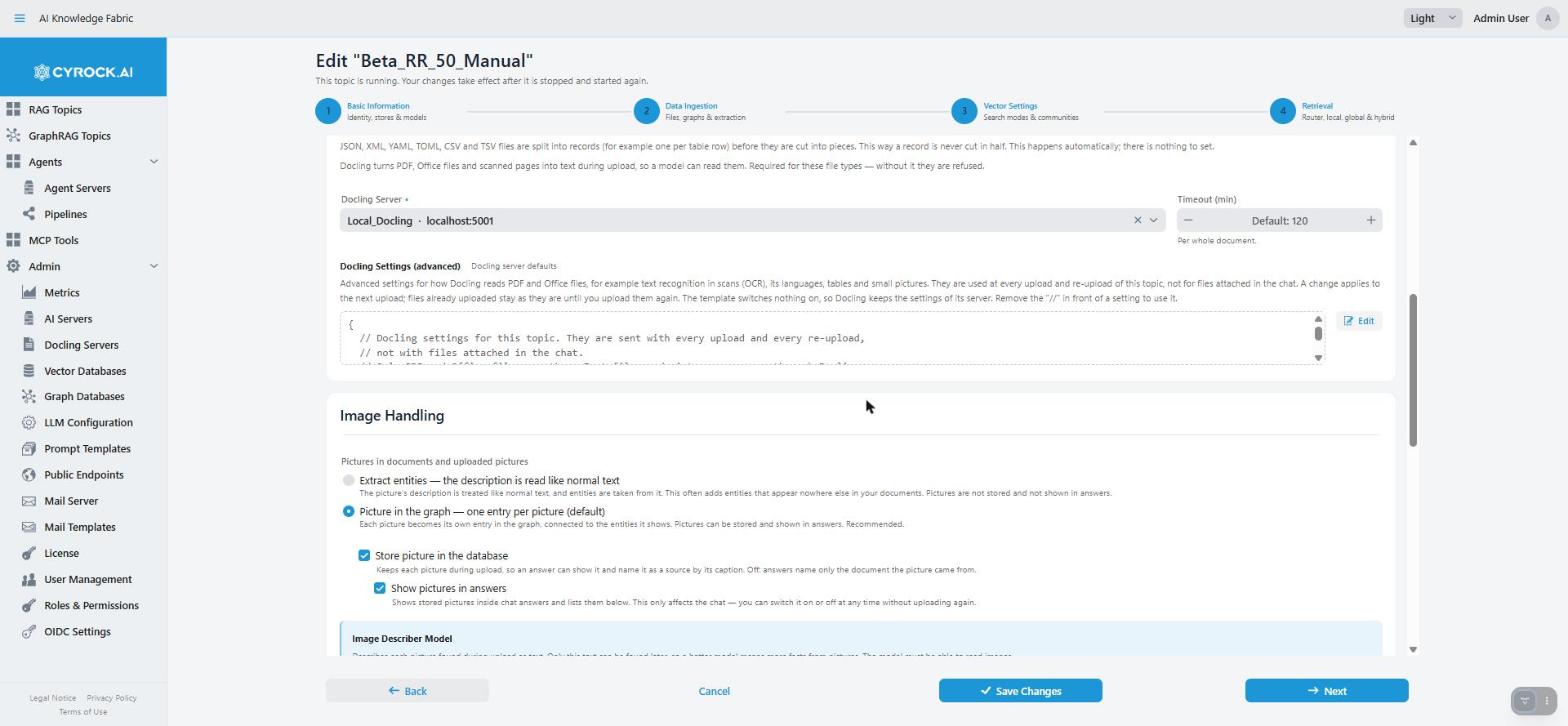
The picture settings appear only when Documents or Images is ticked, because only then can pictures arrive during upload. Without either, pictures are ignored and the section stays hidden.
Pictures in documents and uploaded pictures is one choice:
| Option | What happens |
|---|---|
Ignore — pictures are skipped |
Facts that appear only in pictures cannot be found. Not offered while Images is ticked as a file type, because an uploaded image file needs an entry of its own |
Extract entities — the description is read like normal text |
A model describes each picture. The description is treated like normal text, and entities are taken from it. This often adds entities that appear nowhere else. Pictures are not stored and not shown in answers |
Picture in the graph — one entry per picture (default) |
A model describes each picture. Each picture becomes its own entry in the graph, connected to the entities it shows. Recommended |
Under Picture in the graph you also decide:
-
Store picture in the database (ticked by default). The app keeps each picture, so an answer can show it and name it as a source by its caption. Unticked, answers name only the document the picture came from.
-
Show pictures in answers (ticked by default, only available while pictures are stored). Shows stored pictures inside chat answers. This only affects the chat. You can switch it on or off at any time without uploading again.
Every option except Ignore needs the Image Describer Model. It describes each picture as text. Only this text can be found later, so a better model gives you more facts from pictures. The picker has a Use the topic’s Language Model checkbox next to it. You must either pick a model or tick that box. If you tick it, the Language Model of step 1 must be able to read images. Models from every provider can do this role.
|
The wizard does not check that the Language Model can read images. If you tick Use the topic’s Language Model for the Image Describer, or allow image chat attachments, and that model cannot read pictures, the picture descriptions come out poor or fail. Choose a model that can read images before you save. |
Picture Description Timeout (minutes) is how long describing one picture may take. Higher: slow models still succeed, but a stuck upload fails later. Empty uses the global default.
At the bottom, Allow images as chat attachments lets chat users attach an image to a question. The image goes straight to the Language Model, not to the Image Describer Model. So the Language Model must be able to read images. Chat attachments are a separate setting from the upload settings above, and work even if pictures in uploads are ignored.
Full detail: File types, Docling, and image handling.
Graph Extraction and Chunking
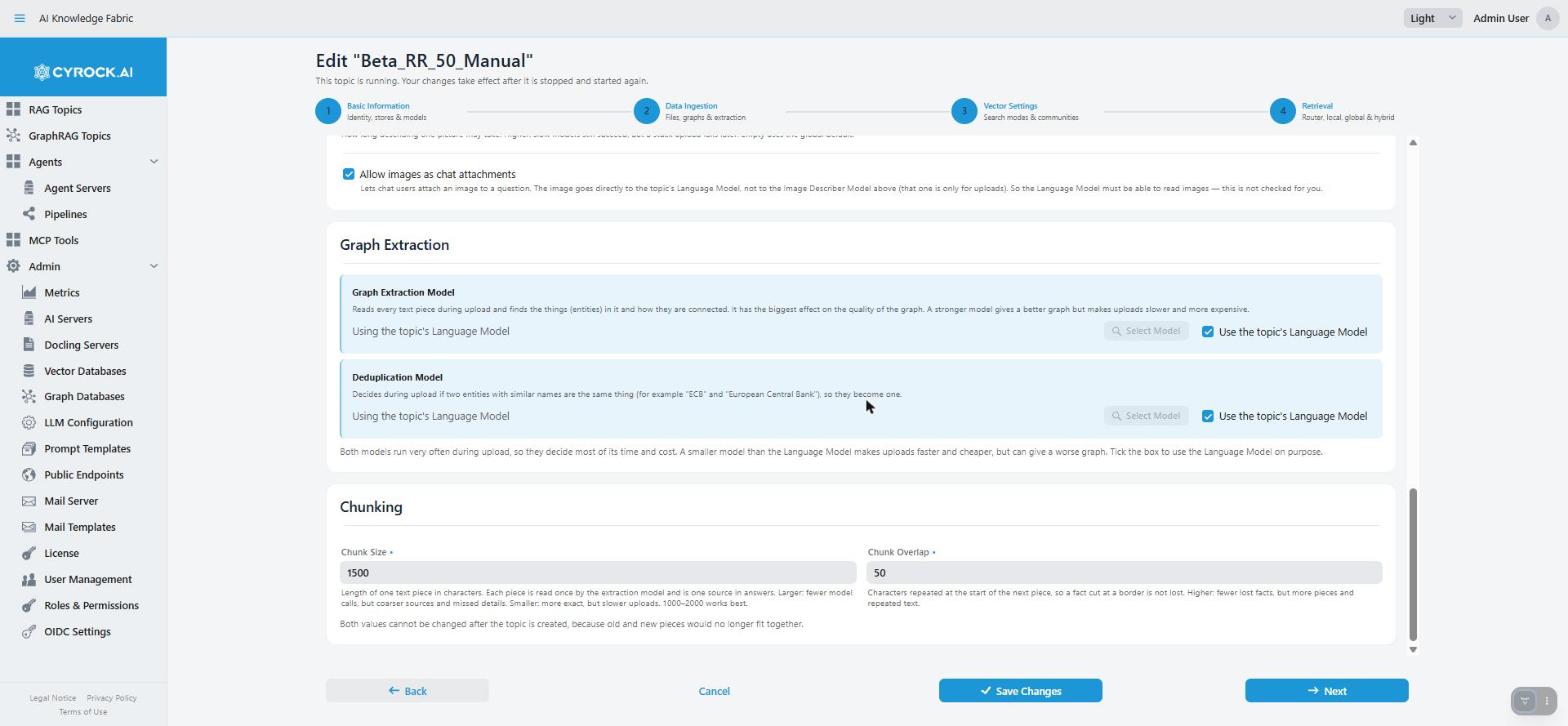
| Field | Default | Notes |
|---|---|---|
Graph Extraction Model |
You must choose |
Reads every text piece and finds its entities and connections. It has the biggest effect on the quality of the graph and uses the most model calls during upload. A stronger model gives a better graph, but uploads get slower and more expensive |
Deduplication Model |
You must choose |
Decides whether two entities with similar names are the same thing (for example "ECB" and "European Central Bank"), so they become one |
Chunk Size |
1500 |
The length of one text piece in characters. The extraction model reads each piece once, and each piece is one source in answers. Larger: fewer model calls, but coarser sources and missed details. Smaller: more exact, but slower uploads. 1000–2000 works best |
Chunk Overlap |
50 |
Characters repeated at the start of the next piece, so a fact cut at a border is not lost. Higher: fewer lost facts, but more pieces and repeated text. It must be smaller than the chunk size |
For the two models, you must either pick a model or tick Use the topic’s Language Model. Ticking the box says that reusing the Language Model is your choice. Both models run very often during upload. A smaller model than the Language Model makes uploads faster and cheaper, but can give a worse graph.
|
Set chunk size and overlap before you upload documents. Documents that are already uploaded keep the pieces they were cut into. Old and new pieces then no longer fit together. Change these values only before the first upload. |
Step 3 — Vector Settings
Expert sections
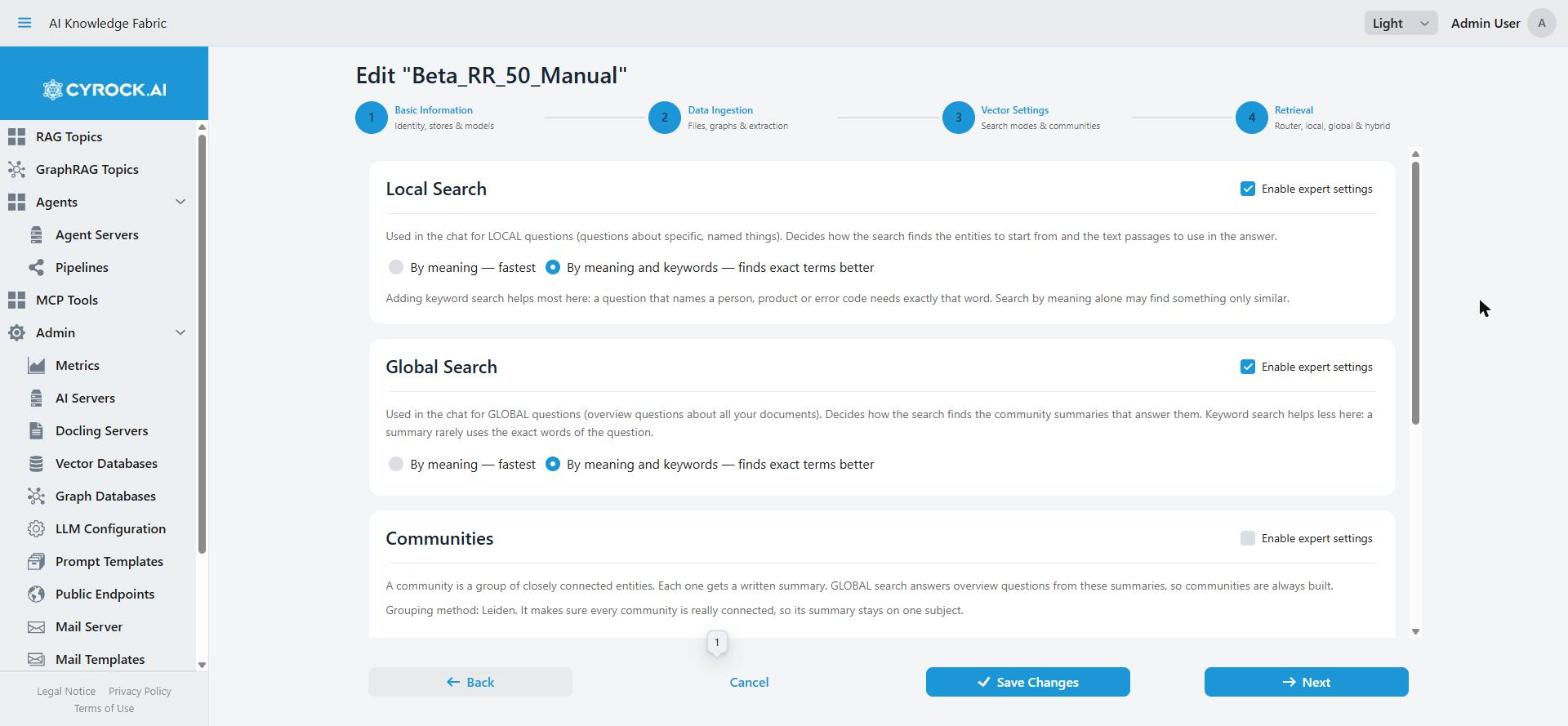
Steps 3 and 4 hold seven sections with good working defaults. Local Search, Global Search and Communities are in step 3. Router, Local, Global and Hybrid are in step 4. Each one has its own Enable expert settings checkbox next to its title.
-
Unticked, the settings are greyed out. You can still read the values, and the Topic uses them. For a first Topic, you can leave all of them as they are.
-
Ticked, you can change the settings.
-
A section whose saved values differ from the defaults starts unlocked when you edit a Topic, so you can see what was tuned.
-
The checkbox is per section, so you open only the part you want to change. Your choice is kept while you move between steps, and it is forgotten when you leave the wizard.
A few fields stay open even when the section is locked, because they have no default and you must answer them: the Community Report Model, the Router Model with its DIRECT switch, and the Follow-up Model.
Local Search and Global Search
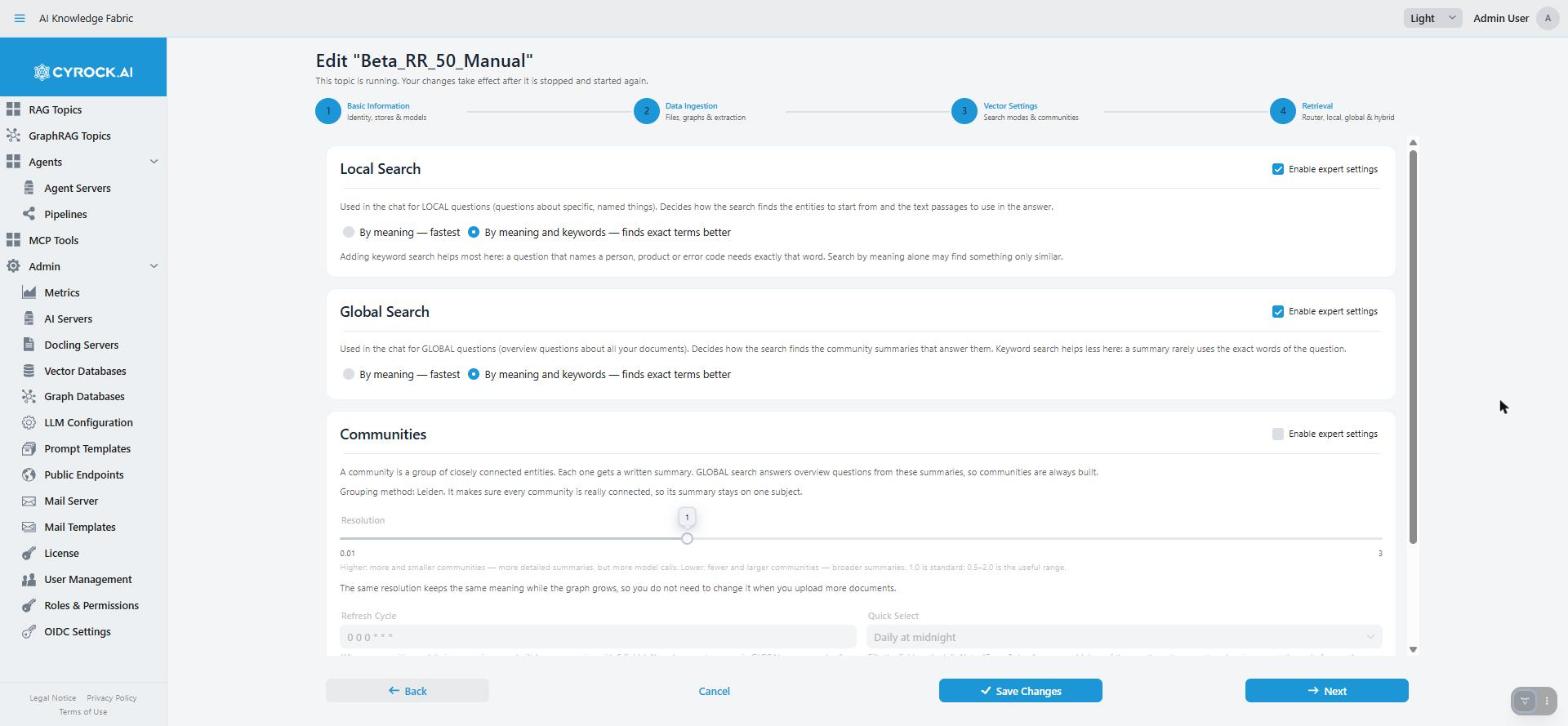
When you unlock a section, it offers the same choice:
-
By meaning — fastest (default). The search compares the meaning of the question with the stored data.
-
By meaning and keywords — finds exact terms better. The search also matches exact words. This helps most when a question names a person, product or error code. A search by meaning alone may find something that is only similar. It uses a little more storage, because the Topic keeps a keyword index of its own.
Local Search is used for LOCAL questions (questions about specific, named things). Keyword search helps most there. Global Search is used for GLOBAL questions (overview questions about all documents). Keyword search helps less there, because a summary rarely uses the exact words of a question. See Retrieval strategies.
Communities
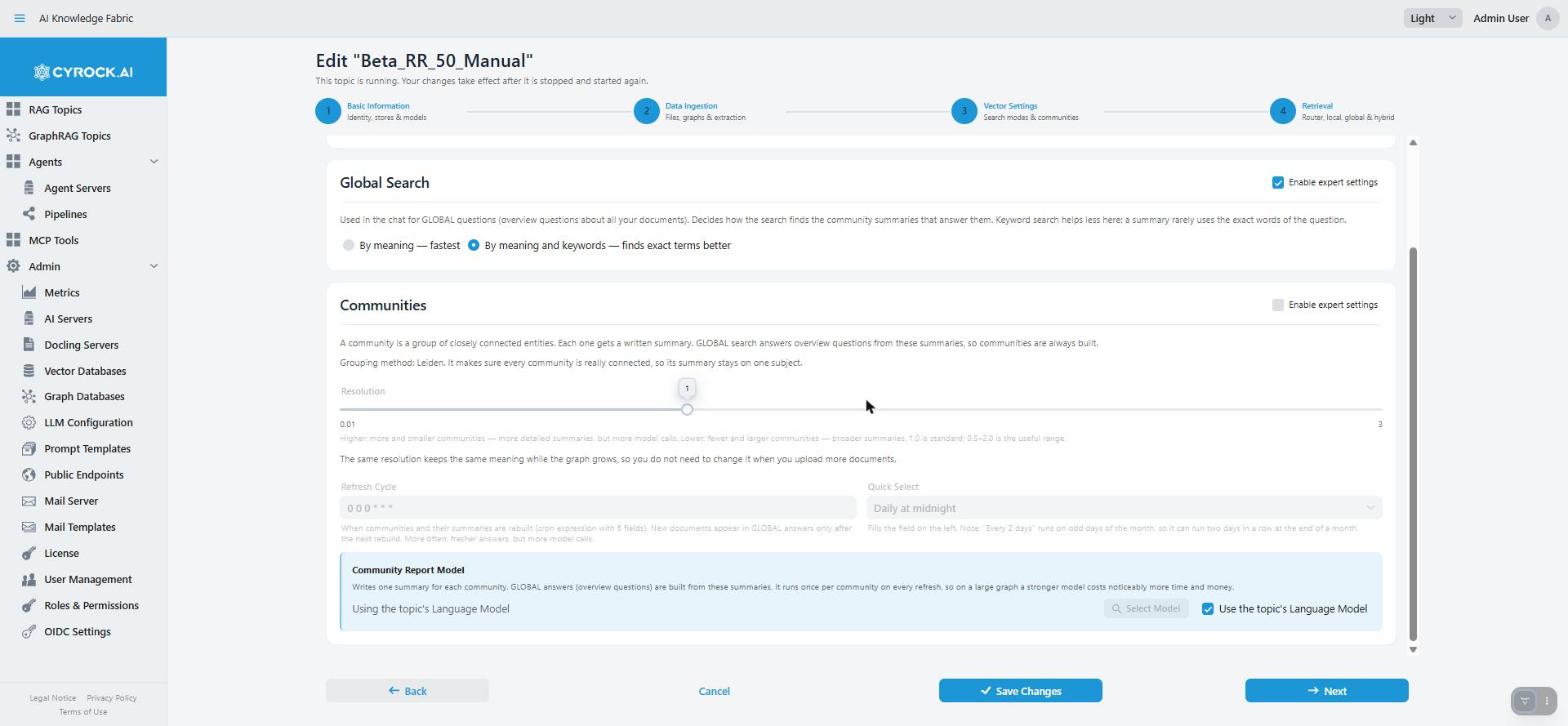
A community is a group of closely connected entities. Each community gets a written summary. GLOBAL search answers overview questions from these summaries. So communities are always on. There is no switch. The grouping method is fixed to Leiden. It makes sure that every community is really connected, so its summary stays on one subject.
| Field | Default | Notes |
|---|---|---|
Resolution |
1.0 |
A slider from 0.01 to 3.0. Higher: more and smaller communities, so more detailed summaries, but more model calls. Lower: fewer and larger communities, so broader summaries. 0.5–2.0 is the useful range. The same value keeps its meaning while the graph grows, so you do not need to change it when you upload more documents |
Refresh Cycle |
|
When the communities and their summaries are rebuilt. It is a cron expression with six fields. Quick Select fills in common schedules: hourly, every 4 or 12 hours, daily, every 2 days, weekly. You can also write your own. More often: fresher answers, but more model calls. New documents appear in GLOBAL answers only after the next rebuild |
Community Report Model |
You must choose |
Writes one summary for each community. It runs once per community on every rebuild, so on a large graph a stronger model costs noticeably more time and money. Pick a model or tick Use the topic’s Language Model |
The Resolution and the Refresh Cycle are in the expert part. The Community Report Model is always open.
If an older Topic holds a resolution outside 0.01–3.0, the wizard shows a note. Saving then writes the nearest value that the slider offers.
To rebuild communities right now, use Recompute Communities Now on the Actions tab. See Recomputing communities.
Step 4 — Retrieval
Router
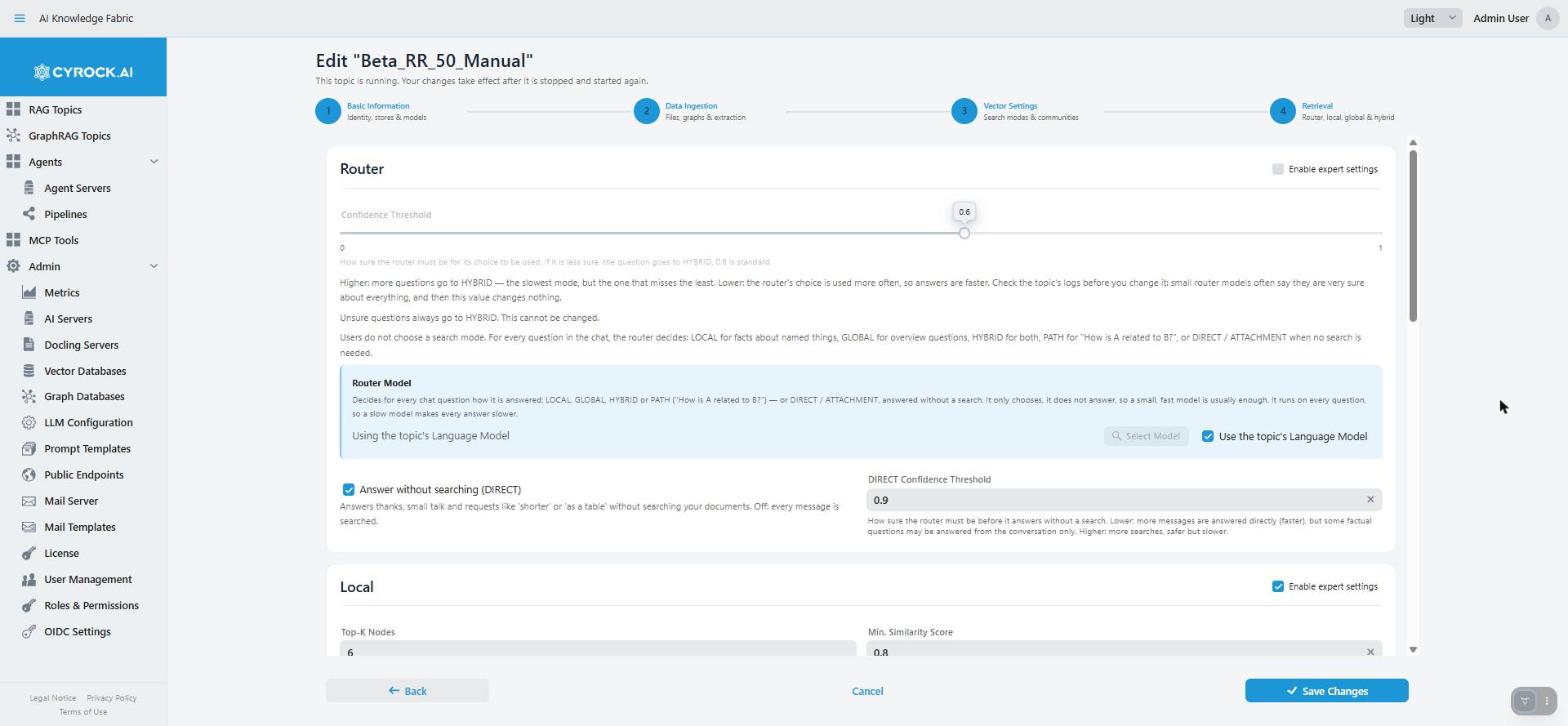
Users do not choose a search mode. For every question in the chat, the router decides: LOCAL for facts about named things, GLOBAL for overview questions, HYBRID for both, PATH for "How is A related to B?", or DIRECT / ATTACHMENT when no search is needed. The chat does not show which mode was used. The Logs and DEV Reports tabs do.
| Field | Default | Notes |
|---|---|---|
Router Model |
You must choose |
Chooses the mode for each question. It does not answer, so a small, fast model is usually enough. It runs on every question, so a slow model makes every answer slower. Pick a model or tick Use the topic’s Language Model |
Answer without searching (DIRECT) |
On |
Answers thanks, small talk and requests like "shorter" or "as a table" without searching your documents. Off: every message is searched |
DIRECT Confidence Threshold |
0.9 |
Shown while DIRECT is on. How sure the router must be before it answers without a search. Lower: more messages are answered directly (faster), but some factual questions may be answered from the conversation only. Higher: more searches, safer but slower |
Confidence Threshold (expert) |
0.6 |
A slider from 0 to 1. How sure the router must be for its choice to be used. If it is less sure, the question goes to HYBRID. This fallback cannot be changed. Higher: more questions go to HYBRID, which is the slowest mode but misses the least. Lower: the router’s choice is used more often, so answers are faster. Small router models often say they are very sure about everything. Then this value changes nothing |
Local
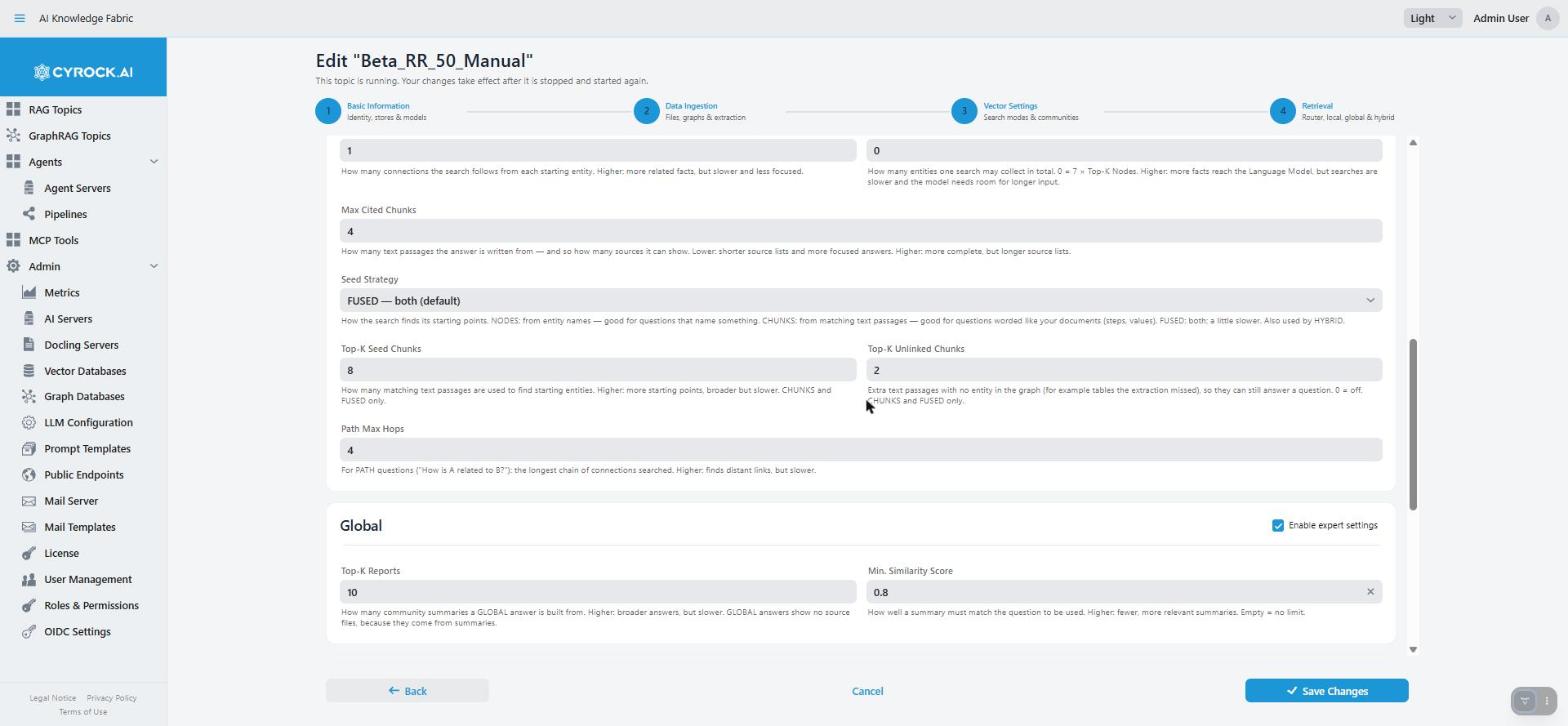
An expert section. These settings bound LOCAL search (and the local half of HYBRID and PATH). See Retrieval strategies for how they work together.
| Field | Default | Notes |
|---|---|---|
Top-K Nodes |
6 |
How many entities that match the question the search starts from. It does not limit how much is found from there |
Min. Similarity Score |
empty |
How well an entity must match the question to be a starting point (0 to 1). Higher: fewer, better matches. Empty: no limit |
Hop Depth |
2 |
How many connections the search follows from each starting entity. Higher: more related facts, but slower and less focused |
Max Subgraph Nodes |
0 |
How many entities one search may collect in total. 0 means 7 × Top-K Nodes. Higher: more facts reach the Language Model, but searches are slower and the model needs room for longer input |
Max Cited Chunks |
5 |
1 to 50. How many text passages the answer is written from, and so how many sources it can show. This field, not Top-K Nodes, controls the number of sources. Lower: shorter source lists and more focused answers. Higher: more complete, but longer source lists |
Seed Strategy |
FUSED |
How the search finds its starting points. NODES: from entity names, good for questions that name something. CHUNKS: from matching text passages, good for questions worded like your documents (steps, values). FUSED (default): both, a little slower. HYBRID uses it too |
Top-K Seed Chunks |
8 |
How many matching text passages are used to find starting entities. Higher: more starting points, broader but slower. Only for CHUNKS and FUSED. At least 1 |
Top-K Unlinked Chunks |
2 |
Extra text passages with no entity in the graph (for example tables the extraction missed), so they can still answer a question. 0 switches it off. Only for CHUNKS and FUSED |
Path Max Hops |
4 |
For PATH questions ("How is A related to B?"): the longest chain of connections that is searched. Higher: finds distant links, but slower. At least 1 |
Global and Hybrid
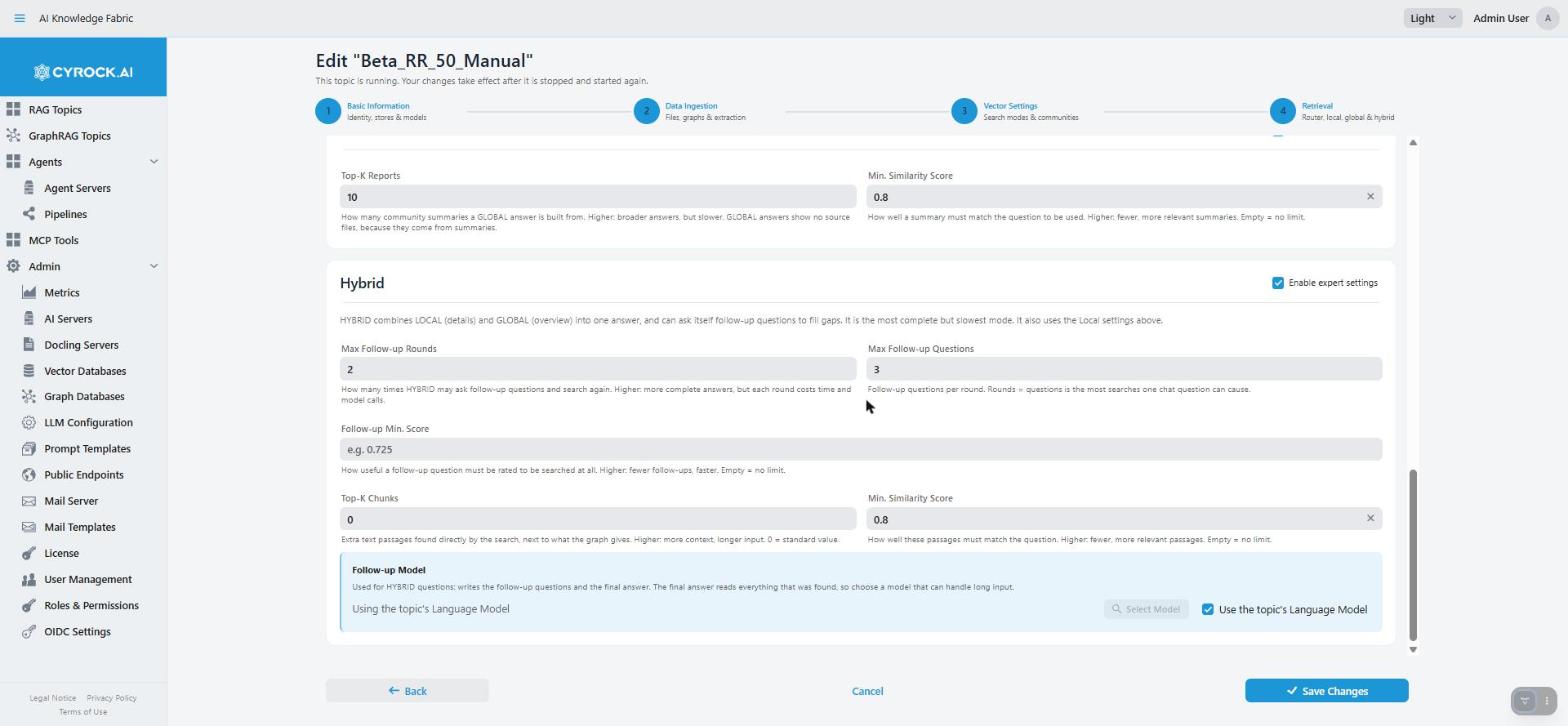
Global (expert section) has two fields:
| Field | Default | Notes |
|---|---|---|
Top-K Reports |
10 |
How many community summaries a GLOBAL answer is built from. Higher: broader answers, but slower. GLOBAL answers show no source files, because they come from summaries |
Min. Similarity Score |
empty |
How well a summary must match the question to be used. Higher: fewer, more relevant summaries. Empty: no limit |
Hybrid combines LOCAL (details) and GLOBAL (overview) into one answer, and can ask itself follow-up questions to fill gaps. It is the most complete but slowest mode. It also uses the Local settings above.
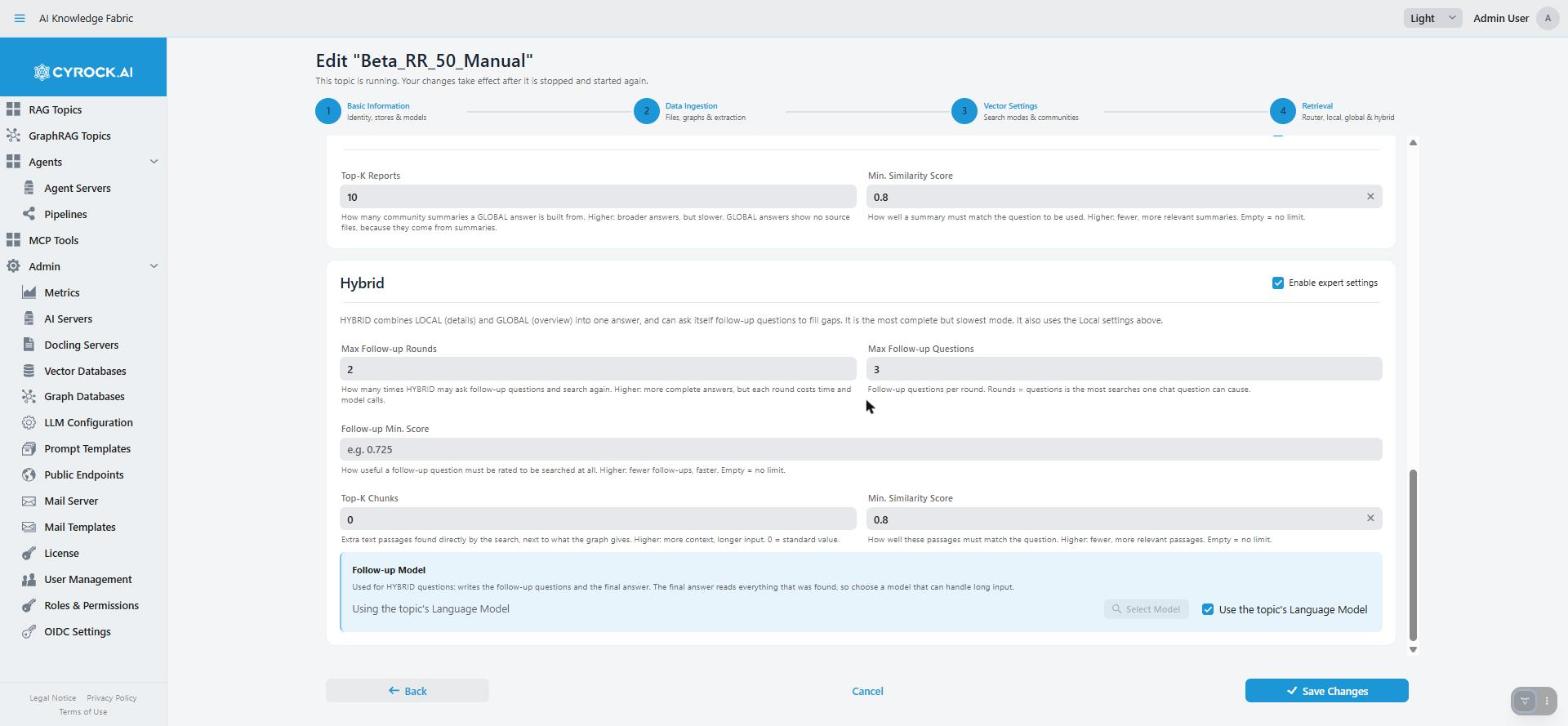
| Field | Default | Notes |
|---|---|---|
Max Follow-up Rounds |
2 |
How many times HYBRID may ask follow-up questions and search again. Higher: more complete answers, but each round costs time and model calls |
Max Follow-up Questions |
3 |
Follow-up questions per round. Rounds × questions is the most searches that one chat question can cause |
Follow-up Min. Score |
empty |
How useful a follow-up question must be rated to be searched at all. Higher: fewer follow-ups, faster. Empty: no limit |
Top-K Chunks |
0 |
Extra text passages found directly by the search, next to what the graph gives. Higher: more context, longer input. 0 means the standard value |
Min. Similarity Score |
empty |
How well these passages must match the question. Higher: fewer, more relevant passages. Empty: no limit |
Follow-up Model |
You must choose |
Writes the follow-up questions and the final HYBRID answer. The final answer reads everything that was found, so choose a model that can handle long input. Pick a model or tick Use the topic’s Language Model. This field is always open |
Every minimum score must be a number from 0 to 1 with at most three decimals, for example 0.725. The wizard does not let you continue with anything else.
Press Save to create the Topic. It appears in the list with the status CREATED. See
The GraphRAG Topics page for how to start it.
Editing a Topic
On the Configuration tab, Edit Configuration opens this wizard for the Topic. You need the
GRAPHRAG_EDIT permission, and your role must have access to the Topic.
-
You can jump to any step, forward or back. Jumping forward checks and keeps the step you leave.
-
Save Changes is on every step, so you do not have to walk to the last one. Cancel drops all changes you made in this session.
-
A change takes effect only after the Topic is stopped and started again. If the Topic is running, Save Changes asks Restart Required with two buttons. Restart Now stops and starts the Topic at once, and the chat is not available for a short time. Later saves and leaves the Topic running with its old settings until you restart it yourself.
-
If saving fails, the wizard goes to the step that holds the problem.
-
Changing the Embedding Model, the Graph Database, the Vector Database or the Collection Name points the Topic at data that does not match. See the table in Configuration.
Troubleshooting
| Symptom | Cause and fix |
|---|---|
New GraphRAG Topic button missing |
You do not have the |
Graph Database list is empty |
None is registered yet. Add one under Admin → Graph Databases first |
Vector Database list is empty |
None is registered yet. Add one under Admin → Vector Databases first |
Step 1 does not continue |
Check the name (it must be new), description, port, graph database, vector database, a valid collection name that no other Topic uses, and both models |
Step 1 says the embedding model has no dimension |
Select the embedding model again and enter its dimension |
Step 2 does not continue after you ticked Documents |
Select a Docling server |
Step 2 does not continue after you ticked Images |
Pick an Image Describer Model, or tick "Use the topic’s Language Model". Pictures need a model that can read images |
Step 2 says to select the Language Model first |
The Image Describer Model uses the Language Model of step 1. Go back and select it |
Step 2 says the overlap is too large |
Chunk Overlap must be smaller than Chunk Size |
A section in step 3 or 4 looks greyed out |
Its Enable expert settings box is unticked. The values are already sensible. Tick the box only to change them |
Step 3 or 4 does not continue |
A model role has neither a model nor the "Use the topic’s Language Model" tick, a minimum score is not a number from 0 to 1, or the refresh cycle is empty |
Save is refused with a message |
The message names the field, and the wizard jumps to its step |
Topic goes to |
Docker or Kubernetes is not reachable, the port is already in use, or the graph database is unreachable |