Getting started local model
A short guide to running a local LLM and a local embedding model with LM Studio and registering them in AI Knowledge Fabric. This gives you a fully local setup — no cloud API key, no usage costs, no data leaving your machine.
Registered servers appear under Admin → AI Servers, which is where this guide ends up:
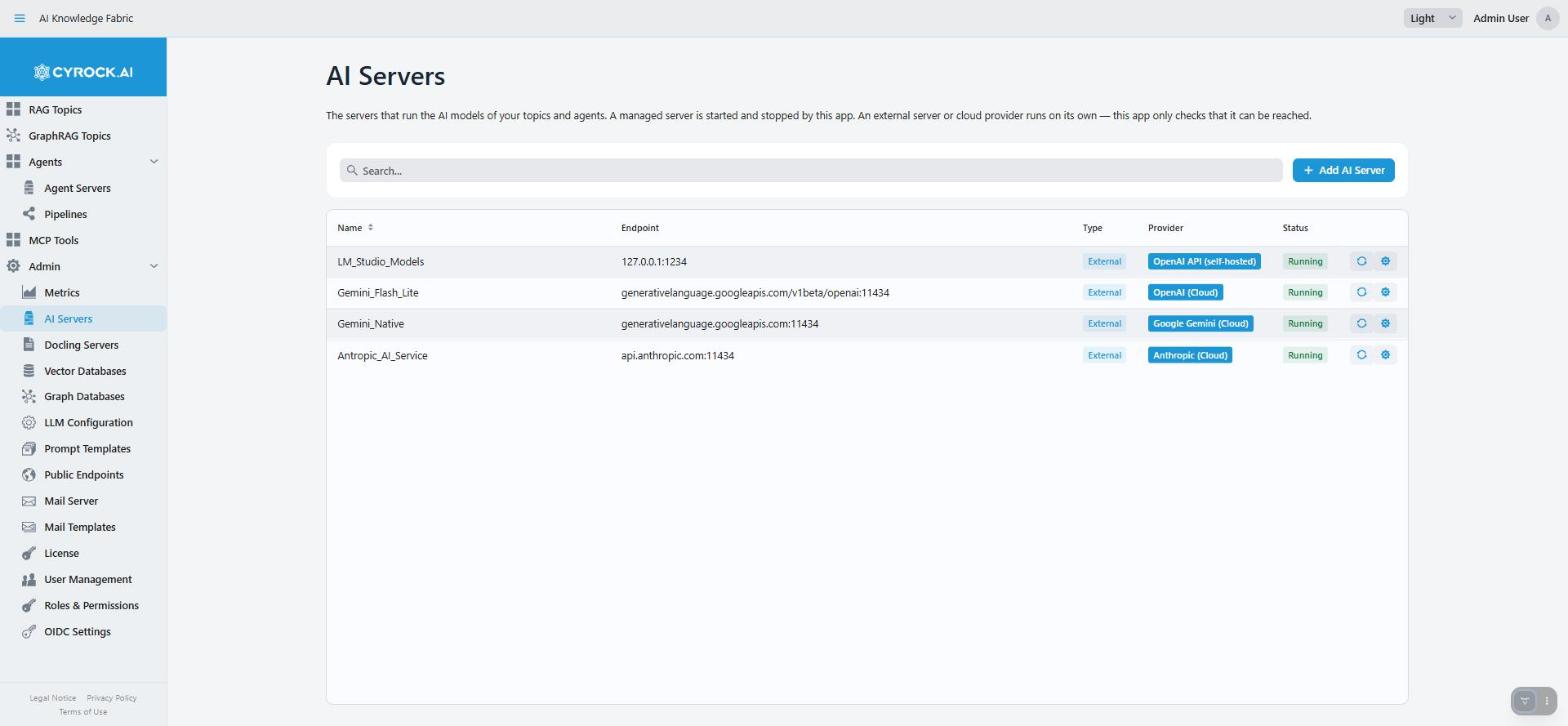
The Type column is the important distinction: Managed servers are started and stopped by the
platform (note the play/stop icons), while External ones are only pinged for reachability — the
Error status on an external entry means unreachable, not broken configuration.
We use two models:
| Model | Used for |
|---|---|
|
Chat / generation model (the LLM a Topic or Agent talks to) |
|
Embedding model (turns your documents into vectors, 768 dimensions) |
1. Install LM Studio
-
Download LM Studio for Windows, macOS (Apple Silicon), or Linux from lmstudio.ai.
-
Run the installer and start LM Studio.
Check the hardware requirements first — a 7B model needs roughly 6–8 GB of free RAM or VRAM: 📖 System Requirements
2. Download the two models
-
Open the Discover tab (magnifying glass icon in the left sidebar).
-
Search for
qwen2.5-coder-7b-instruct, pick a quantisation (Q4_K_M is a good speed/quality compromise) and click Download. -
Search for
text-embedding-nomic-embed-text-v1.5and download it as well. Embedding models are small (~80 MB) and fast.
|
Optional — via CLI: the same thing from a terminal: |
3. Enable the local server
-
Switch to the Developer tab (terminal icon in the left sidebar).
-
Toggle the status switch at the top left to Running. The server listens on port 1234 by default.
-
Enable Serve on Local Network in the server settings. This is required — by default LM Studio only binds to
localhost, which containers on your machine cannot reach. -
Load both models so they are served: select them under Loaded models, or leave Just-In-Time (JIT) loading enabled so LM Studio loads a model automatically on the first request.
Verify that both models are being served:
curl http://localhost:1234/v1/modelsThe response must list both qwen2.5-coder-7b-instruct and
text-embedding-nomic-embed-text-v1.5.
|
Optional — via CLI: For a server without the desktop app, see Headless mode. |
4. Register LM Studio in AI Knowledge Fabric
Go to Admin → AI Servers → Add AI Server and fill in:
| Field | Value |
|---|---|
Server Type |
|
Provider |
|
Name |
e.g. |
Host |
|
Port |
|
Default Model ID |
|
Then Save.
|
Only the host belongs in the Host field. If you paste a full address such as
|
Host field, in short: the value has to be reachable from inside the Topic containers, not from
your browser. localhost inside a container points at the container itself, which is why the
Docker-host alias is needed.
Open the new server’s detail page — the Models tab lists the models LM Studio reports, and the status indicator shows whether the endpoint is reachable. If the list is empty, LM Studio is not serving on the network (revisit step 3).
5. Use the models in a Topic
Create a Topic under Topics → New Topic and select in the wizard:
-
Chat model:
LM_Studio→qwen2.5-coder-7b-instruct -
Embedding model:
LM_Studio→text-embedding-nomic-embed-text-v1.5
Notes:
-
Set a timeout value that suits local inference. Local models on CPU are considerably slower than a cloud API — 5 minutes or more is realistic for a 7B model without a GPU.
-
Keep the embedding model stable. Changing it later invalidates all existing vectors in the Topic, and the documents have to be re-ingested.
-
qwen2.5-coder-7b-instructsupports tool calling, so it also works for Agents and for MCP tool usage — but a 7B model is noticeably weaker at multi-step tool decisions than a large cloud model. For pure document Q&A it is a good fit.
Troubleshooting
| Symptom | Fix |
|---|---|
AI server shows as unreachable |
LM Studio server not running, or Serve on Local Network is off |
Model list is empty |
Same as above, or no model is loaded and JIT loading is disabled |
Topic chat times out |
Raise the timeout; check the LM Studio server log for the incoming request |
Chat works, upload/embedding fails |
Embedding model not loaded in LM Studio, or the wrong model was selected as the embedding model |
Very slow responses |
Model running on CPU. Enable GPU offload in LM Studio, or use a smaller quantisation |
Links
-
AI Servers — all providers and every field of the form in this app