Metrics
The Metrics Dashboard (Admin → Metrics, /admin/metrics) shows usage statistics for Topics,
Agents, and Pipelines: request counts, token consumption, durations, and per-user activity.
Access requires the METRICS_VIEW permission.
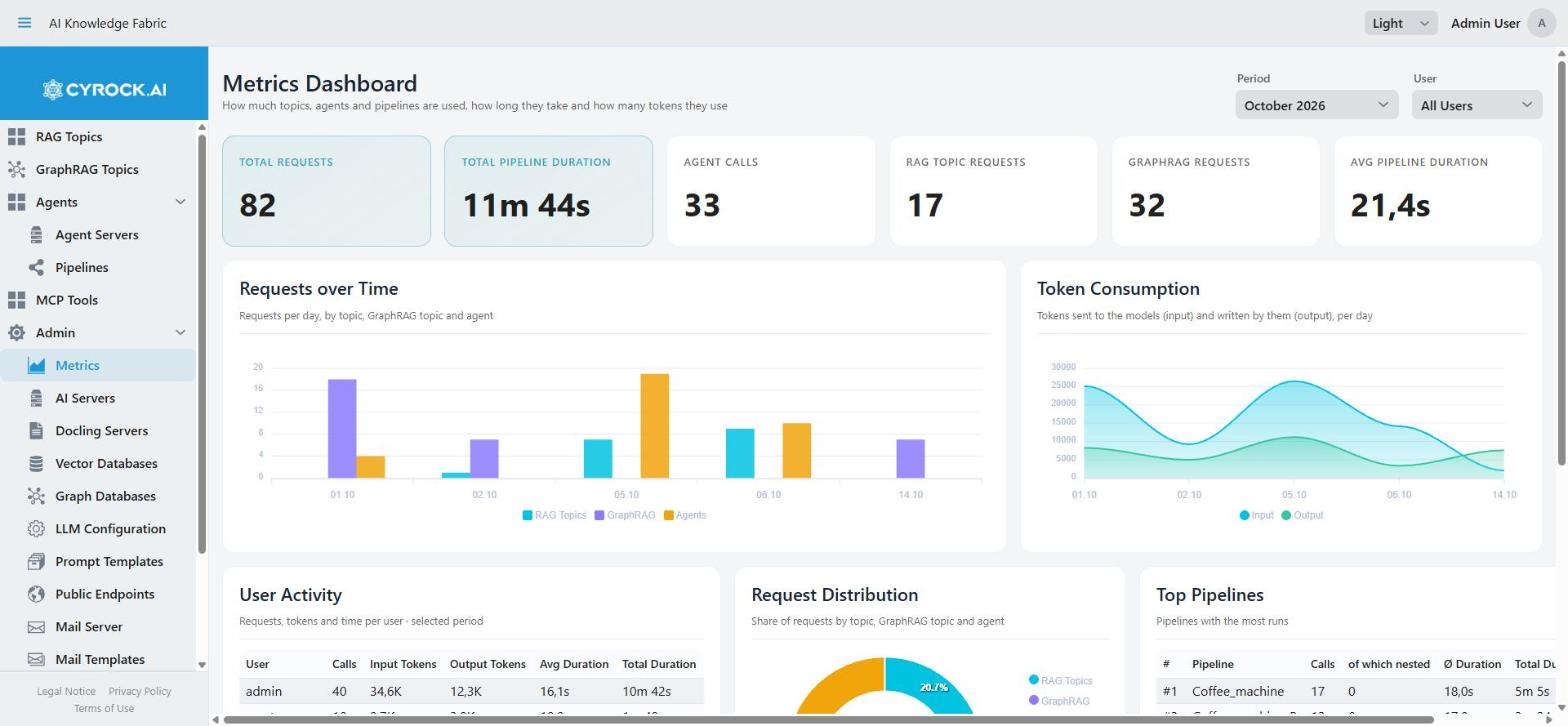
The Period and User selectors at the top filter everything below them. Tiles reading 0 are
genuine zeros for the selected period, not missing data — in the example above only Pipelines were
exercised, so Agent Calls and Topic Requests are empty.
1. Where the data comes from
The dashboard does not measure anything itself. Every running Topic and Agent container reports each completed request back to the management application, which stores it and aggregates it here.
Topic container  ─┐
                  ├──►  POST /api/metrics/event(s)  ──►  metric_event table  ──►  Dashboard
Agent container  ─┘        header: X-Metrics-Key
Reporting therefore depends on two settings being consistent between the management app and the containers it starts:
| Setting | Purpose |
|---|---|
|
Shared secret the containers must send in the |
|
The URL the containers post to. Must be reachable from inside a container — hence |
Both are described in the installation guide. If either is wrong, the dashboard stays empty and shows demo data.
Event types
| Type | Recorded when |
|---|---|
|
A Topic or a GraphRAG Topic answers a chat request. Which of the two it was is resolved when the event arrives, so the dashboard shows them separately |
|
An Agent runs one of its pipelines — for a chat message, a scheduled run, or a call from an external MCP client. This is what the dashboard counts as an Agent Call. A pipeline started by another pipeline (as a PIPELINE step or as a tool) is reported too, marked as nested |
A third type, AGENT_CALL, still exists for compatibility, but no service reports it.
Each event carries a timestamp, the Topic/Agent name, the pipeline name where applicable, the username, the model used, input and output token counts, the context window size, and the duration in milliseconds. An Agent additionally reports its tokens per model, since one pipeline run can use several models (an AGENT module plus, say, a guardrail or a validator).
|
Document ingestion and embedding are not reported. The dashboard covers chat, agent, and pipeline traffic only, so it is not a complete picture of token spend. |
2. Demo mode
⚡ Demo data — no real metric events recorded yet. Connect your topic or agent servers to see live metrics.
When the event table is completely empty, the dashboard fills itself with generated sample data and shows this banner. Every number, chart, and table row is fictional.
This exists so the screen can be evaluated before any traffic exists, but it is easy to misread — check for the banner before trusting any figure. As soon as a single real event arrives, demo mode switches off and only real data is shown.
Demo mode is keyed on the total event count, not on the selected period: once real events exist, a month with no traffic shows an empty dashboard rather than demo data.
3. Filters
Two filters in the header, both applying to the whole dashboard:
| Filter | Options |
|---|---|
Period |
The current month and the previous 11 |
User |
All Users, or one of the usernames that appear in the data |
The period is always a whole calendar month — there is no free date range and no "last 7 days". For a narrower view, read the daily bars in the Requests over Time chart.
4. KPI tiles
Six tiles, computed over the filtered events:
| Tile | Meaning |
|---|---|
Total Requests |
All events in the period — Topic chats and Agent calls together |
Total Pipeline Duration |
Summed duration of all Agent pipeline runs |
Agent Calls |
Count of pipeline runs reported by an Agent, not counting nested runs |
RAG Topic Requests |
Count of chats answered by a RAG Topic |
GraphRAG Requests |
Count of chats answered by a GraphRAG Topic |
Avg Pipeline Duration |
Mean duration of an Agent pipeline run, in seconds |
Note that the two duration tiles cover Agent pipeline runs only — Topic chat durations are
recorded per event and appear in the User Activity table, but not in these tiles. A — means no
pipeline runs with a duration were recorded in the period.
5. Charts and tables
| Panel | Contents |
|---|---|
Requests over Time |
Daily bars, broken down by service type. Shows which days carried load and from which surface |
Token Consumption |
Input and output tokens per day. The panel to watch for cloud-provider cost |
User Activity |
Per user: calls, input tokens, output tokens, average duration, total duration |
Request Distribution |
Donut chart splitting requests by service type |
Top Pipelines |
Ranked by call count, nested calls included (the of which nested column says how many), with average duration, total duration, and average tokens per run |
Tokens by Model |
Per model: model calls, input, output and total tokens, nested runs included. Agent runs count each model they used; a Topic chat counts under its one model |
A nested run lies inside the run that called it: that run is already the request, its duration already contains the nested one. So nested runs appear only in Top Pipelines — every other tile, chart and table leaves them out. Tokens are the exception: each run reports only the tokens of its own model calls, so a nested run’s tokens are in its own event, not in the outer one’s, and every token figure (Token Consumption, User Activity, Top Pipelines, Tokens by Model) includes nested runs.
Days with no traffic are omitted from the charts rather than drawn as zero, so an axis may skip dates.
Reading it for cost
For a cloud provider, Tokens by Model, Token Consumption and the token columns in User Activity are the relevant figures — providers bill on tokens, and input and output are usually priced differently, which is why they are reported separately. Multiply against your provider’s rates for the models actually in use — Tokens by Model gives the split per model directly; the dashboard itself has no notion of prices and shows no currency amounts. A provider that reports no token usage (some OpenAI-compatible or Ollama servers) shows its calls with zero tokens.
Reading it for performance
Avg Pipeline Duration and the duration columns show where time is spent. A local model on CPU produces durations an order of magnitude above a cloud API — if durations approach your configured timeouts, raise the timeouts under Admin → LLM Configuration or move that workload to a faster model.
6. Troubleshooting
| Symptom | Cause and fix |
|---|---|
Demo banner visible, numbers look implausible |
No real events have ever arrived. Everything shown is generated sample data |
Dashboard stays empty after real usage |
|
|
Inside a container that points at the container itself. Use |
Events arrive but the User column is empty |
The backend does not always know which user triggered a request — the username is optional in the event |
Duration tiles show |
No Agent pipeline runs with a duration in the period. Topic durations are not counted in these tiles |
Agents are used but Agent Calls stays at 0 |
The agent containers' events are not arriving. The agent logs each failed or refused send as a |
Token columns are zero |
The model or provider did not report token counts for those requests |
A Topic’s ingestion load is missing |
Only chat, agent, and pipeline events are recorded — ingestion is not reported |
Numbers changed after restarting a Topic |
Events are historical records and are not deleted. Check whether the Period filter is on a different month |
Cannot open the screen |
Your role lacks |
Period filter offers no older months |
The list is fixed to the current month plus the previous 11 |
Related
-
Docker Compose installation — setting
METRICS_API_KEYandMETRICS_ENDPOINT -
Global LLM Configuration and Prompt Templates — the timeouts these durations should stay below
-
Roles & Permissions — the
METRICS_VIEWpermission