RAG Topics — Overview
A Topic is a private AI chatbot that answers questions from your documents. It is the central concept of AI Knowledge Fabric. You upload content, and the platform makes it searchable. A language model then answers questions from that content, instead of relying only on what it learned in training.
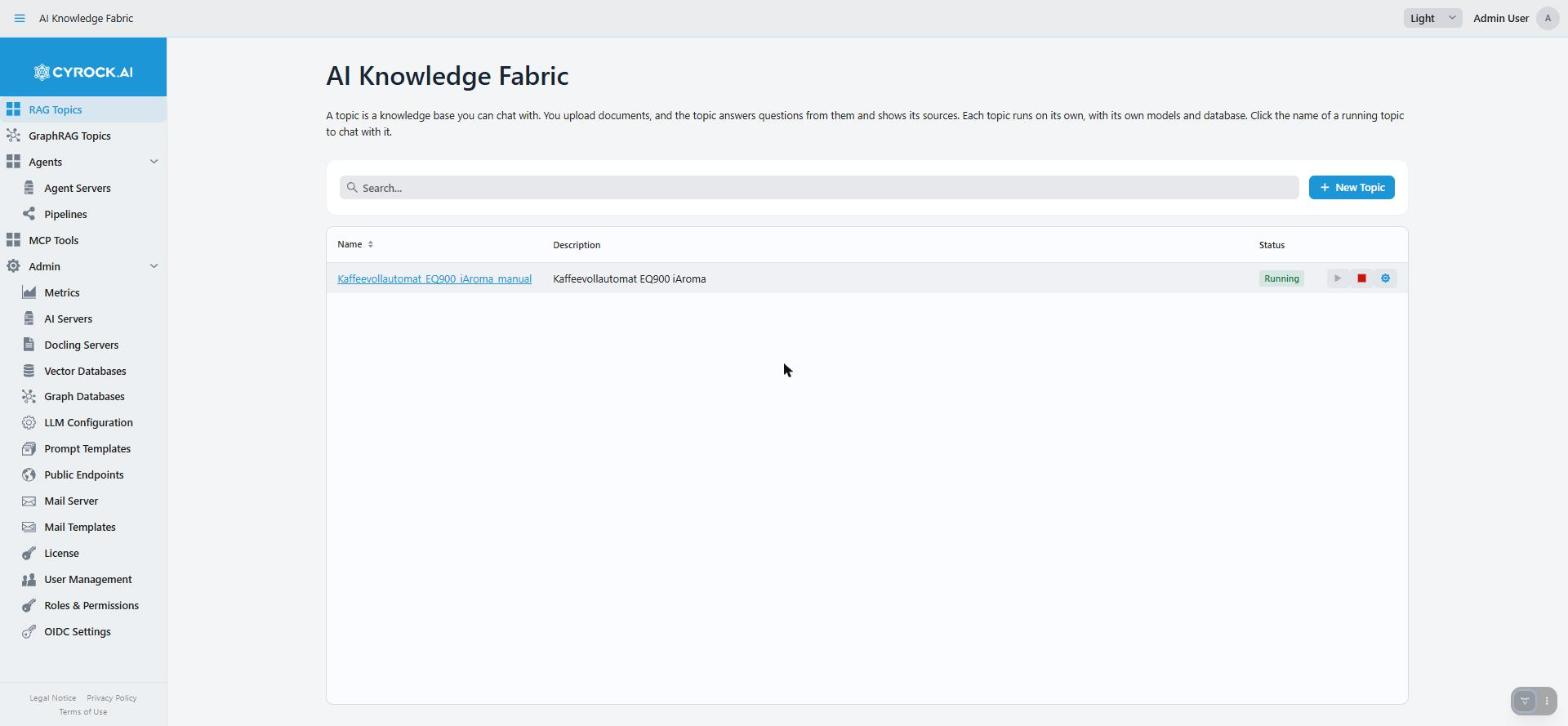
Each row is one Topic. The status badge shows whether the Topic is running. The icons on the right
start the Topic, stop it, and open its settings. A Topic’s name becomes a link to its chat once it is
Running.
1. What problem it solves
A general-purpose language model knows nothing about your internal HR policies, your product manuals, or last quarter’s reports. If you ask about them, it either refuses or invents an answer.
RAG — Retrieval-Augmented Generation — fixes this. It searches your documents first. Then it hands the matching passages to the model together with the question:
'vacation days after 5 years?'"] --> E["1 · Turn the question
into numbers (embedding)"] E --> V["2 · Search
finds passages"] V --> L["3 · Question + passages
→ language model"] L --> A["Answer
+ source: hr-policy.pdf"]
What this means in practice:
| Plain chatbot | RAG Topic | |
|---|---|---|
Knows your documents |
No |
Yes |
Shows sources |
No |
Yes — answers from your documents list the files they used |
Answer when nothing is found |
Invents something |
Shows the configured no-answer response |
Adding knowledge |
Retraining |
Uploading a file |
Data location |
The provider’s |
Your infrastructure (unless you deliberately choose a cloud model) |
2. Why you would want several Topics
Each Topic is separate: its own documents, its own models, its own prompts, its own access permissions. That separation is the reason to create more than one:
-
Separate subject areas. An HR Topic cannot accidentally answer from technical manuals. It usually gives better answers than one Topic that holds everything, because the search has less noise to sort through.
-
Separate audiences. Access is granted per Topic and per role. So a Topic with salary data can be limited to a single role.
-
Different models per purpose. A public FAQ can use a small local model. A demanding analysis Topic can use a large cloud model.
-
Different tone. Each Topic has its own prompts. One can be short and factual, another patient and explanatory.
3. Architecture — what actually runs
This is where AI Knowledge Fabric differs from most chat products: the management application is not the chatbot. It starts and manages containers. When you press Start on a Topic, the platform starts one container for it — the Topic service.
(this web UI)"] APP -- "starts, per Topic" --> TOPIC subgraph TOPIC ["Per Topic"] direction TB RAG["Topic service
(one container)"] end TOPIC -- "reaches out to" --> DEPS subgraph DEPS ["Registered by an administrator"] direction LR AI["AI servers
(models)"] DOCLING["Docling servers"] VDB["Vector databases"] MCP["Other Topics and
MCP tool servers"] end
-
Models are not part of the Topic. The embedding model and the language model run on the AI servers registered under Admin → AI Servers. The Topic calls them.
-
The vector database is not part of the Topic either. Every Topic needs one registered under Admin → Vector Databases. Your documents are stored there, so they survive a stop and start of the Topic.
Three things follow from this design and explain most surprises:
-
Most settings reach the Topic when it starts. Models, prompts, timeouts and search settings are handed to the container at start — not with each question. Until the next restart, a running Topic keeps the old settings. On the Configuration tab, the app therefore offers Save & Restart for such a change. A few settings apply without a restart, for example the Chunking Strategy and the Docling Settings, which are used with each upload, and the connections on the MCP Interfaces tab.
-
Each Topic has its own port (RAG Service Port, set in the first step of the wizard). With Docker, the Topic’s own interface is reachable on this port. This is what makes the REST interface possible.
-
Docker (or Kubernetes) must be available. Without it, a Topic goes from
Starting…toError.
A valid license is needed to create and to start Topics.
Lifecycle states
| Status | Meaning |
|---|---|
|
Saved in the database, nothing running yet |
|
The container image is downloaded and the container is started. The Topic is |
|
Ready for uploads and chat |
|
Container stopped. Configuration and stored data are kept |
|
The start failed — most often Docker is unreachable or a server is misconfigured. A running Topic that stops answering also shows |
4. The building blocks you configure
| Block | Role | Configured under |
|---|---|---|
Embedding Model |
Turns documents and questions into numbers that the search compares. Decides how well the search finds matching passages |
AI Servers; chosen in step 2 of the wizard |
Large Language Model |
Writes the answer from the question and the passages found |
AI Servers; chosen in step 2 of the wizard |
Vector database |
Stores the searchable form of your documents. Required: a registered database |
Vector Databases; chosen in step 3 of the wizard |
Docling server |
Turns PDF, DOCX and PPTX files into text before they are stored |
Docling Servers |
Image Describer Model |
Describes pictures during upload, so their content can be found. Can be its own model, or the Topic’s Language Model. Either way, the model must be able to read images |
AI Servers |
Retrieval Strategy |
How passages are found and sorted |
Per Topic, step 4 of the wizard |
Prompts |
The instructions sent to the models: the shared system prompt, the Topic’s Custom System Prompt, and every other prompt of the Topic |
Admin → LLM Configuration, and per Topic (Configuration and Prompts tabs) |
|
The embedding model is fixed once the Topic is created. The stored data only makes sense to the model that created it. The same is true for the vector database, the Chunk Size and the Chunk Overlap. To change one of them, create a new Topic and upload the documents again — so decide before the first upload. |
5. What a Topic can do
| Feature | What you notice | Where you set it |
|---|---|---|
Streaming answers |
The answer appears word by word while it is written. You can stop waiting for an answer |
Always on |
Routing |
Messages that need no search — thanks, small talk, "shorter please" — are answered directly, which is faster. A message is answered without a search only if the model is sure enough (Router Confidence Threshold, default 0.9). On by default |
Route before retrieval, wizard step 4 and Configuration tab |
Keyword Enrichment |
Only with Retrieval Strategy HYBRID. ALGORITHMIC (default) takes keywords from the text: fast. LLM lets the Language Model write keywords, also other words with the same meaning: better matches, but slower uploads |
Wizard step 4 and Configuration tab |
Reranking |
LLM lets the Language Model sort the found passages, so the best ones are used. More exact answers, but each question takes longer. Off (NONE) by default |
Wizard step 4 and Configuration tab |
Chunking Strategy |
RECURSIVE (default) cuts documents at paragraphs, sentences and words. SEMANTIC cuts the same way, then lets the Language Model add a short note to each piece about where it belongs. Pieces are found better, but uploads take much longer (one model call per piece) |
Wizard step 5 and Configuration tab; applies to the next upload |
Structured data import |
JSON, XML, YAML, TOML, CSV and TSV files are split into records. Flatten (default) stores each record as "key: value" lines: fast. Narrate lets a model rewrite each record as a short text: questions in normal language find it better, but large files take much longer |
Wizard step 2 and Configuration tab |
Pictures |
Pictures in documents can be described by a vision model, so their content can be found. They can also be stored and shown inside answers |
Image Handling, wizard step 2 and Configuration tab |
Docling Settings |
Advanced settings for how Docling reads PDF and Office files, for example text recognition in scans. Used with every upload; a change applies to the next upload |
Wizard step 2 and Configuration tab, next to the Docling server |
Chat attachments |
Users can attach a file to one question. It is used for that answer only and is not added to the Topic’s documents. Text files are allowed by default |
Wizard step 2 and Configuration tab |
Other Topics as tools |
The Topic can ask other Topics (also GraphRAG topics) while it answers. Their sources and pictures are shown in the answer too. They open only if you have access to that other Topic |
MCP Interfaces tab |
Prompts |
Every instruction the Topic sends to a model can be changed for this Topic |
Prompts tab, see Prompts |
Public address |
Where the Topic is reachable from outside. Links that the Topic hands out to other programs use it |
Admin → Public Endpoints, or Public Address Override on the Configuration tab |
Reset Topic Data |
Deletes the list of uploaded files and all chats of the Topic, for example after testing. The documents stay in the Topic and can still be found |
Actions tab |
DEV reports |
For developers and support: detailed reports of single uploads and answers, with every step and model call. Needs a special permission |
DEV Reports tab |
The Topic’s tabs
The settings icon in the Topic list opens the Topic’s page with eight tabs: Configuration · LLM Overrides · Prompts · Data Upload · MCP Interfaces · Actions · Logs · DEV Reports. See Configuration and functions.
6. MCP — giving a Topic tools
MCP (Model Context Protocol) is a standard for connecting AI services to tools. A running Topic can be connected to MCP servers. Its language model can then call those tools while it answers, instead of relying only on its own documents.
Two uses:
| Use | What it achieves |
|---|---|
Topic → Topic |
Every running Topic and GraphRAG topic can be used as a tool by another Topic. So you can keep knowledge bases separate and still answer questions that need more than one of them |
External tool servers |
Web search, ticket systems, APIs — anything with an MCP server. You enter its address yourself in MCP Server URL |
The Topic-to-Topic case is the one worth understanding. Instead of copying documents into one big Topic, you connect a "front desk" Topic to specialised ones and let it ask them.
Practical points:
-
The calling Topic’s model must be able to call tools. A model without that ability simply ignores the connected tools. This is the most common reason MCP seems not to work.
-
Write a clear Description. The model reads it to decide when to ask the other Topic. A vague description means the other Topic is asked too seldom, or for the wrong questions.
-
Each user’s own access counts. The other Topic is asked with the permissions of the user who is chatting. If that user has no access to it, the answer leaves it out and shows a note.
-
Connections are managed on the MCP Interfaces tab. The Topic must be running to add a connection. No restart is needed.
Browse ready-made tool servers under MCP Tools in the main navigation.
7. What a Topic can ingest
The wizard’s File Types are three checkboxes that you can combine. Files of other types are refused at upload. If you tick none, every file is accepted.
| Content | Requirement |
|---|---|
Text files — for example |
None |
Documents — PDF, DOCX, PPTX |
A Docling server, to turn them into text |
Images — JPG, PNG, GIF, WEBP, BMP, TIFF |
An Image Describer Model that can read images. While image files can be uploaded, Describe pictures with a vision model is always on |
Structured data — JSON, XML, YAML, TOML, CSV, TSV |
Nothing extra for Flatten. Narrate needs a model, for example the Topic’s Language Model |
8. Typical workflow
-
Prerequisites — register at least one AI server with a chat model and an embedding model, and a vector database. Add a Docling server if you have PDF or Office files.
-
Create the Topic — the five-step wizard covers Common Info (name, description, port, access roles, Custom System Prompt), Model Strategy (models, file types, Docling, pictures), Vector DB, Retrieval Strategy (search and routing) and Datasources (chunking). → Creation step by step
-
Start it — wait for
Running. -
Upload documents — on the Data Upload tab, and watch the progress. → Configuration and functions
-
Chat — click the Topic name in the list. → Chat window
-
Optional — connect other Topics or MCP tools, adjust prompts, grant roles access, or drive the Topic from a program. → REST interface · Management REST API