Chat Window
The chat window (/chat_client?id=…) is where you talk to a Topic. To open it, click the Topic’s name in
the Topic list. The name is a link only while the Topic is RUNNING.
You need the TOPIC_CHAT permission. Your role also needs access to this Topic. Without that access,
the app goes back to the Topic list and shows "You do not have access to this topic."
1. Layout
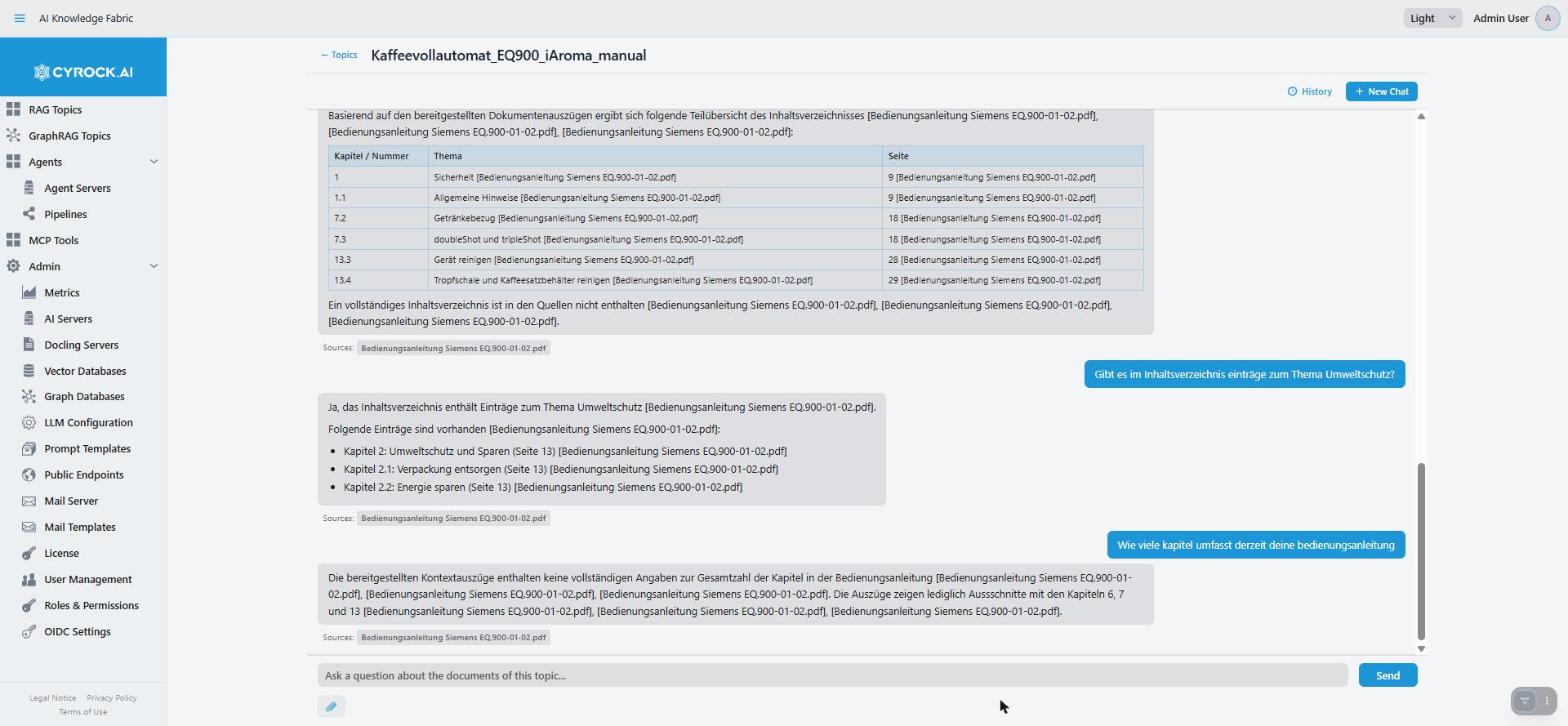
The Sources row under an answer lists the documents the answer is based on. Use it to check that the answer comes from your documents and is not invented. The paperclip below the input field attaches a file to one question.
┌──────────────────────────────────────────────────────────┐
│ ← Topics    HR_Assistant                                 │  header
├──────────────────────────────────────────────────────────┤
│                              [History]  [+ New Chat]     │  conversation bar
├──────────────────────────────────────────────────────────┤
│                                                          │
│   You:  How many vacation days after five years?         │
│                                                          │
│   AI:   After five years you are entitled to 30 days.    │  conversation
│         Sources: hr-policy.pdf                           │
│                                                          │
├──────────────────────────────────────────────────────────┤
│  [Ask a question about the documents...]  [Send]  [✕]    │  input
│  📎                                                      │  attachments
└──────────────────────────────────────────────────────────┘
The ✕ (stop) button is only visible while an answer is on its way.
2. Sending a question
Type your question and press Enter or click Send.
The answer appears word by word while the model writes it. You can start reading before it is finished. While an answer is on its way, the input field and Send are locked.
Local models can be slow. An answer that takes a minute or more on a model without a graphics card is normal. If answers stop with an error after a long wait, the Chat Timeout may be too low (see LLM Overrides).
Stopping an answer
Click the ✕ button next to Send, or press Esc. The tooltip says: "Stop waiting for this answer (Esc). The topic may still finish it in the background, but it is not shown or saved."
-
The text you already received stays on screen, with the note "Cancelled — no answer is saved".
-
A stopped answer is not saved. When you open the chat again, the partial text is gone. Your question stays.
-
On a Topic, stopping only ends the answer in this window. The Topic cannot really cancel it. The model may keep working on it in the background for a while.
Leaving the page
You can leave the chat while an answer is on its way. The answer keeps running and is saved when it is finished. Open the chat again to read it.
Answers without sources
A Topic can check a message before it searches your documents (Routing, set on the Topic’s Configuration tab). Small talk, thanks or a request to rework an earlier answer can then be answered without a search. Such an answer has no Sources row. This is expected.
When the Topic finds nothing that fits your question, you get the Topic’s No-answer response instead of an invented answer (see Prompts).
3. Sources
An answer that used your documents shows Sources: below it, with one badge per document. Click a badge to download the document.
Use this to check answers. If an answer looks wrong, open the document and read the passage yourself.
The badge links to this app, not to the Topic directly. So the link also works when the Topic is not reachable from your computer. You still need chat access to the Topic to download.
Download links expire
Each link works for about 10 minutes after the answer appeared. Then the badge turns grey. When you click a grey badge, the app tells you: "The download link for "…" has expired. Links only work for a short time. Ask the question again to get a new link."
-
The links are saved with the answer. If you reload the page (F5) or open the conversation again from History, a link still works for the rest of its 10 minutes.
-
To get new links, ask the question again. Your documents are not lost. Only the short-lived link is gone.
If a download fails, the new browser tab shows the reason, for example "This document is no longer stored in the topic." or "The topic is not reachable. Is it running?".
Sources from other Topics
A Topic can use other Topics as tools (see MCP Interfaces). When an answer uses another Topic, its sources can appear in the Sources row too. Such a badge downloads through that other Topic. It has that Topic’s link lifetime, and you need access to that Topic as well.
-
If the other Topic was deleted, the badge shows the file name only, without a download.
-
A badge like
name (graph ingestion)comes from a GraphRAG Topic. That entry was added from a database, not uploaded as a file, so there is nothing to download.
4. Pictures in answers
If the Topic stores pictures from your documents and shows them in answers (Topic settings), an answer can include pictures. Each picture appears at the place in the text where the answer refers to it. Below the picture you see its caption, the document and the page, as far as they are known. Click a picture to open it in a new browser tab.
-
While the answer is still being written, a grey "Image…" box holds the place. The picture replaces it when the answer is finished.
-
Pictures load through this app. They do not expire like download links, so they still show when you open an old conversation.
-
If a picture cannot be loaded any more (for example, the Topic is stopped or the document was deleted), you see "Image unavailable — " and its caption instead.
-
Pictures from another Topic that the answer used load through that Topic.
5. Conversations and history
Conversations are saved and personal — you see only your own.
| Control | Effect |
|---|---|
New Chat |
Starts a new, empty conversation |
History |
Lists your conversations for this Topic, newest first, with Title and Date. Click a row to open that conversation |
Trash icon (in History) |
Deletes that conversation with all its messages. There is no confirmation, and it cannot be undone |
-
Opening the chat continues your most recent conversation.
-
A new conversation is named "Chat 1", "Chat 2" and so on. Your first question becomes its title (shortened to about 60 characters).
-
If you delete the conversation that is open, the app opens your most recent other conversation, or starts a new one.
Start a new chat when you change subject. The Topic sends the last few messages of the conversation to the model with every question. In a long conversation about something else, the model may answer in terms of the old subject, and every question costs more. The number of messages is the Context Memory (messages) setting (default 3, can be changed per Topic on the LLM Overrides tab).
6. Attachments
The paperclip below the input field attaches files to one question. You can also drag files onto the input field. Each file appears as a chip; ✕ on the chip removes it. After sending, your message shows the names of the files it carried.
|
Attachments are used for one answer only. They are never added to the knowledge base. To add a document for good, upload it on the Topic’s Data Upload tab. |
Use attachments for "here is a document, what does it say about X?". Do not use them to build up knowledge.
Which files you can attach is set per Topic under Chat Attachments (Configuration tab):
| Type | Needs |
|---|---|
Text files — txt, md, json, yaml, csv, source code |
Nothing. Always allowed |
Documents — PDF, DOCX, XLSX, PPTX |
A Docling server for the Topic |
Images — JPG, PNG, GIF, WEBP, BMP, TIFF |
A Language Model that can see pictures |
-
The file picker and the drop on the input field only accept these file types. A dropped file of another type is ignored without a message.
-
If no type is allowed at all, there is no paperclip.
-
Each file can be at most as large as the Topic’s Largest Chat Attachment setting (10 MB unless someone changed it). A larger file is not attached. You see "… is too large. Files up to … can be attached here." The Topic checks the same limit again, also for programs that use its API.
-
An attached image goes straight to the Topic’s Language Model. The Image Describer Model is only used during upload. Nothing checks whether the Language Model can really see pictures.
The Topic itself makes the final check. If it cannot read a file — for example an image while the Language Model cannot see pictures, or a PDF without a Docling server — the app shows its message as a notification. Nothing is saved as an answer then. Fix the Topic’s settings and ask again.
Pasting long text
If you paste more than 300 characters into the input field, the text does not go into the field. Instead, a chip above the input shows "… chars pasted". When you send, the pasted text goes first and your typed question after it. The chat shows the full text. ✕ on the chip removes the pasted text.
7. Errors and retrying
The Topic or a service it needs is not reachable (the model server, Docling, the vector database), or the connection to the Topic broke off. The answer is replaced by a yellow box with the message and ↻ Retry this message. Your question is kept. Fix the cause, or wait if a container is restarting, and click retry. This box is not saved.
The Topic cannot read an attachment. You see a notification. See Attachments.
Any other error appears as an answer that starts with "Error:". There is no retry button; ask again. This error is saved in the conversation like an answer.
If the error belongs to a conversation that is not open at the moment, you see it as a notification.
8. Getting better answers
| Symptom | What to do |
|---|---|
Answer ignores a document you uploaded |
Check the Chunks list on the Data Upload tab. If the document is not there, it was never stored |
Answer is vague or general |
Ask more precisely, with words that appear in the documents. Consider a higher Top-K Results |
Answer cites documents that do not fit |
Set a Min. Similarity Score, or set Reranking Strategy to LLM |
Answer contradicts a document |
Open the source and check it. If the stored text is garbled, the document was not converted well |
Model answers from general knowledge instead of the documents |
Make the Context template stricter on the Prompts tab. It tells the model how to use the passages it found |
Wrong tone or too long |
Change the Topic’s system prompt |
Model forgets earlier questions |
Raise Context Memory (messages) |
Model brings up an old subject |
Start a New Chat |
A message is answered without a search, but it needed one |
Raise the Router Confidence Threshold, or switch Route before retrieval off |
9. Troubleshooting
| Symptom | Cause and fix |
|---|---|
Topic name is not a link in the list |
The Topic is not |
"This topic does not exist (any more). Open a chat from the topic list." |
The chat was opened without a valid Topic. Open it from the Topic list |
"You do not have access to this topic." |
Your role has no access to this Topic. Ask an administrator |
Every question returns the no-answer response |
Nothing is stored yet, or the search finds nothing above the minimum score |
A source badge is grey |
The link is older than about 10 minutes. Ask the question again |
The download tab shows "The topic is not reachable. Is it running?" |
The Topic is stopped or has failed. Check its status and Logs tab |
No paperclip |
No attachment types are allowed for this Topic |
Images are rejected |
Allow images under Chat Attachments. If they are allowed, the Language Model probably cannot see pictures |
An answer disappeared after a reload |
It was stopped with ✕ or Esc. Stopped answers are not saved |
A conversation disappeared |
It was deleted with the trash icon in History |
An answer takes very long |
Wait, or stop it with ✕. Check the Topic’s Logs tab if this happens often |
Related
-
Configuration and functions — attachments, timeouts, retrieval settings
-
Prompts — system prompt, context template, no-answer response
-
REST interface — the same chat from a script