Installing AI Knowledge Fabric with Docker Compose
This guide describes how to install and run the AI Knowledge Fabric management frontend on a single host using Docker Compose. This is the recommended setup for evaluations, single-server installations, and small team deployments.
For multi-node / cluster installations, see Installing on Kubernetes instead.
1. How the installation works
The Compose file starts two containers:
| Container | Image | Purpose |
|---|---|---|
|
|
The management frontend — web UI, REST API, container orchestration |
|
|
Configuration store (topics, agents, pipelines, users, roles, chat history) |
Everything else is created at runtime, by the application itself. When you start a Topic or an Agent in the web UI, the management app generates a Compose file for it and starts the container (Topic, GraphRAG Topic or Agent) directly on the same Docker host. The same is true for an AI server or Docling server that you let the app manage. Your vector databases and graph databases are not started by the app: you register them yourself, and the app only connects to them. This is why the app container needs access to the Docker socket — see Why the Docker socket is mounted.
                    ┌─────────────────────────────────────────┐
  Browser ─────────►│  aiknowledgefabric-app        :8080     │
                    │  (management frontend)                  │
                    └───┬──────────────────────────┬──────────┘
                        │                          │
                        │ JDBC                     │ /var/run/docker.sock
                        ▼                          ▼
            ┌───────────────────────┐   ┌──────────────────────────────────┐
            │ aiknowledgefabric-db  │   │  Containers created on demand:   │
            │ (PostgreSQL)          │   │  Topics, GraphRAG Topics,        │
            └───────────────────────┘   │  Agents, managed AI/Docling srv  │
                                        └──────────────────────────────────┘
2. Prerequisites
| Requirement | Notes |
|---|---|
Docker Engine 24+ with the Compose plugin 2.24 or newer |
Verify with |
Linux, macOS, or Windows |
On Windows/macOS use Docker Desktop; on Windows, WSL 2 backend is recommended |
Free port 8080 |
Configurable — see Configuration |
Free disk space |
At least 20 GB. Model files (Ollama) and vector data grow quickly |
RAM |
Minimum 4 GB for the management app itself. Add 8 GB or more if you plan to run local LLMs via Ollama on the same host |
Internet access |
Required to pull images from Docker Hub, unless you mirror them into a private registry |
|
Note: No Java, Maven, or Node.js installation is required. The images are prebuilt. |
3. Installation
Step 2 — Create the Compose file
Create a file called docker-compose.yml in that directory. Its complete content is on its own page:
The Docker Compose file. Copy it from there into your file and save it.
Step 3 — Create an .env file (recommended)
Create an .env file next to docker-compose.yml. Docker Compose reads it automatically and hands
every variable in it to the app. Without an .env file the app starts with its built-in defaults,
which are fine for a first test but not safe for production (the database password and the metrics key
are example values). Tokens need no secret from you: the app signs them with its own key pair, created on the
first start, and Topics, GraphRAG Topics and Agents only receive the public key.
A minimal, production-sensible starting point:
# Port the web UI is served on
APP_PORT=8080

# PostgreSQL password — change this before the first start
DB_PASSWORD=<choose-a-strong-password>

# Shared secret that topic/agent containers use to report usage metrics back to the app
METRICS_API_KEY=<choose-a-random-string>

# License key (required — without a valid key nothing can be created or started).
# Can also be entered later under Admin → License.
CYROCK_LICENSE_KEY=|
|
Step 4 — Start the stack
docker compose up -dThe first start pulls both images and initialises the database schema. This typically takes one to three minutes.
Step 5 — Check that it is running
docker compose ps
docker compose logs -f app
Wait for the Spring Boot startup line in the log, then open:
http://<your-host>:8080
Step 6 — First login
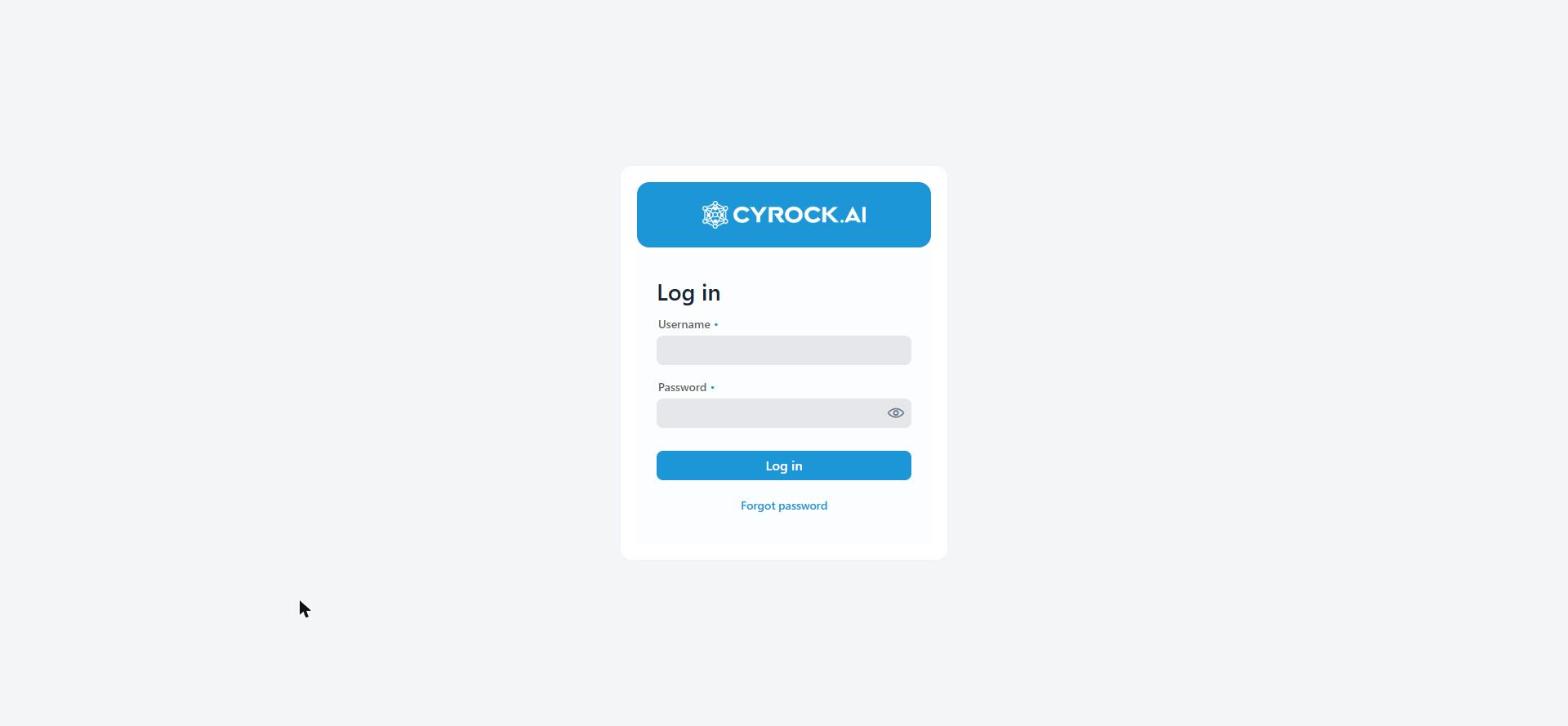
| Field | Value |
|---|---|
Username |
|
Password |
|
Change this password immediately under Profile → Change Password.
|
If the form shows an SSO button instead of, or next to, these fields, the instance has already been switched to OIDC — see OIDC Settings. |
Step 7 — Post-installation checks
-
Admin → AI Servers — register at least one model provider (a local Ollama server or an external endpoint such as OpenAI or Anthropic).
-
Admin → Users — create real user accounts and assign roles.
-
Admin → License — check that the status is Valid, or paste your license key there. Without a valid license nothing can be created or started.
-
Create your first Topic under Topics to verify that container orchestration works end to end.
4. Configuration
All configuration is done through environment variables. Set them in .env: every variable in that
file reaches the app. You can also write them directly into the environment: block of the app
service. A value there wins over the same variable in .env.
|
Not every setting is safe to change. Which ones you may change, which only with care, and which not at all, is on the page Supported settings. Read it before you change anything beyond the required values. |
|
After changing |
Core settings
| Variable | Default | Description |
|---|---|---|
|
|
Host port the web UI is published on |
|
|
PostgreSQL password (used by both containers) |
|
|
Validity of issued tokens. A user who is disabled or loses a role keeps access this long |
|
Where Topics, GraphRAG Topics and Agents reach this app (token keys, service tokens, metrics). Follows |
|
|
|
Where Topics, GraphRAG Topics and Agents fetch the public keys they check tokens with. A path is added to |
|
|
Where Agents get a short service token for scheduled runs (Topics and GraphRAG Topics never use one). Path or full URL, as above |
|
|
Failed sign-ins per account / per client address within |
|
|
|
|
|
Name of the login session cookie. Only change it if another application on the same hostname already uses this name — browsers scope cookies by host and ignore the port, so two apps sharing a cookie name log each other out |
|
(empty) |
License key. Required: without a valid key no Topic, GraphRAG Topic, Agent or Pipeline can be created or started. The app passes it on to every container it starts — see License |
|
(insecure default) |
Shared secret that topic/agent containers must send when reporting usage metrics |
|
|
Where the topic/agent containers report metrics to. Path or full URL, as above |
|
(empty) |
Optional GitHub token to raise the rate limit of the MCP tool catalog browser |
Deployed image versions
The frontend deploys additional images at runtime. By default they use a floating major tag that matches the frontend’s own major version, so they stay up to date automatically.
| Variable | Default | Description |
|---|---|---|
|
|
Image used for Topic (RAG) containers |
|
|
Tag for the Topic image |
|
|
|
|
|
Image used for Agent containers |
|
|
Tag for the Agent image |
|
|
|
|
|
Image used for GraphRAG Topic containers |
|
|
Tag for the GraphRAG Topic image |
|
|
|
|
|
Image used for managed Docling servers |
If an image variable already contains a tag (for example myrepo/topic:0.8.1), that tag is used and
the matching *_IMAGE_VERSION variable is ignored. Set a pull policy to Never if you built an image
yourself and want to keep it under the same tag.
|
Compatibility rule: the frontend’s major version must match the major version of the Topic, GraphRAG and Agent images it deploys. Minor and patch versions may differ freely. |
Host networking variables
The app, and the Topic and Agent containers it starts, reach each other and the services on the host
(a local AI server, Docling, other Topics) through the host name host.docker.internal. This works
on Docker Desktop (Windows/macOS) and on plain Linux Docker: every container the app starts is
told where the host is. You normally do not need to change any of these variables.
Change them only if the host cannot be reached under host.docker.internal in your setup, for
example because a firewall blocks the Docker bridge. Then set them to an address of the host that the
containers can reach.
| Variable | Default | Used for |
|---|---|---|
|
|
How the app reaches Topic containers |
|
|
How the app reaches GraphRAG Topic containers |
|
|
How the app reaches Agent containers |
|
|
How the app reaches Docling containers |
|
|
How one Topic container reaches another Topic container (MCP tool calls) |
|
|
How a Topic container reaches an AI server (Ollama / OpenAI-compatible) that you registered with |
|
|
How a Topic container reaches a Docling server that you registered with |
Ports used by Topics and Agents
Each Topic and each Agent is published on its own host port, which you choose when creating it in
the UI. Those ports must be free on the host and, if users or other services need to call the Topic
or Agent APIs directly, open in the firewall — see Publishing Topics and Agents to other systems before you do. The web UI itself only needs APP_PORT.
More settings (optional)
You rarely need these. The defaults suit most installations.
| Variable | Default | Description |
|---|---|---|
|
(empty) |
The address under which users reach a Topic, GraphRAG Topic or Agent from outside, for example |
|
|
Seconds the app waits for a new Topic, GraphRAG Topic or Agent to become ready. When the time runs out, the resource goes to |
|
|
The same for managed AI servers and Docling servers |
|
|
Seconds between two background updates of the model lists you see in the model pickers. A lower value shows new models sooner and creates more requests to your AI servers |
|
|
On the very first start, the app adds a few example pipelines. Set |
|
|
How long a password reset link works |
|
|
Whether the API documentation ( |
|
|
|
5. Why the Docker socket is mounted
The app service mounts /var/run/docker.sock. This is required: the management frontend creates
and controls the containers for Topics, GraphRAG Topics, Agents, and managed AI and Docling servers on
the Docker host. Without the socket, Start/Stop/Delete operations fail and Topics remain in
STARTING and then move to ERROR.
Security implication: access to the Docker socket is equivalent to root access on the host. Therefore:
-
Run this stack on a host you control, not on shared multi-tenant infrastructure.
-
Do not expose port 8080 directly to the internet — put a reverse proxy with TLS in front of it (see Running behind a reverse proxy).
-
Restrict who receives accounts with permissions to start or delete resources.
6. Data persistence
Two named volumes are created:
| Volume | Contents | Losing it means |
|---|---|---|
|
All configuration: topics, agents, pipelines, users, roles, chat history, license |
Complete loss of configuration |
|
The generated Compose files of all Topics, GraphRAG Topics, Agents, managed AI servers and managed Docling servers |
Running resources can no longer be stopped or deleted through the UI |
|
Upgrading from an earlier version of the Compose file? Older files kept the Compose files of Agents and GraphRAG Topics inside the app container, where they are lost when it is recreated. Before you switch to the new file, stop all running Agents and GraphRAG Topics in the UI, and start them again afterwards. Starting writes their Compose files into the volume. If you switch first, those Compose files are already gone, and stopping a running Agent or GraphRAG Topic does not work any more. |
Data that belongs to a single resource lives in its own volume, which the app creates and removes together with the resource:
| Resource | Volume | Contents |
|---|---|---|
Topic |
|
The keyword index (only when the Retrieval Strategy is Hybrid). The search data is in the registered vector database |
GraphRAG Topic |
|
The keyword index (only when keyword search is on). The search data is in the registered vector database |
Agent |
Two volumes for pipeline and key-value data |
Pipelines the agent holds and its stored values |
Managed AI server |
A volume for the models |
Downloaded Ollama models |
Managed Docling server |
A cache volume |
Docling model files |
Your vector databases and graph databases are outside of this installation. Back them up the way you back up that database.
Backup
# Configuration database
docker exec aiknowledgefabric-db pg_dump -U admin AIKnowledgeFabric > aikf-backup.sql

# Restore
cat aikf-backup.sql | docker exec -i aiknowledgefabric-db psql -U admin -d AIKnowledgeFabric
Back up the database while the app is running is fine, but take the backup after stopping long-running ingestion jobs to get a consistent snapshot.
7. Running behind a reverse proxy
The UI uses WebSockets (Vaadin server push), so the proxy must forward Upgrade headers. Example Nginx configuration:
server {
    listen 443 ssl;
    server_name knowledgefabric.example.com;

    ssl_certificate     /etc/ssl/certs/knowledgefabric.crt;
    ssl_certificate_key /etc/ssl/private/knowledgefabric.key;

    client_max_body_size 512M;   # document uploads

    location / {
        proxy_pass http://127.0.0.1:8080;
        proxy_http_version 1.1;
        proxy_set_header Upgrade    $http_upgrade;
        proxy_set_header Connection "upgrade";
        proxy_set_header Host       $host;
        proxy_set_header X-Real-IP  $remote_addr;
        proxy_set_header X-Forwarded-For   $proxy_add_x_forwarded_for;
        proxy_set_header X-Forwarded-Proto $scheme;
        proxy_read_timeout 300s;   # long-running chat / ingestion requests
    }
}
Then bind the app to loopback only by changing the port mapping in docker-compose.yml:
ports:
  - "127.0.0.1:${APP_PORT:-8080}:8080"
Publishing Topics and Agents to other systems
The web UI works without this: chats, downloads and pictures go through the app. Publish a Topic, GraphRAG Topic or Agent only if other systems should call it directly, for example through its REST API. Put a gateway or reverse proxy of your own in front of it; the app does not do that for you.
Close the direct ports. Every Topic, GraphRAG Topic and Agent listens on its own host port on
all network addresses of the host. Without a firewall, anyone in your network can reach every
route of it directly — protected only by the login token. When you publish through a gateway, let the
firewall allow those ports only from the gateway and from the Docker networks on this host (the app
reaches the containers through host.docker.internal, so binding them to 127.0.0.1 would cut the
app off).
Let only these routes through, block everything else:
| Container | Route | Why |
|---|---|---|
Topic |
|
Chatting |
Topic |
|
The source and picture links in answers point here |
Topic |
|
Only if outside systems should upload documents — with a size and a rate limit, see below |
GraphRAG Topic |
|
Chatting |
GraphRAG Topic |
|
Source links in answers |
Agent |
|
Chatting with a pipeline |
Any of them |
|
Optional: the API documentation for the systems that call the REST API. It shows no data and every route still needs a token |
This app |
|
Outside systems get their login token here (see REST API — Obtain a token) |
Never publish: /logs, /dev-reporting, /mcp and /mcp/client, /pipelines, /health and
/actuator (monitoring only from inside), and every other /embeddings/ or /graphrag/ route. They
are protected by the token as well, but are meant for this app and for administrators, not for the
internet.
Limits at the gateway:
-
Request size. Chat attachments are limited per file in the containers (1 MB by default). Allow only what you need — for example a few MB for chat routes, and for
/embeddings/embedthe size of your largest document. Uploads go through Docling and the file parsers, so an unlimited upload route from the internet is a load risk. -
Requests per caller. Every chat answer costs model calls, and the app has no quotas of its own. Limit chats and uploads per caller (per token or per address) at the gateway.
-
/api/auth/token. The app locks an account after 5 wrong passwords in 15 minutes (50 per address), counted per app instance. Add a rate limit at the gateway as well. -
Streaming. Switch off response buffering for the
streamroutes and allow long timeouts (several minutes). Otherwise answers arrive all at once at the end, or break off.
Further rules:
-
Forward to the container’s host port and remove any path prefix — the containers expect their routes to start at
/. -
Terminate TLS at the gateway; the containers speak plain HTTP.
-
Set the public address under Admin → Public Endpoints (for example
https://api.example.com/topics/{id}), so the links in answers point to the gateway. A changed address reaches a running container after you stop and start it.
8. Day-to-day operations
# View logs
docker compose logs -f app

# Restart just the application
docker compose restart app

# Stop everything (data is kept)
docker compose down

# Start again
docker compose up -d|
Note: |
Updating
docker compose pull
docker compose up -d
Because the Topic, GraphRAG and Agent images use pull_policy: always, they refresh on the next start of each
Topic/Agent — restart your Topics and Agents from the UI after a frontend update so that all
components run matching versions.
To pin exact versions instead of the floating tag, set RAG_SERVICE_IMAGE_VERSION,
GRAPHRAG_SERVICE_IMAGE_VERSION and AGENT_SERVER_IMAGE_VERSION to concrete values in .env, and edit the image: tag of the app
service in docker-compose.yml directly.
What an update keeps, and how an update to a new major version works, is described in Upgrades and compatibility.
9. Troubleshooting
| Symptom | Cause and fix |
|---|---|
UI not reachable on port 8080 |
Port already in use, or the app is still starting. Check |
App container restarts in a loop with JDBC errors |
Database not ready or wrong |
Topics stay in |
The app cannot reach the Docker daemon. Verify that |
Topic starts, but chat returns a connection error |
The Topic cannot reach the AI server. Check that the AI server is running and that its address under Admin → AI Servers is reachable from a container. Topics started before an app update may still use an old setup — stop and start them in the UI. See Host networking variables |
A setting in |
The app was not recreated after the change. Run |
A managed AI server takes very long to start the first time |
The Ollama container pulls its image first, and models are downloaded when you pull them. Later starts reuse the model volume. The start wait is limited by |
"There is no valid license" when creating or starting a resource |
No valid license key. Set |
Usage metrics dashboard shows demo data only |
|
Cannot log in after enabling SSO |
The |
Logged out whenever another app’s tab is used |
Two applications on the same hostname are using the same session cookie name (browsers ignore the port when matching cookies). Give this app a unique |
To collect information for a support request:
docker compose logs --no-color > aikf-logs.txt
docker compose ps -a >> aikf-logs.txt
docker version >> aikf-logs.txt
10. Reference: the Compose file
The complete file, with a short explanation of every part, is on its own page: The Docker Compose file.
Next steps
-
Getting Started — continues straight from here: model provider, Docling, first Topic, upload, chat
-
3.0 Configuration — configuring AI servers, models, vector databases, users, and roles
-
4.0 RAG Topics — creating your first document-grounded chatbot
-
5.0 Agents and Pipelines — building agent workflows in the Pipeline Designer