Global LLM Configuration and Prompt Templates
Two screens in the Admin section set the shared defaults for how topics talk to their language model:
| Screen | Path | What it holds |
|---|---|---|
LLM Configuration |
|
Shared defaults for all topics and GraphRAG topics: context memory, timeouts, the system prompt, the RAG context template and the no-answer response |
Prompt Templates |
|
Ready-made instructions that fill a topic’s Custom System Prompt with one click in the topic wizard |
| Permission | Allows |
|---|---|
|
See both screens in the Admin menu and open them. All fields are read-only |
|
Change and save. Without it, the Save, Create Template, edit and delete buttons are hidden |
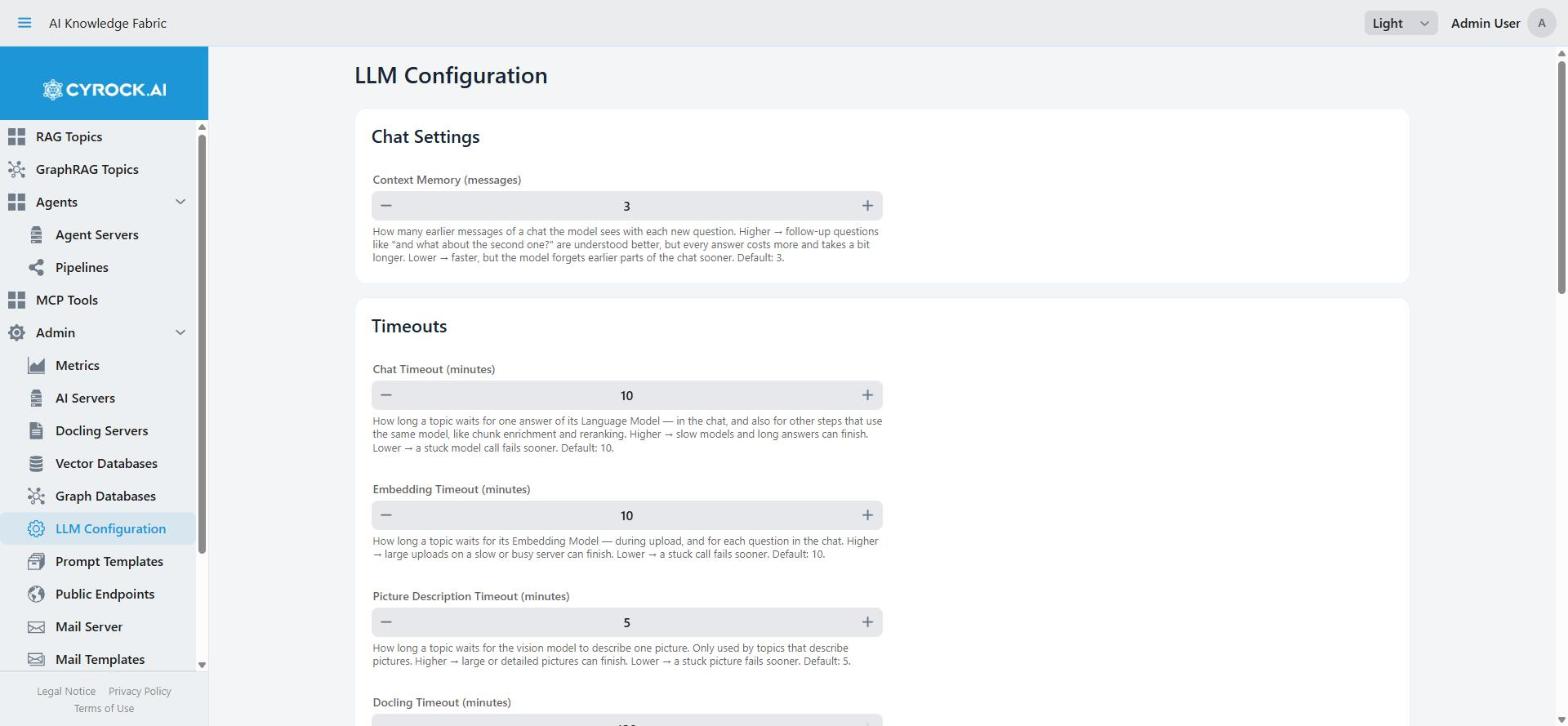
Part 1 — LLM Configuration
This screen edits one configuration for the whole installation. There is no list and nothing to create. You open it, change values, and click Save.
The hint next to the Save button states the rules:
These are the defaults for all topics and GraphRAG topics. A topic that sets its own value keeps it. Changes reach a topic the next time it is stopped and started.
After saving you see: "Saved. Running topics use the new values after they are stopped and started."
When a change reaches a topic
A topic gets these values when it starts. Saving here does not change a topic that is already running. Stop the topic and start it again. Until then, it keeps working with the old values.
A topic that has its own value for a setting keeps that value. A change here does not reach it. See Per-topic values.
Chat Settings
| Field | Range | Default |
|---|---|---|
Context Memory (messages) |
1–100 |
|
How many earlier messages of a chat the model sees with each new question. Used in the chat of topics and GraphRAG topics.
-
Higher: follow-up questions like "and what about the second one?" are understood better. But every answer costs more and takes a bit longer.
-
Lower: answers are faster. But the model forgets earlier parts of the chat sooner.
Raise it when users complain that the chat forgets what was said a few questions ago. Lower it for cost or speed.
Timeouts
A timeout is how long a topic waits for a server before it gives up. All four fields accept 1–120 minutes.
| Field | Default | Where it is used |
|---|---|---|
Chat Timeout (minutes) |
|
Every call to a language model — see below |
Embedding Timeout (minutes) |
|
The Embedding Model: during upload, and for each question in the chat |
Picture Description Timeout (minutes) |
|
The vision model, for one picture. Only for topics that describe pictures |
Docling Timeout (minutes) |
|
Docling, for one whole document during upload. Only for topics with a Docling server |
For every field:
-
Higher: slow servers, long answers, large uploads and big documents can finish.
-
Lower: a call that is stuck fails sooner, so users wait less for an error.
What the Chat Timeout covers. It is not only the chat answer:
-
In a topic, it also covers the other jobs that run on the Language Model: chunk enrichment, record narration, keyword generation and reranking.
-
In a GraphRAG topic, it covers every language model job: the answer, the extraction of entities, deduplication, community reports, the router and follow-up questions. This is true also when one of these jobs uses its own model.
There is no separate timeout for these jobs.
Docling servers have their own limit. A Docling server started by this platform stops a conversion after its Max Conversion Time (minutes) (Admin → Docling Servers). A higher Docling Timeout here does not help beyond that limit. The topic forms warn you about this. This screen does not.
Practical guidance: cloud providers answer in seconds, so the defaults are generous. Local models on a CPU are much slower. A long answer can need several minutes. A timeout that is too short shows up as a failed chat or a failed upload, not as a slow one. Long scanned PDFs on a Docling server without a GPU can also take several minutes.
Prompt Configuration
Three texts that shape the answers.
System Prompt
Sets the role, tone and style of the assistant in every topic and GraphRAG topic. For example: "You are the support assistant of company X. Answer briefly and politely."
-
Where: only in the step that writes the answer the user sees. In a GraphRAG topic, it is never used by the router, the extraction, the deduplication or the GLOBAL map step.
-
What it changes: how answers sound. Not which content is found.
The seeded default covers the role, protection against attempts to change the instructions during the
chat, factual accuracy, Markdown formatting, answering in the user’s language, and safety. It contains
the text [YOUR APP NAME]. Replace it with the name of your product.
Keep {{USER_EDITABLE_PROMPT}}. The topic replaces this placeholder with its own instructions. See
How the system prompt is assembled.
RAG Context Template
The text around the found passages that is sent to the model together with the question.
-
Where: in the chat of topics, in every answer that searched the documents. GraphRAG topics do not use it.
-
Stricter (for example "answer only from these passages"): answers stay close to the documents, but say "I don’t know" more often.
-
Looser: answers are more complete, but the model may add its own knowledge.
-
Must contain
{context}. The topic replaces it with the found passages. Without it, the model never sees them.
The seeded default puts the passages between --- RETRIEVED CONTEXT --- and --- END OF CONTEXT ---.
It tells the model to answer mainly from them, to say when it adds general knowledge, to refer to the
passages where it helps, and to say so plainly when the passages are not enough.
If answers drift away from the uploaded documents, make this text stricter. Do this here rather than in the system prompt.
No-Answer Response
Shown instead of an answer when the search finds nothing that fits the question. So users never get an answer that the documents do not support.
-
Where: in the chat of topics and GraphRAG topics. In a topic, only when no other tool was used either.
-
It is shown exactly as written. No model changes it.
-
Write it in your users' language. Tell them what to do next, for example ask in other words, or contact support.
The seeded default apologises and suggests rephrasing the question, uploading more documents, or contacting an administrator.
|
This screen does not check your texts. It saves a System Prompt without
|
How the system prompt is assembled
A topic’s system prompt is put together from two parts:
┌─ Admin → LLM Configuration ──────────────────┐
│  System Prompt (shared)                      │
│                                              │
│    Role & Identity: …                        │
│    --- START USER SETTINGS ---               │
│    {{USER_EDITABLE_PROMPT}}   ←──────────┐   │
│    --- END USER SETTINGS ---             │   │
│    Operating Rules & Safety: …           │   │
└──────────────────────────────────────────┼───┘
                                           │ replaced by
┌─ The topic ──────────────────────────────┼───┐
│  Custom System Prompt (topic)            │   │
│  or Topic instructions (GraphRAG topic) ─┘   │
│  "Always answer in German."                  │
└──────────────────────────────────────────────┘
                     ↓
      The topic receives the result
      when it starts
Where the topic’s own part is edited:
-
Topic: the field Custom System Prompt in the topic wizard (step Common Information) and on the Configuration tab.
-
GraphRAG topic: the row Topic instructions on the Prompts tab.
What follows from this:
-
Without
{{USER_EDITABLE_PROMPT}}, the topics' own instructions are lost. There is no warning and no error. The topics' own texts are simply never used, and the prompt templates have no effect. If topics ignore their own instructions, check this placeholder first. -
When the topic’s own part is empty, the placeholder is removed and the shared text is used alone.
-
The topic receives the result when it starts, for every kind of AI server alike. It is not sent again with each chat message. So a change takes effect only after the topic is stopped and started.
Per-topic values
Every value on this screen is a default. A topic can set its own value instead. While it does, a change here does not reach that topic. When the topic’s own value is removed, the topic follows this screen again.
Topics
| Value on this screen | Own value for a topic |
|---|---|
Context Memory |
|
Chat Timeout |
LLM Overrides tab |
Embedding Timeout |
LLM Overrides tab |
Picture Description Timeout |
LLM Overrides tab, and the topic wizard next to the vision model |
Docling Timeout |
LLM Overrides tab, and the topic wizard next to the Docling server |
System Prompt |
Prompts tab, row System prompt |
RAG Context Template |
Prompts tab, row Context template |
No-Answer Response |
Prompts tab, row No-answer response |
-
On the LLM Overrides tab, an empty field means "use the value from this screen". The field shows that value in grey, for example Global default: 10.
-
On the Prompts tab, these three rows show Global default (Admin → LLM Configuration) until the topic saves its own text. Saving a text that equals the shared one removes the topic’s own text again.
-
The same values can also be set through the management REST API.
|
A topic’s own System Prompt replaces the whole shared text, including the placeholder. Keep
|
GraphRAG topics
| Value on this screen | Own value for a GraphRAG topic |
|---|---|
Context Memory |
None — always this screen |
Chat Timeout |
None — always this screen |
Embedding Timeout |
None — always this screen |
Picture Description Timeout |
Wizard step Data Ingestion, next to the vision model |
Docling Timeout |
Wizard step Data Ingestion, next to the Docling server |
System Prompt |
Prompts tab, row System prompt |
RAG Context Template |
Not used by GraphRAG topics |
No-Answer Response |
None — always this screen |
Part 2 — Prompt Templates
The Prompt Templates screen (heading: System Prompt Templates) holds ready-made instructions for topics, for example "Answer briefly, as a list". In the topic wizard, a click on a template fills the Custom System Prompt with its text.
What a template is — and is not
Is |
A named text, offered as a button in the topic wizard |
Is not |
A link. A topic does not remember which template it came from |
Templates are copied, not linked. The topic keeps a copy of the text. Changing or deleting a template does not change topics that already use it. To change those, edit each topic’s Custom System Prompt yourself.
The grid
| Column | Contents |
|---|---|
Title |
The label of the button in the topic wizard |
Content |
The full text |
Actions |
Edit · Delete (only with |
|
⚠️ Delete works at once, without a question. A click on the trash icon removes the template, and the message "Template deleted" appears. There is no undo. Copy the text first if you might need it again. |
Creating and editing
Click Create Template, or the edit icon in a row. The dialog is called Create Template or Edit Template:
| Field | Required | Notes |
|---|---|---|
Title |
Yes |
Becomes the button label in the topic wizard. An emoji in front makes buttons easy to find, for example |
Content |
No |
The instructions a topic gets when this template is chosen. They are inserted into the system prompt at |
Click Save. You see "Template created" or "Template updated".
Write the content as instructions to the AI: role, tone, length and format of the answers, and what to avoid. It changes how answers sound, not which content is found. It is inserted into the shared system prompt, so it does not need to repeat the safety and formatting rules that are already there.
The seeded templates
A new installation starts with three examples:
| Title | Character |
|---|---|
🛠️ Precise Analyst |
Objective and technical. Short, strictly fact-based answers, no openers like "Happy to help", in-depth analysis of code and data, lists and tables |
💡 Creative Partner |
Inspiring, friendly, informal. Develops ideas further and offers at least three different approaches; vivid language and emojis |
🎓 Patient Teacher |
Explains complex topics as if to a complete beginner. Analogies and everyday examples, technical terms explained at once, patient and encouraging |
Use them as starting points. Edit or delete them, and add templates for your own use cases, for example one per department.
|
The three examples are created at application start only when there are no templates at all. If you delete all templates and restart the application, the three examples come back. Deleting only some of them is permanent. |
Where templates appear
-
Topic wizard, step Common Information: a row Quick-fill from template: with one button per template, above the Custom System Prompt field. If there are no templates, the row is hidden.
-
Management REST API:
GET /api/v1/prompt-templateslists the templates (read-only). When you create a topic or GraphRAG topic through the API, you can name a template instead of writing the text. The text is copied, the same as with the button. Reading the list needsTOPIC_CREATE,GRAPHRAG_CREATEorCONFIG_VIEW. See Management REST API.
Templates are not offered on the topic’s Configuration tab, nor anywhere for GraphRAG topics in the UI.
A click on a button replaces the whole text in the Custom System Prompt field. It does not add to it. Anything typed there before is lost. So pick the template first, then edit the text.
Recommended workflow
-
Set the shared defaults once on the LLM Configuration screen. Adapt the System Prompt to your organisation (replace
[YOUR APP NAME]), write the No-Answer Response in your users' language, and raise the timeouts if you run local models. -
Keep
{{USER_EDITABLE_PROMPT}}in the System Prompt and{context}in the RAG Context Template. This screen does not check them. -
Prepare templates for the roles your users need. Then topic creators pick a role instead of writing instructions from scratch.
-
Stop and start the affected topics after a change. Nothing reaches a running topic.
Troubleshooting
| Symptom | Cause and fix |
|---|---|
A change on this screen has no effect in the chat |
The topic gets the values when it starts. Stop and start it |
Only some topics follow a change |
The others have their own value. For a topic, clear it on the LLM Overrides tab, or use Restore default and Save on the Prompts tab. For a GraphRAG topic, see its Prompts tab and the wizard step Data Ingestion |
Topics ignore their own instructions |
|
Answers ignore the uploaded documents |
Make the RAG Context Template stricter. Check that |
The chat fails after a long wait, with a local model |
The Chat Timeout is too short for the model. Raise it here, or for one topic |
An upload fails with a timeout |
The Embedding Timeout is too short for the document size and the model’s speed |
Uploads with many pictures fail |
The Picture Description Timeout is too short. Vision models are slow. Only for topics that describe pictures |
A long or scanned PDF fails, with Docling |
The Docling Timeout is too short. Also check the Docling server’s Max Conversion Time (minutes): a longer timeout here does not help beyond it |
The Quick-fill from template: row is missing in the topic wizard |
There are no templates. Create one under Admin → Prompt Templates |
Editing a template did not change existing topics |
This is intended. Templates are copied, not linked. Edit the topic’s Custom System Prompt |
The Save, Create Template, edit and delete buttons are missing |
Your role lacks |
The menu items are missing |
Your role lacks |
The AI calls itself "[YOUR APP NAME]" |
The seeded System Prompt still contains this text. Replace it with your product name |
Related
-
Topic Prompts — a topic’s own system prompt, context template and no-answer response
-
Topic Configuration — Custom System Prompt and the LLM Overrides tab
-
GraphRAG Topic Configuration — the Prompts tab of a GraphRAG topic
-
Creating a RAG Topic — where the templates are offered
-
Docling Servers — Max Conversion Time
-
Management REST API —
GET /api/v1/prompt-templates -
Roles and Permissions —
CONFIG_VIEWandCONFIG_MANAGE