GraphRAG Topic Configuration and Functions
The GraphRAG Topic detail page opens when you click a Topic in the GraphRAG Topics list. You need the
GRAPHRAG_VIEW permission, and one of your roles must have access to the Topic. The page has seven
tabs. This page covers each tab, and which tab to use when.
| Tab | Purpose |
|---|---|
Configuration |
A read-only summary of every setting from the wizard, with an Edit Configuration button |
Prompts |
Every instruction text that is sent to a model, each one changeable |
Data Upload |
Upload documents and see what is in the graph |
MCP Interfaces |
Connect other topics as tools |
Actions |
Download the generated file, rebuild communities, reset chats, delete the Topic |
Logs |
Live log of the running Topic |
DEV Reports |
Switch on detailed reports and read them |
|
Almost nothing takes effect while the Topic is running. The app hands every setting to the Topic when it starts. After you change a setting or a prompt, stop and start the Topic. These things work at once, with no restart: MCP connections, document uploads and deleting sources, rebuilding communities, and the DEV Report switches. |
1. Configuration
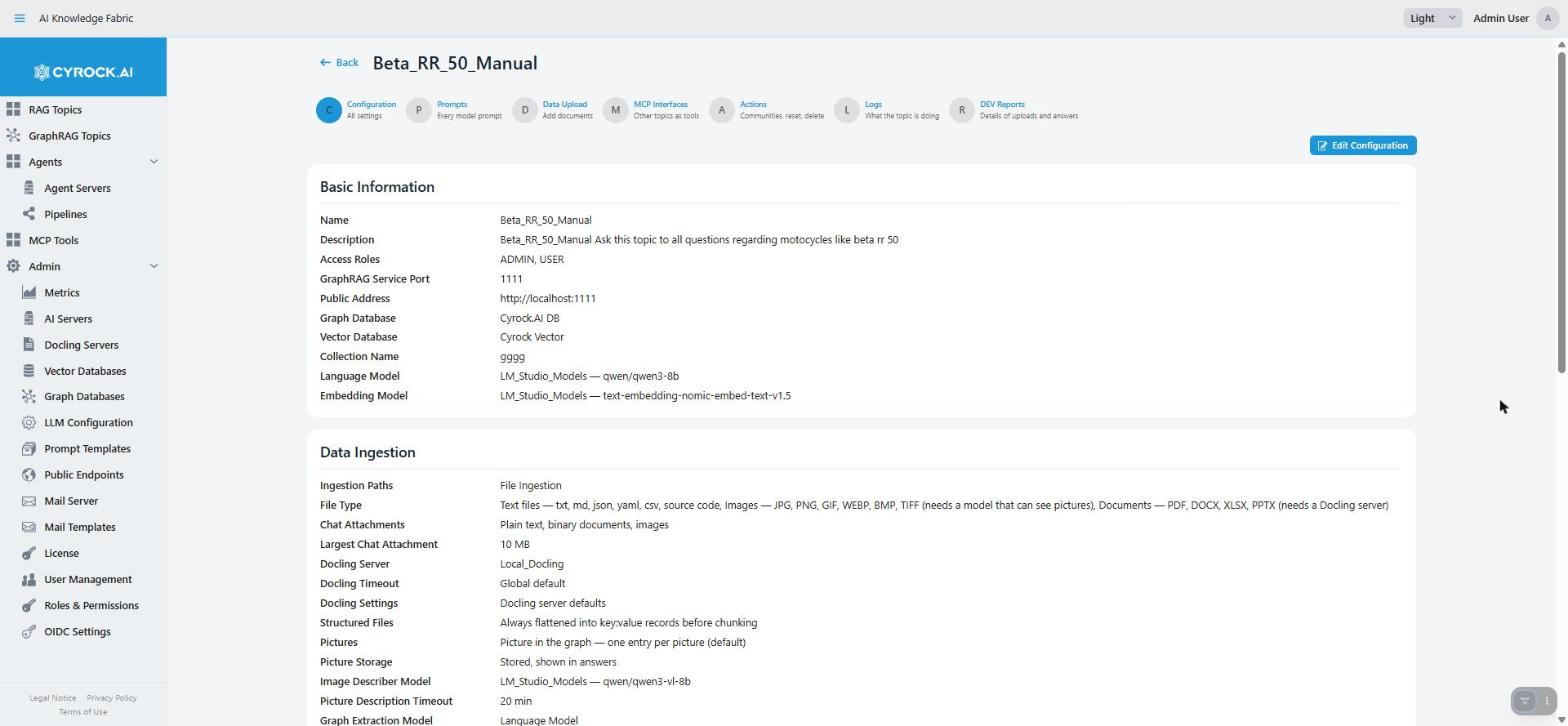
This tab shows everything you set in the wizard, in four groups that follow the four steps: Basic Information, Data Ingestion, Vector Settings and Retrieval. Examples are the name, access roles, port, public address, graph and vector store, collection name, all model roles, file types, chat attachments and their size limit, Docling, picture handling, chunk size, search modes, communities and every retrieval limit. The last row, Customised Prompts, lists the prompts you changed by name.
The tab is read-only. Edit Configuration (top right, needs GRAPHRAG_EDIT) opens the
creation wizard with all values filled in. In
the wizard you can jump between steps and save from any step. If the Topic is running, you are asked
whether to restart it now or later.
Some things to know:
-
Public Address shows the address under which the Topic is reachable from outside, or says that none is configured. It comes from Admin → Public Endpoints, unless you set an override in step 1 of the wizard. A change applies after the next restart.
-
Access Roles show who may reach the Topic. You change them in step 1 of the wizard. Administrators can also grant a Topic to a role from the role page (Admin → Roles).
-
Values that depend on others are shown in plain words. For example, a model role that uses the Language Model shows "Language Model", and an empty minimum score shows "no floor".
Changing some values has a result that nothing on the screen warns you about:
| Field | Result of changing it |
|---|---|
Embedding Model |
Everything already stored (text pieces, entities, community summaries) no longer matches. Search finds nothing useful until you upload everything again and rebuild the communities |
Graph Database, Vector Database or Collection Name |
The Topic points at a new, empty store. Earlier content is not moved and not deleted. It stays in the old store |
|
No error message tells you why answers got worse. After a change of the Embedding Model, the Graph Database, the Vector Database or the Collection Name, the Topic answers as if it knew nothing. Nothing on the screen explains this. If answers suddenly find nothing, check these fields first. |
If Vector Database shows None — this topic cannot start. Edit it and select a vector database., the Topic was created without a vector database. It cannot start until you select one in the edit wizard.
2. Prompts
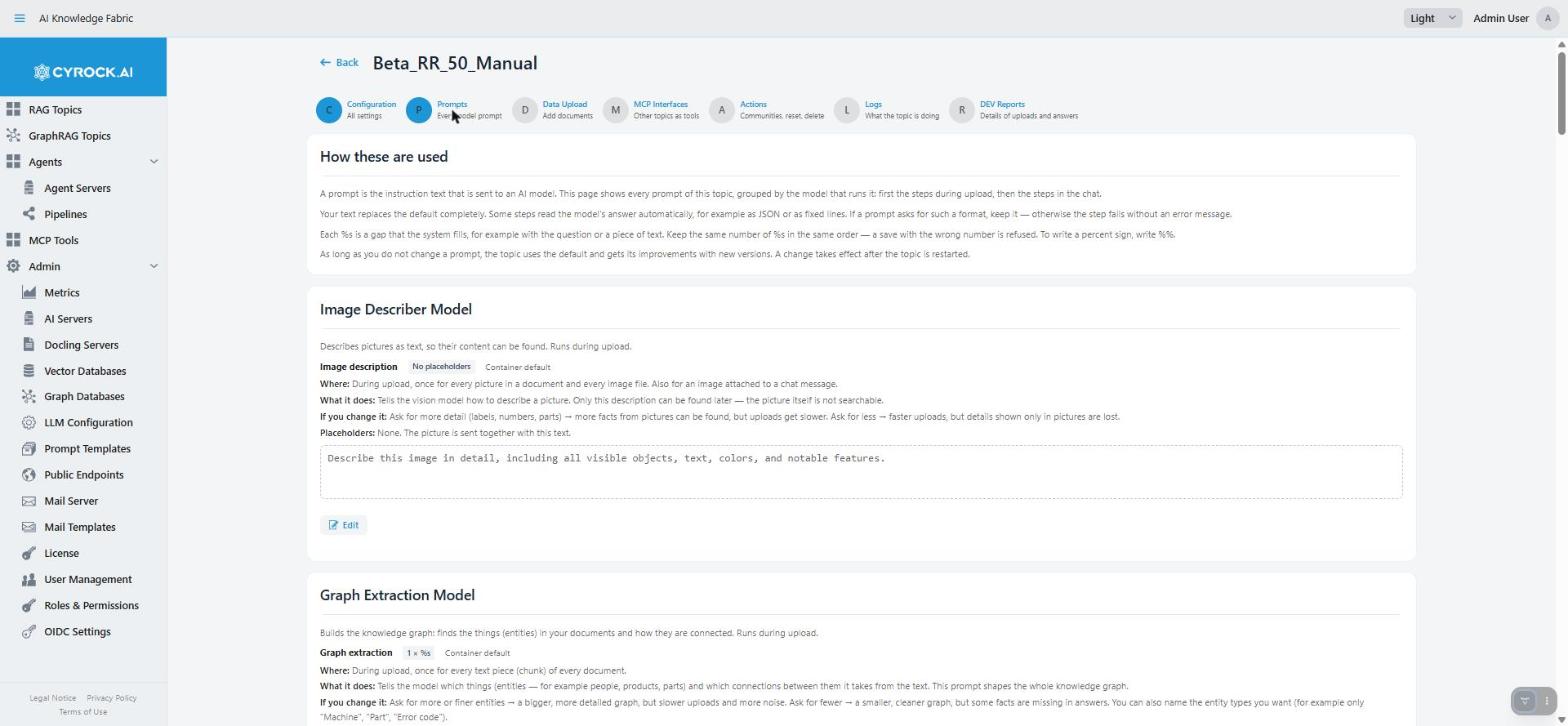
A prompt is the instruction text that is sent to an AI model. This tab lists every prompt of the Topic, grouped by the model that runs it, in the order a document and then a question reach them:
| Group | Prompts |
|---|---|
Image Describer Model |
Image description |
Graph Extraction Model |
Graph extraction, Image entity linking, Graph consolidation |
Deduplication Model |
Entity deduplication |
Community Report Model |
Community report, Community report — map step, Community report — reduce step |
Router Model |
Query router, Router conversation block |
Language Model |
System prompt, Topic instructions, DIRECT answer, ATTACHMENT answer, LOCAL answer, GLOBAL map step, GLOBAL reduce step, Image sources block |
Follow-up Model |
HYBRID primer, HYBRID expansion, HYBRID synthesis |
Shared blocks |
Conversation history block |
Each prompt is one row. It shows a short preview of three lines and a description. The description has labelled lines: Where the prompt runs, What it does, If you change it (what happens in each direction), Important (what must stay in the text), and Placeholders (what fills each gap).
Edit opens a large editor window. If you only have view access, the button reads View, and you cannot change anything. The window has three buttons:
-
Restore default puts the built-in text back into the editor.
-
Cancel closes the window and drops your edit.
-
Save checks the text and stores it. There is no separate apply step. If the check fails, the window stays open and shows the reason.
Rules that apply to every prompt:
-
Your text replaces the prompt completely. Nothing is merged. Some steps read the model’s answer automatically, for example as JSON or as fixed lines. If the description says Important, keep that format. Otherwise the step fails without an error message.
-
A
%sis a gap that the system fills, for example with the question or a piece of text. The description lists what goes into each gap, in order. Keep the same number of%sin the same order. A save with a different number is refused. To write a percent sign, write%%. -
A prompt you do not change follows the built-in default. If you save a text that is exactly the default, the app removes your change. So a later improvement of the default still reaches this Topic. This is correct behaviour, not a lost edit. The Configuration tab lists the prompts you really changed.
-
The prompts of the Image Describer Model have no gaps. The picture is sent together with the text.
-
A change needs a restart. The tab tells you this after every save.
System prompt and Topic instructions
The System prompt and Topic instructions are in the Language Model group. They are not built-in
prompts, but your own words for how the assistant speaks. The System prompt sets role, tone and
style. It starts from the shared text under Admin → LLM Configuration. If you edit it here, the change
applies to this Topic only. Topic instructions are extra instructions for this Topic, for example
"Always answer in German". They are inserted into the system prompt at the place {{USER_EDITABLE_PROMPT}}.
Do not remove that place. If you do, the Topic instructions are not used, and the app refuses to save
instructions together with a system prompt that lacks it.
The system prompt is used only in the last step that writes the answer the user sees: LOCAL and PATH answers, GLOBAL reduce, HYBRID synthesis, and DIRECT and ATTACHMENT answers. It shapes how an answer sounds, not which content is found. See Models and their roles.
To save changes you need the GRAPHRAG_EDIT permission.
3. Data Upload
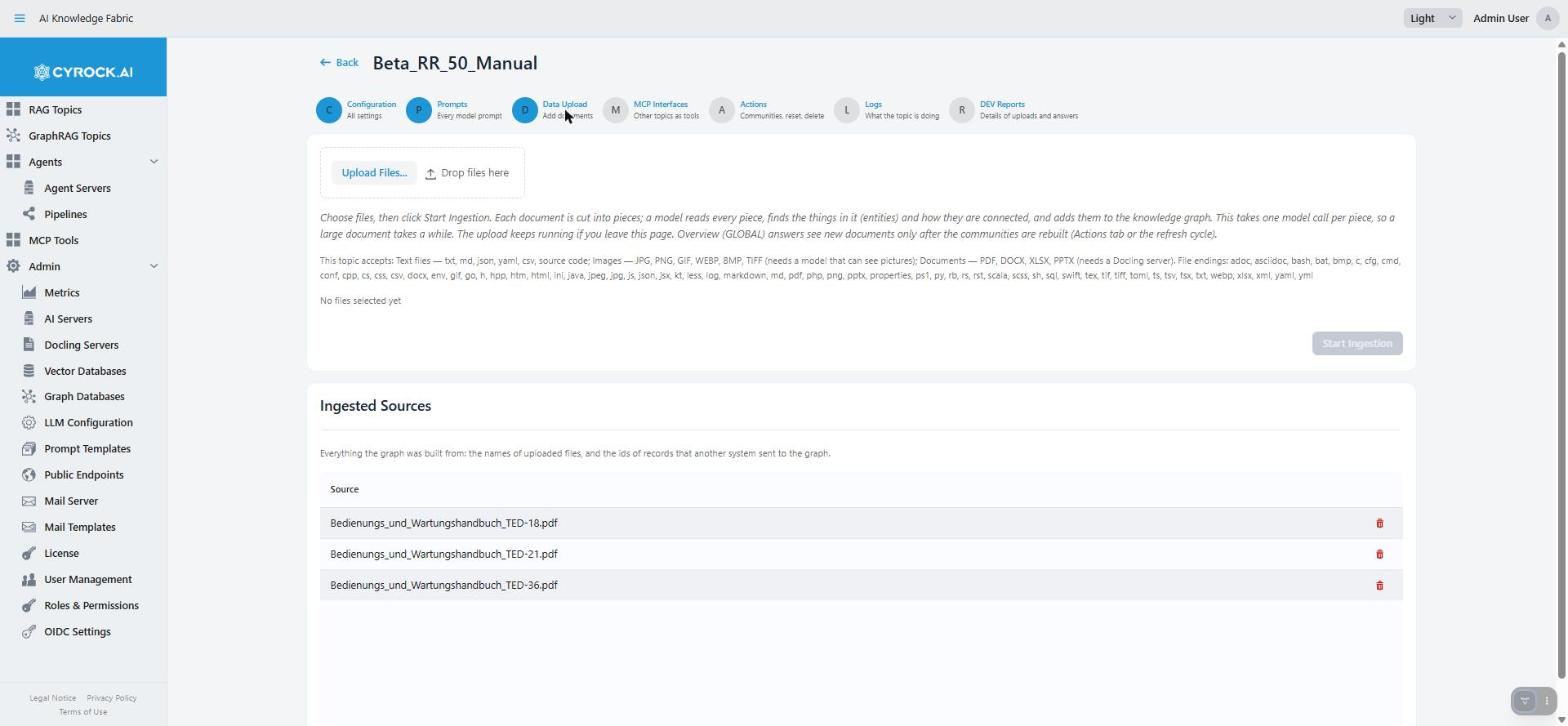
Here documents enter the graph. You need GRAPHRAG_UPLOAD. Without it, you see only the list of sources.
If File Ingestion is switched off for the Topic, the upload area is replaced by a note. Turn File Ingestion on in the wizard (step 2) to upload documents.
The line under the upload area names the file types the Topic accepts. They come from the File Types you ticked in step 2. A Topic with only text files refuses a PDF here, at upload, with a clear reason. See why defining file types precisely matters.
Choose files and press Start Ingestion. A model reads every text piece, so a large document takes a while. The upload keeps running if you leave the page, and the progress is shown when you come back. If a server that the upload needs (for example Docling or a model server) cannot be reached, the batch stops and offers Retry ingestion. See how a document becomes graph for what happens during an upload.
New documents appear in overview (GLOBAL) answers only after the communities are rebuilt. See Recomputing communities.
Ingested Sources
This list shows everything the graph was built from. It is read live from the running Topic, so the Topic must be running. Things to know:
-
A source is either the name of an uploaded file, or the id of a record that another system sent to the graph. See graph-sync vs. document. You can download an uploaded file from a chat answer. A record from another system has no file behind it.
-
The trash icon removes a source (you need
GRAPHRAG_UPLOAD). It removes the text pieces of this source, and only the entities and connections that no other source also contains. An entity that several documents mention loses only the reference to this document and stays. So a result with many "kept" and few "deleted" entities is normal. Records that another system sent are only stripped in the same way. The other system removes them itself. -
Community summaries are not rebuilt by a delete. An overview answer can still mention a removed entity until the next rebuild.
-
If the message says the source "is not in the graph any more", the list was out of date. Nothing was changed, and the list is refreshed.
-
To undo a removal, upload the document again.
4. MCP Interfaces
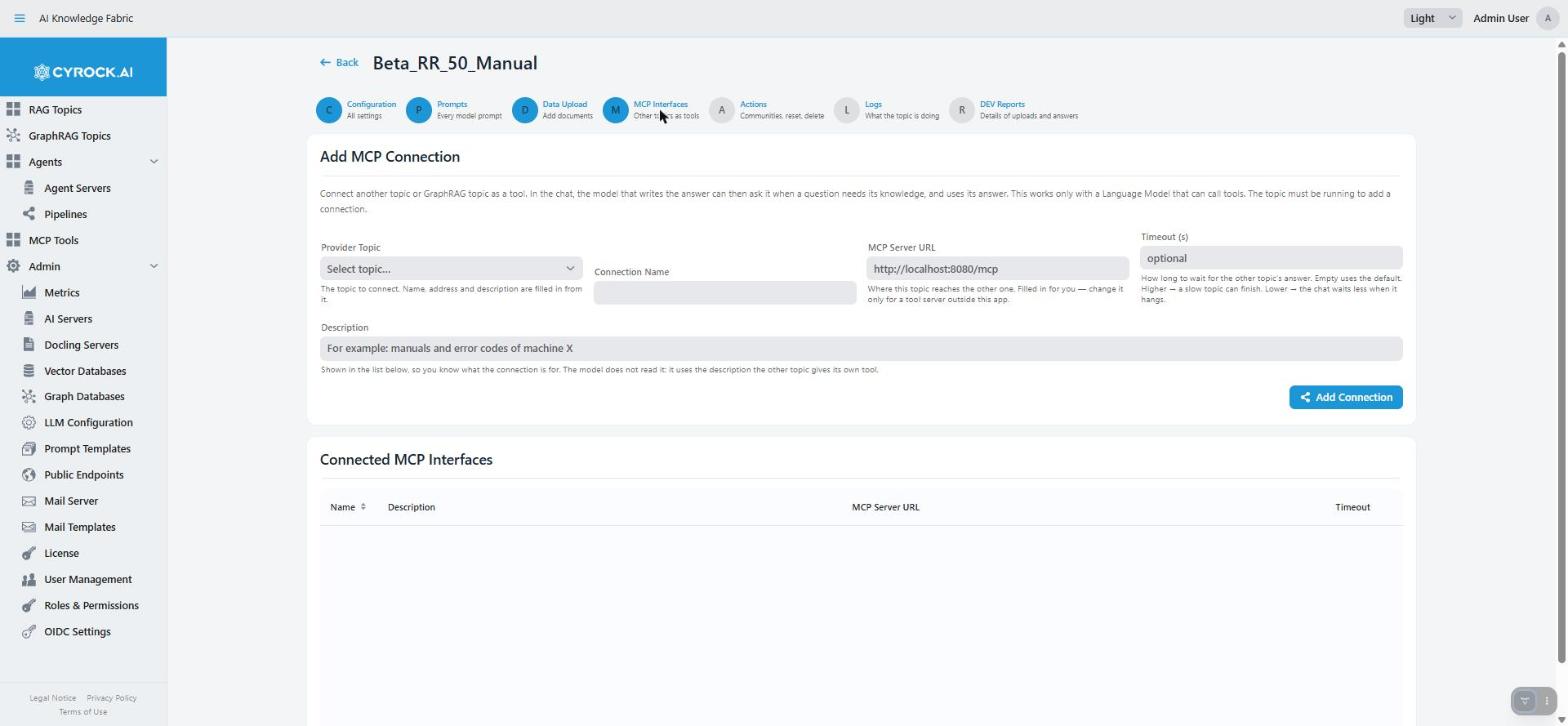
This tab connects other topics as tools. In the chat, the model that writes the answer can then ask a
connected topic when a question needs its knowledge, and use its answer. It works like the MCP tab of a
RAG Topic, see MCP Interfaces.
Connections apply at once, with no restart. The Topic must be running to add one. You need
GRAPHRAG_UPLOAD to add or remove a connection.
Add MCP Connection works like this:
-
Choose a Provider Topic. You can pick any other GraphRAG Topic or RAG Topic. Name, address and description are filled in for you.
-
Change the Connection Name, MCP Server URL and Timeout (s) only if needed. A higher timeout lets a slow topic finish. A lower one makes the chat wait less when it hangs.
-
Check the Description. It is shown in the list so you know what the connection is for. The model does not read it. It uses the description that the other topic gives its own tool.
-
Press Add Connection.
You see a warning if some roles of this Topic cannot reach the provider Topic.
|
Connected tools are never used if the model cannot call tools, and no error is shown. The model must support tool calling. If the other topic refuses the caller, the chat leaves that topic out and adds a short note to the answer. Check the model first when a connected topic never contributes. |
Disconnect removes the connection from the list and from the running Topic.
5. Actions
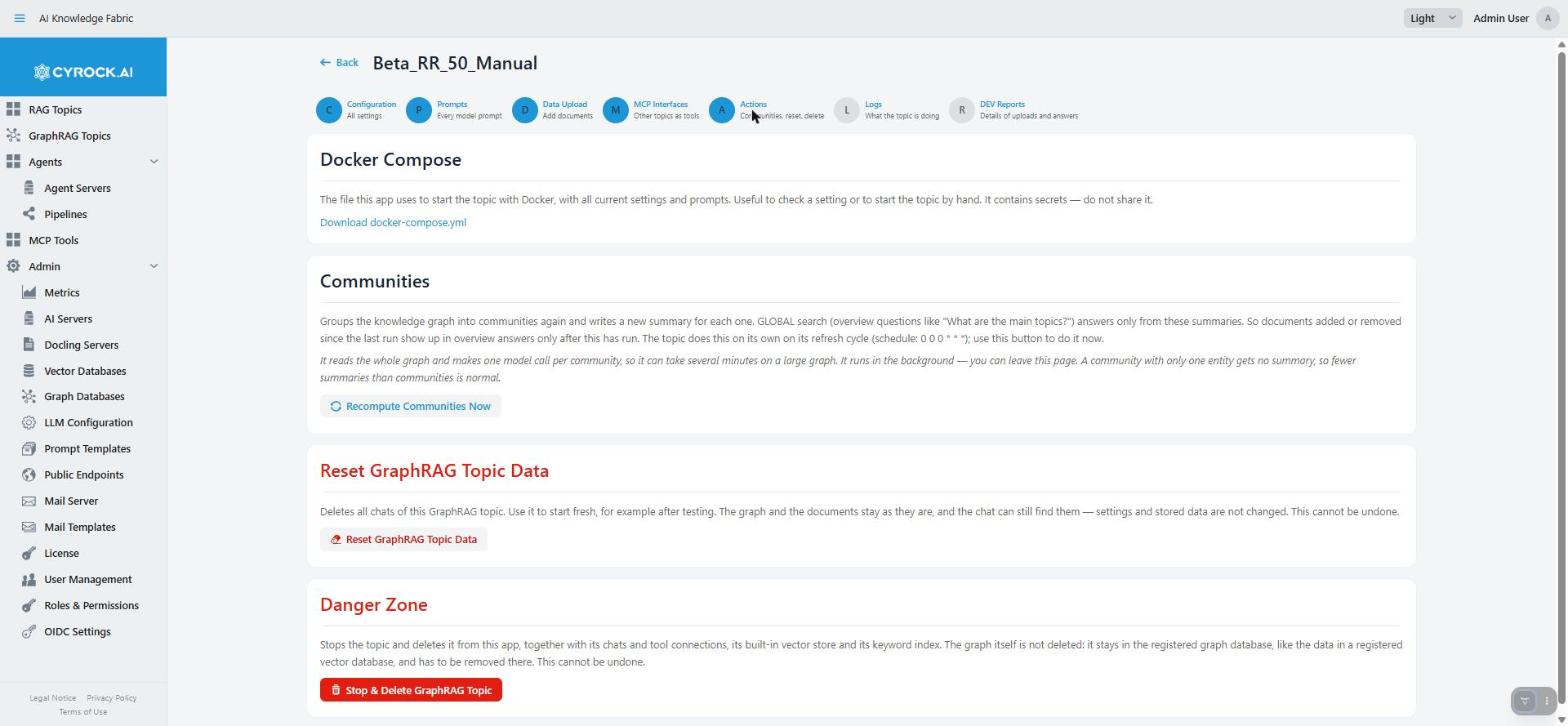
The Actions tab has up to four sections. What you see depends on your permissions.
Download the generated file
The section is titled Docker Compose (or Kubernetes YAML, depending on how the app starts
Topics). Download docker-compose.yml gives you the file that the app uses to start the Topic, with all
current settings and prompts. It is the best way to see what a Topic really runs, and you can use it to
start the Topic by hand. The file holds every password and key of the Topic, so only users with the
permission Download Deployment Files (MANIFEST_DOWNLOAD, admin role only) see it.
|
The file contains secrets, such as API keys, in plain text. Do not share it. |
Recomputing communities
Recompute Communities Now does what the Topic’s refresh cycle does on its own. It groups the whole
graph into communities again and writes a new summary for each one. You need GRAPHRAG_UPLOAD, and the
Topic must be RUNNING. Otherwise the button is greyed out.
This button exists because GLOBAL search reads only these summaries, and nothing else refreshes them. A document that you added or removed since the last run stays invisible to overview questions (and to the overview half of HYBRID) until communities are rebuilt. Use the button after a large upload, instead of waiting for the refresh cycle. The section shows the current schedule.
-
It can take several minutes on a large graph, because it makes one model call per community. It runs in the background. You can leave the page.
-
"Skipped" is not an error. An empty graph, or a run that is already in progress, shows a warning with the reason and does nothing.
-
Fewer summaries than communities is normal. A community with only one entity gets no summary.
-
When the run ends, the section shows what it did: how many entities and connections were grouped into how many communities, how many of them got a summary, and how long it took.
Reset GraphRAG Topic Data
Deletes all chats of this Topic. Use it to start fresh, for example after testing. The graph and the
documents stay as they are, and settings do not change. You need GRAPHRAG_DELETE.
|
Reset cannot be undone. All chats of this Topic are deleted at once. |
Danger Zone
Stop & Delete GraphRAG Topic asks you to confirm. You need GRAPHRAG_DELETE. It stops the Topic and
deletes it from the app, together with its chats and tool connections and its keyword index.
|
Deleting the Topic cannot be undone. The graph in the registered graph database is not deleted, and neither is the data in a registered vector database. Remove them there yourself if the storage matters to you. |
6. Logs
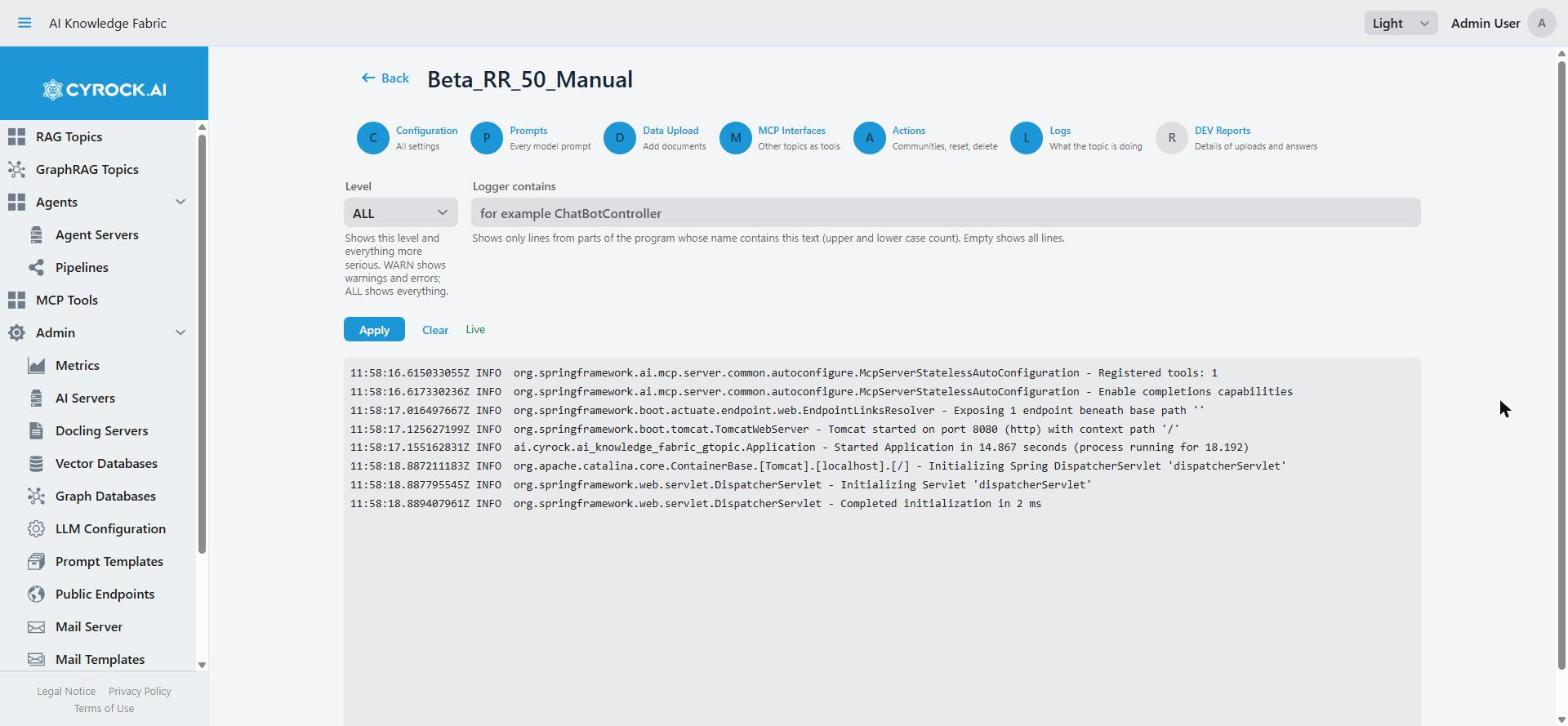
A live log of the running Topic, with filters for level and for the logger name, like the Logs tab of a RAG Topic. Read it when an upload, a chat answer or a community rebuild fails with a message that is not specific enough. The log names which step failed (the graph database, the vector database or a model server) and why.
You need the log permissions (TOPIC_LOGS / LOGS_READ). With them you see the lines of your own questions and uploads and the lines that belong to no user; Read All Users' Agent & GraphRAG Log Lines (LOGS_ADMIN, admin role only) adds everyone else’s. See the note about their names in
Roles & Permissions.
7. DEV Reports
For developers who tune a Topic. DEV reporting writes one report per operation. The report explains what happened and why: every step with its duration, every decision together with the setting that caused it, and every model call with its full prompt and reply. It is only this reporting, not a general developer mode.
You need the DEV_REPORTING permission, and the Topic must be running. Reports contain full prompts
and document content, so give this permission with care. Everyone sees only the reports of their own questions and uploads; Read All Users' DEV Reports (DEV_REPORTING_ALL, admin role only) shows everyone’s. How a report is built and how to use it to find
a problem: DEV Reports — reading a report.
There are up to three switches:
-
Report uploads covers every upload: what was extracted, how entities were merged, how pictures were paired with their text, and what was written to the graph.
-
Report chat answers covers every chat turn, streamed or not, and every call through an MCP connection. It shows the router’s decision and the rule behind it, then the search mode that answered. For LOCAL: the starting entities with their scores, the traversed part of the graph, the chosen text passages and how the model cites them. For GLOBAL: the community summaries found and what each one contributed. For HYBRID: the follow-up questions, which ones were kept, and a full LOCAL trace for each follow-up. It also lists every model call, tool calls, the answer, its sources and any source that the model invented. The sources are only those the answer really used. The report says which found passages were dropped and why.
-
Report community rebuilds covers every rebuild, the scheduled one as well as a click on Recompute Communities Now: how the graph was grouped, every community with its size, which summaries were kept because nothing changed and which were written again, every model call with its full prompt and reply, and which old summaries were removed. This switch is hidden when the Topic’s software does not support it.
Switches are never on after a Topic starts. A switch stays on until you switch it off or the Topic restarts. While it is on, every operation of that kind is reported, whoever starts it: this app, an agent pipeline or an MCP client. A switch is greyed out when the Topic cannot write reports (the tab says why), and a Topic whose software is too old shows a message instead.
The list shows each report with its status: RUNNING, OK, ERROR, or INCOMPLETE (the Topic stopped
in the middle, or a chat was cancelled). View shows the report here. A report larger than 5 MB shows
only its top sections, with a notice, and you can download the full report.md. events.jsonl is the
same report as raw events, one JSON object per line.
A report starts with a Contents list, and Details has contents of its own. In the tab, the report
is display only: nothing reacts to a click. In the downloaded report.md, the entries are links, for
example in an editor’s preview.
report.md is also written so that an AI assistant can read it. Give it the file and ask which settings
to change. The Effective settings section says where each value came from, and Not configurable
lists the fixed values that shaped the result.
Reports are stored inside the Topic and are gone when the Topic is recreated. There is no size limit, so delete reports you no longer need.
Troubleshooting
| Symptom | Cause and fix |
|---|---|
A change had no effect |
Settings and prompts reach the Topic when it starts. Stop and start the Topic |
The Topic cannot start, and Vector Database shows None |
The Topic has no vector database. Edit it, select a vector database in step 1, and save |
Search stopped finding anything after an edit |
The embedding model, graph database, vector database or collection name was changed. Upload the documents again and rebuild the communities |
A prompt edit "did not save" |
If the text is exactly the default, saving removes your change. This is correct |
A prompt save is refused |
The number of |
You cannot edit a prompt |
The row shows View and you do not have |
Edit Configuration is missing |
You do not have |
The upload area is missing |
You do not have |
The list of sources cannot be loaded |
The Topic is not running, or it cannot reach the graph or vector database. The graph is not necessarily empty |
A source cannot be downloaded |
It came from graph ingestion (a database record of another system), not from a file upload. See graph-sync vs. document |
A removal reports many "kept" entities and few "deleted" ones |
Normal. Other documents still contain those entities |
Overview answers ignore new or removed content |
Communities were not rebuilt since then. Use Recompute Communities Now, or wait for the refresh cycle |
Recompute Communities Now is greyed out |
The Topic is not |
Recompute says "skipped" |
The graph is empty, or a rebuild is already running. This is not an error |
MCP tools are never used |
The Language Model cannot call tools |
Deleting a Topic left data behind |
The graph database and vector database are not cleaned up. Remove the data there |
DEV Reports says the software does not support DEV reporting |
The Topic runs an older image. Update the image and restart the Topic |
A DEV Reports switch cannot be switched on |
The report folder in the Topic cannot be written to (the tab says why), or this kind of report is not supported yet |
DEV reporting is off again |
The Topic restarted. Switches are never on after a start |