Agent Chat
The agent chat is where you run and test pipelines by talking to them. To open it, click the agent’s
name in the agent list. The name is a link only while the agent is Running and you have the
AGENT_CHAT permission.
You also need access to that agent through one of your roles. Without it, you are sent back to the agent list with "You do not have access to this agent."
1. What differs from Topic chat
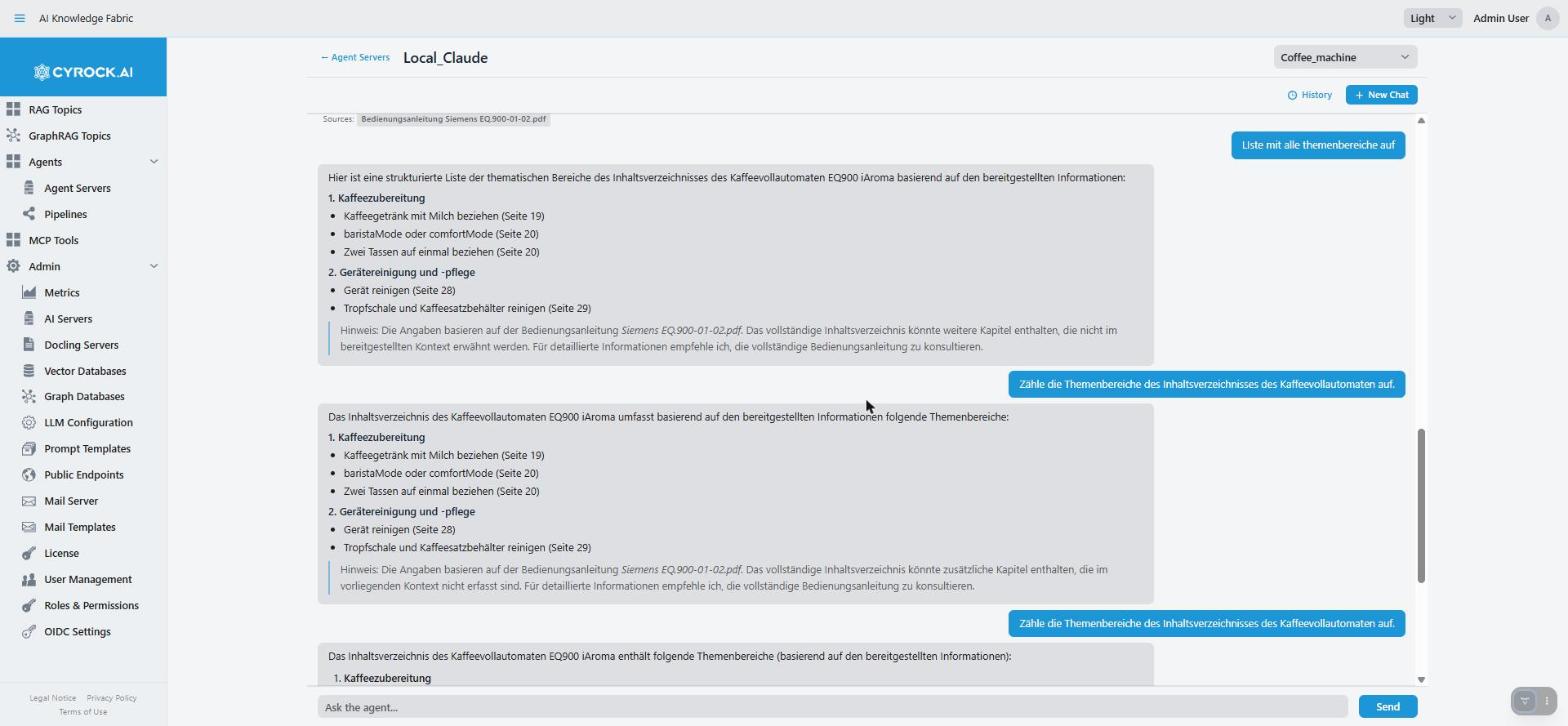
The pipeline selector sits in the top right, next to the agent’s name. The picture shows a fresh chat on a stopped agent. The conversation area is empty, and nothing says that the agent is not running. The problem only shows when you send the first message.
The layout is like Topic chat, with one addition — you choose which pipeline runs:
┌──────────────────────────────────────────────────────────┐
│ ← Agent Servers   Support_Agent     [ ticket_triage  ▾ ] │  ← pipeline selector
├──────────────────────────────────────────────────────────┤
│                                  [History]  [+ New Chat] │
├──────────────────────────────────────────────────────────┤
│   You:  Customer reports the export is failing           │
│                                                          │
│   Agent: Classified as severity 2. Opened ticket #4812.  │
├──────────────────────────────────────────────────────────┤
│  [Ask the agent...                          ]  [Send] [✕]│
│  📎                                                      │
└──────────────────────────────────────────────────────────┘
| Topic chat | Agent chat | |
|---|---|---|
What answers |
One topic |
The selected pipeline |
How the answer appears |
Word by word |
One whole message per output step |
Sources shown |
Yes, cited files |
Only when the pipeline uses an AI Topic module |
Can act |
No |
Yes — for example write files, call APIs, change records |
May stop and ask you |
No |
Yes, with a Human Approval module |
|
The agent may really do things. A topic only answers. A pipeline can send an email, write a file or change a database. Test new pipelines against test systems first. |
2. Selecting a pipeline
The pipeline selector lists every pipeline assigned to this agent. The first one is selected when the chat opens.
Each pipeline has its own chats. When you switch the pipeline, the chat shows the most recent conversation you had with that pipeline, or starts a new one. Earlier messages of another pipeline do not mix in.
If no pipeline is assigned, the chat says: "This agent has no pipelines yet, so there is nothing to chat with. Add a pipeline in the agent’s settings (Pipelines tab)."
A pipeline appears in the selector as soon as it is assigned, even when the agent could not load it. Such a pipeline answers with an error. Check the agent’s Pipelines and Logs tabs — see Agent server.
3. Sending and stopping
Type your message and press Enter or Send.
While the pipeline runs, you see a … bubble. Each Chat Output step of the pipeline appears as its own message, as soon as that step is done — not word by word. A pipeline with several Chat Output steps therefore answers with several messages, in order. The … bubble stays until the whole run is finished.
Agent runs are often slower than a topic chat. A pipeline may call a model several times, use tools, loop and query databases before it answers. A run of a minute is normal for a pipeline with many steps.
If a model call takes too long, the setting that matters is Model Timeout (min) on the module that uses the model. Each such module has its own; the default is 20 minutes.
You can switch to another chat while a run is going. Its messages are saved to the chat they belong to.
Stopping
The ✕ button next to Send (or Esc) appears while a run is going. Its tooltip says: "Stop waiting for this answer (Esc). The agent may still finish the run in the background, but the answer is not shown or saved."
-
The chat shows "Cancelled — no answer is saved" and you can type again.
-
Only a run that waits for your approval is really cancelled. A run that is still working goes on to its end in the agent. Everything it does — for example writing a file or calling an API — still happens. Only its answer is thrown away.
|
Stopping a working run does not undo its actions. Writes, API calls and other changes made by the run still take effect. The chat only drops the answer. |
4. Human Approval — when the run waits for you
A pipeline with a Human Approval module stops and waits for you. The chat shows the question in a card:
| Control | Effect |
|---|---|
Yes |
You approve |
No |
You do not approve |
Text field + Submit |
Answer in your own words. Shown only when the module allows it (on by default) |
Your answer appears as your message, and the run continues. The step after the Human Approval module gets your answer and decides how to go on — usually a Validator that takes a different path for yes and no. Nothing after the Human Approval module happens before you answer.
-
The question survives a reload. If you leave the chat or reload the page, the card comes back with the note "⏸ This question is still waiting for your answer". You can still answer it.
-
Typing a new message instead opens the dialog Still waiting for an answer:
-
Keep Answering It — back to the card.
-
Discard & Send New Message — the waiting run ends, and your new message starts a new run.
-
-
✕ (or Esc) cancels the waiting run.
-
If the agent no longer knows the run when you answer — for example because it was restarted — the chat says: "The agent no longer knows this run — for example because it was restarted. Send your message again to start a new run."
5. Sources and pictures
When a pipeline asks a topic through an AI Topic module, the topic’s sources come along. They appear when the whole run is finished, below the run’s last message, in a Sources: row.
-
Each source belongs to the topic that cited it. A source is a download link through that topic. The link works for a short time only (about ten minutes). The badge counts down. After that it turns grey; ask again to get a new link.
-
A source from a topic this app cannot find (for example a deleted topic) is a plain badge without a link. Its tooltip explains why.
-
A record that a GraphRAG topic took directly from a database is shown as name (graph ingestion). There is no file to download.
Pictures from a topic’s documents are shown in the answer, where the answer places them. While the run is going, such a spot shows Image…. The picture appears when the run is finished.
The agent’s model often rewrites a topic’s answer and may leave out where a picture belongs. Such pictures are not lost: they are shown below the run’s last message.
Sources and pictures are saved with the chat, so they are still there after a reload.
When a topic refused access
The pipeline asks each topic with your access rights. If a topic refuses you (for example because your roles have no access to it), the run does not fail. That topic is left out, and the other topics still answer. Below the answer you see a note, for example:
Note: … (the message names the topic and the reason)
The note is saved with the answer, so a reload still explains why a topic is missing. To fix it, an administrator gives your role access to that topic.
6. Sessions
Conversations are saved and belong to you. Other users do not see them.
| Control | Effect |
|---|---|
+ New Chat |
Starts a new conversation with the selected pipeline |
History |
Lists your conversations with the selected pipeline (title and date). Click one to open it |
Trash icon in History |
Deletes that conversation at once — there is no confirm step |
|
Deleting a conversation cannot be undone. The trash icon in History deletes it at once, with no confirmation step. |
A new chat is called Chat 1, Chat 2, …. Your first message becomes its title.
Start a new chat when the subject changes, so the agent does not mix it up with the earlier conversation.
7. Attachments, paste, drag & drop
-
The 📎 button attaches files to your next message. You can also drop files on the input field. Each file becomes a chip; the ✕ on a chip removes it.
-
Pasting a long text (more than 300 characters) does not fill the input field. It becomes a chip "… chars pasted". The full text is sent and shown in your message.
The 📎 button appears only when the agent allows attachments: its Configuration tab has a list of file types under Chat Attachments. With no type selected, which is the default, there is no 📎 button and you cannot drop files.
Size limit
Each file can be at most as large as the agent’s Largest Chat Attachment (MB) setting on its Configuration tab (1–25 MB, default 10). A larger file is not attached, and you see "… is too large. Files up to … can be attached here." The agent checks the same limit again, also for programs that use its API. A change of the setting applies after the agent is restarted.
The agent needs an Attachment Tool to read a file
The agent does not read an attached file by itself. Its model only learns the file’s name. To use the content, the pipeline needs an Attachment Tool module connected to the agent.
|
Without an Attachment Tool, the agent cannot open the file, and no error is shown. The agent only knows that a file was attached. If the agent ignores a file, check the pipeline for an Attachment Tool first. |
What is saved
The file names are saved with your message and shown in it after a reload (📎 followed by the names). The files themselves are not saved in the chat: they are sent to the agent with this one message, and the agent keeps them only while that run lasts. To use a file again in a later message, attach it again.
8. Errors and retrying
| What you see | Meaning and what to do |
|---|---|
A highlighted bubble with ↻ Retry this message |
The agent, or something it needs (a model, a tool server, a database), could not be reached — also when the connection to the agent broke off. Your message is kept. Fix the cause, then click ↻ Retry this message. Attached files are sent again |
A message about an attached file, after you sent |
The agent refused the file, for example because it is too large or cannot be read. Sending it again does not help — remove the file or make it smaller |
Dialog Previous run still pending |
The pipeline still has an earlier run that never finished, for example a question you did not answer. Discard & Send ends it and sends your message. Leave It sends nothing |
A bubble starting with "Error:" |
The run failed. This error is saved with the chat |
The retry bubble, the file message and the dialog are not saved — they ask you to act. If the failing run belongs to a chat you have since left, you see the error as a notification instead.
For anything else, read the agent’s Logs tab. The chat shows the result. The log shows what happened
during the run. With the DEV_REPORTING permission, the agent’s DEV Reports tab can also record
whole pipeline runs.
9. Testing a pipeline
The development loop:
-
Edit the pipeline in the designer.
-
Save, and choose Push Now. Without the push, a running agent keeps the old version.
-
Return to the agent chat, start a New Chat, and send a test message.
-
Read the agent’s Logs tab to see what ran.
-
Repeat.
Two symptoms and their usual causes:
| Symptom | Usual cause |
|---|---|
A step clearly never ran |
The module was left out because a required field is empty — see Pipeline editor |
A tool was never used |
The model is not good at using tools, or the tool’s description does not say when to use it |
10. Troubleshooting
| Symptom | Cause and fix |
|---|---|
The agent’s name is not a link |
The agent is not Running, or you do not have the |
"You do not have access to this agent." |
None of your roles has access to this agent |
No pipeline in the selector |
No pipeline is assigned. Add one on the agent’s Pipelines tab |
A pipeline answers only with an error |
The agent could not load it, or the agent has stopped. Check the Pipelines and Logs tabs |
Edits have no effect |
Saved but not pushed. Choose Push Now or restart the agent |
A module silently did nothing |
It was left out because a required field is empty |
Tools are never used |
The model is not good at using tools, or the description does not say when to use the tool |
The run stops and nothing happens |
A Human Approval question is waiting for your answer — scroll down to the card |
✕ did not stop an action |
Only a run waiting for approval is cancelled. A working run finishes in the agent |
No 📎 button |
The agent allows no file types — see its Configuration tab, Chat Attachments |
The agent ignores an attached file |
The pipeline has no Attachment Tool module |
Very slow answers |
Normal for pipelines with many steps. Check the log for the step that takes long |
No sources |
Expected unless the pipeline uses an AI Topic module |
A Note says a topic was left out |
You have no access to that topic. Ask an administrator |
Earlier chats are gone after a pipeline was renamed |
Chats are kept per pipeline name. Chats under the old name are no longer shown |
A conversation is gone |
It was deleted in History. Deleting cannot be undone |
Related
-
Agent server — assignment, loading pipelines, logs
-
Pipeline editor — the edit, save, push loop
-
Topic chat — the simpler sibling