Integration — MCP Tools, Topics, Nested Pipelines, Calling an Agent
This page covers both directions:
-
From a pipeline outwards — five modules connect a pipeline to things outside itself. They share one mechanism, the Tool port, and understanding it explains all five.
-
From outside into an Agent — how your own program calls an Agent’s pipelines (section 7).
| Module | Connects to |
|---|---|
A tool from the Docker MCP catalog, started by the agent server |
|
A tool server (MCP server) that already runs somewhere, by its address |
|
A Topic in this installation |
|
Another pipeline on the same Agent |
|
A tool server that turns a file the user attached in the chat into text |
The MCP Tools entry in the navigation menu shows the catalog an MCP Tool module can draw from:
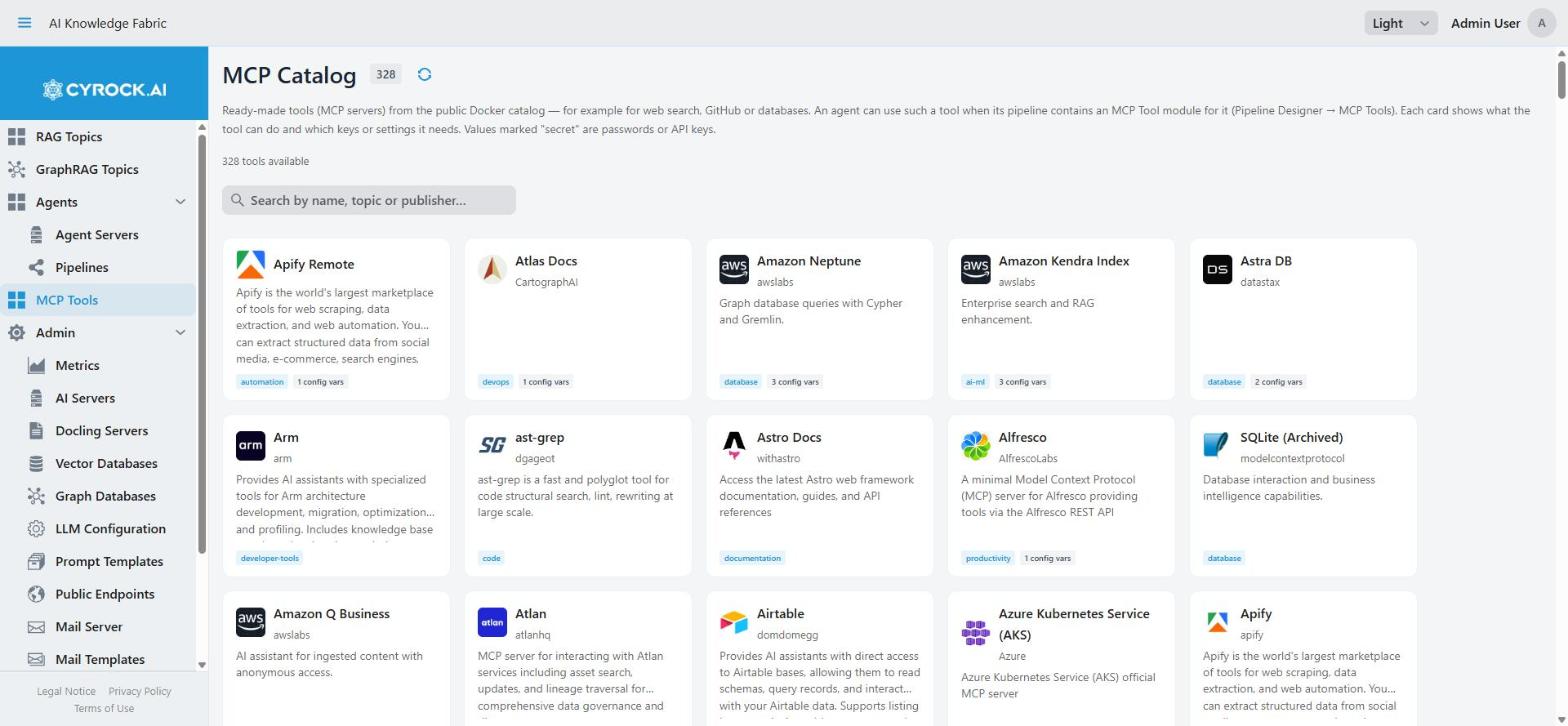
Each card shows the server’s publisher and how many settings it needs — those are what you will have to fill in on the module. The catalog comes from a public index, so the number of entries grows over time and is not fixed by your installation.
1. The mechanism: step vs. tool
Most integration modules can be connected two ways, and the difference decides how the pipeline behaves.
AS A STEP                          AS A TOOL
─────────                          ─────────
Chat Input                         Chat Input
    │                                  │
    ▼                                  ▼
 AI Topic   ← always runs           Agent ◄──── Tools ──── AI Topic
    │                                  │                   Web Search
    ▼                                  ▼                   API Call
  Agent                            Chat Output
    │                              (the model decides which,
    ▼                               if any, to use)
Chat Output
| As a step | As a tool | |
|---|---|---|
Connected to |
Input/Output ports |
An Agent’s Tools port |
Runs |
Always, in order |
Only if the model decides to use it |
Input |
The previous module’s result |
What the model sends |
You control |
The exact order |
Only what is available |
MCP Tool, SSE Tool and Attachment Tool have only a Tool port — they always work as tools.
Use a step when every answer needs it. If every question needs the HR documents, connect the AI Topic as a step. The result is predictable and costs fewer model calls.
Use a tool when it depends on the question. If some questions need documents, some need a web search, and some need neither, connect them all as tools and let the model choose.
Three requirements for tools to work
-
The Agent’s model must be able to use tools (often called "tool calling" or "function calling" in the model’s description). With a model that cannot, the tools do not work.
-
The module must have a Tool port. 14 module types have one — see the Overview.
-
The model needs a description that says when to use the tool. It is the only information the model has for deciding. Where it comes from:
| Module | The model reads |
|---|---|
AI Topic |
The topic’s own description (from the topic’s settings) |
Pipeline |
The called pipeline’s description |
MCP Tool, SSE Tool |
The descriptions the tool server gives its functions. The SSE Tool’s Description field is only a note for people |
Attachment Tool |
Its Description field |
API Call, SQL Database, Python Script |
Their Description field |
File Read, File Write |
Their Description (tool use) field |
Web Search |
Its Custom Tool Description field, or a general text when empty |
|
Tool descriptions are not notes — they are instructions. "Customer database" tells a model almost nothing. "Look up a customer’s order history by customer ID. Use when the user asks about past orders." tells it exactly when to use the tool and with what. |
2. Using MCP tools
Two modules, for two situations:
| Situation | Module | What identifies the server |
|---|---|---|
A tool from the Docker MCP catalog, started for you |
MCP Tool |
The catalog entry you pick |
A tool server you already run, or a hosted one |
SSE Tool |
URL — its SSE address |
MCP Tool
In the Pipeline Designer, the MCP Tools button below the module palette opens Select MCP Tool. Pick a catalog entry and choose Add to Canvas. The agent server then starts the tool itself: as a container on the Docker host, or as a pod on Kubernetes. Fill in the settings the entry asks for (see Each catalog entry declares its own secrets).
SSE Tool
You give an address (URL). Name is a label for you. The connection uses SSE; the SSE Tool cannot send an API key or other login data to the server.
The URL must work from inside the Agent container:
| Where the tool server runs | Host part of the URL |
|---|---|
On the Docker host, Docker Desktop |
|
On the Docker host, plain Linux Docker |
|
Another container on the same network |
Its service name |
Elsewhere / hosted |
Its host name |
localhost means the Agent container itself and does not work.
Tool Filter — the control that matters
MCP Tool and SSE Tool both have a Tool Filter: the exact names of the functions the agent may use. Empty means all of them.
A tool server often offers functions that read and functions that change or delete. Without a filter, the model can use every one of them. Allow only what the pipeline needs — this is the difference between an agent that reads your files and one that can delete them. A shorter list also helps the model choose the right function.
2a. The MCP catalog
MCP Tools in the main navigation (needs the MCP_VIEW permission) shows a public catalog of MCP
servers. The Pipeline Designer’s Select MCP Tool dialog shows the same entries.
How it loads
The catalog is fetched from public sources on the internet and kept in memory. This application starts loading it in the background right after it starts, so the first visit is usually fast. Loading from scratch takes about twenty seconds.
Good to know:
-
The catalog needs internet access. Without it, the catalog stays empty; use SSE Tool with your own servers instead.
-
The catalog is kept in memory, so it is loaded again after every restart of this application.
-
Servers whose details cannot be fetched are left out, not shown broken. A catalog that looks shorter than expected usually means some fetches failed.
GitHub rate limits
The catalog details come from GitHub, which limits requests without a login. Above that limit the catalog loads only partly, or not at all.
Set a GitHub token to raise the limit:
MCP_GITHUB_TOKEN=ghp_...A read-only token without any scopes is enough — it is only used to read public data. See the installation guide.
Each catalog entry declares its own secrets
Catalog tools need different login data. When you add one in the designer, the properties panel shows a Secrets section built from that tool’s catalog entry — one field per secret, with the tool’s example value as a hint. Some tools need none, others several.
|
Exports can carry keys. When you export a pipeline, the secret values and the other API keys and passwords are left out, and you enter them again after an import. But only fields made for login data are removed: a key you typed into another field — for example into an address — stays in the file. Check an export before you share it. |
3. Using Topics in pipelines
The AI Topic module gives an agent your document knowledge, without building the document search again inside the pipeline.
                          ┌── AI Topic  "HR_Policies"
Chat Input ──► Agent ◄────┼── AI Topic  "Technical_Manuals"
                  │       └── Web Search
                  ▼
             Chat Output
The model reads each topic’s description and sends the question to the right one. One agent, several knowledge bases, no copies of documents.
An AI Topic module can point to a Topic or to a GraphRAG Topic. Using a GraphRAG Topic here is still experimental.
Requirements and behaviour:
-
The topic must be Running. A stopped topic does not stop you from deploying the pipeline — the call fails only when the agent tries to use the topic.
-
The topic’s own settings still apply — its search strategy, prompts and no-answer text. Improve answer quality in the topic, not in the pipeline.
-
Write a good topic description. It is what the model reads to decide when to ask this topic. A hint in the Agent’s Instruction helps too.
-
The user’s access rules apply. The agent asks the topic in the name of the user who chats. The topic checks that this user may chat with it: the user needs the chat permission and must be granted the topic. If the topic refuses, it is left out of this answer. The rest of the run goes on, and the chat shows a note that names the topic. The Pipeline Designer warns you (but does not stop you) when some roles of the pipeline cannot use the topic — when you pick the topic, and when you change the pipeline’s roles.
-
Sources stay with their topic. The documents and pictures a topic cites appear below the agent’s answer. Each one belongs to the topic that cited it, and is downloaded through that topic.
Topic vs. pipeline: which should answer?
| Just use a Topic | Topic inside a pipeline | |
|---|---|---|
Question answered from documents |
✅ simplest |
unnecessary extra work |
Documents plus a live web service call |
❌ |
✅ |
Documents plus different paths or a file write |
❌ |
✅ |
Several document sets, chosen per question |
via Topic-to-Topic MCP |
✅ clearer |
Do not wrap a Topic in a pipeline just to chat with it — chat with the Topic directly.
4. Pipeline in pipeline
The Pipeline module runs another pipeline, as a tool or as a step.
As a step — move a section into its own pipeline:
Chat Input ──► Pipeline "normalise_customer_record" ──► Agent ──► Chat Output
As a tool — give an agent a complex ability behind one name:
Chat Input ──► Agent ◄── Tools ── Pipeline "generate_monthly_report"
Why combine pipelines:
-
Reuse. A shared pipeline is fixed once, and every pipeline that calls it benefits.
-
Readability. A pipeline with 25 modules and three branches is hard to read; four pipelines of six are not.
-
Layers. A small front pipeline hands work to specialised ones.
Things to know:
-
The called pipeline must be on the same Agent. The Agent runs it by name from its own pipelines. When you assign a pipeline, this application offers to assign the pipelines it calls as well; when you create an Agent, they are assigned with it. Removing a pipeline that another one still calls asks you first.
-
Loops between pipelines are stopped. A pipeline that calls itself, directly or through others, ends with an error at the moment of the repeated call. Calls can go at most 10 pipelines deep.
-
Changes need pushing. A changed called pipeline reaches the Agent only when you push it (or restart the Agent) — saving alone is not deploying.
-
As a tool, the model reads the called pipeline’s description. Write it for the model.
5. Reading chat attachments
When a user attaches a file in the agent chat, the agent server keeps the file. The model only learns the file’s name and an id. To use the content, the pipeline needs an Attachment Tool: it sends the file to a tool server that turns it into text (for example a Docling server), and the agent gets that text.
|
Without an Attachment Tool, the agent cannot open the file, and no error is shown. The agent only knows that a file was attached. If users ask about attached files, check first that the pipeline has an Attachment Tool. |
Which file types the chat window offers, and how large a file may be, is set on the Agent (Chat Attachments). Details: Attachment Tool.
6. Portability: what breaks on export/import
Exported pipeline files carry the canvas and the module settings. These values do not transfer reliably:
| Value | What happens |
|---|---|
Topic in an AI Topic module |
Points to a topic of the source installation. Select the topic again |
Pipeline in a Pipeline module |
Correct if you exported with Include … referenced pipeline(s) on — the imported copy then calls the imported pipelines. Otherwise select it again |
Model addresses |
Host names often differ between installations |
API keys, passwords, secrets |
Left out of the export. Enter them again |
After an import, open every AI Topic module and every Pipeline module that needs it, and select the target again. A module that still points to the old installation cannot be assigned to an Agent until you do.
7. Calling an agent from your own program
This section is for developers who want to use an Agent’s pipelines from another application. The Agent’s chat window uses the same routes.
7.1 Get a token
Call this application, not the Agent:
POST /api/auth/token
Content-Type: application/json

{"username": "alice", "password": "secret"}
Users who sign in with SSO have no local password. They send a token from their identity provider
instead: {"idpToken": "eyJ…"} — see
API access for SSO users.
The user needs the API_ACCESS permission. The answer contains:
| Field | Meaning |
|---|---|
|
Send it to the Agent as |
|
How long the token works, in seconds |
|
Calling an Agent’s chat needs |
|
The Agents this user was granted: |
|
The pipelines this user was granted: |
The Agent checks the token itself, so a token keeps working for its lifetime even when this application is down. Only getting a new token needs this application.
7.2 The Agent’s address
Use the Agent’s publicUrl from the token answer and add the routes below to it — for example
agents.example.com/sales-agent/agent/stream. publicUrl is empty when no public address is
set for the Agent. Setting one up is described in
Public Endpoints. Making the
container reachable from outside (Ingress, gateway, TLS) is the cluster or server admin’s job.
The Agent refuses a token whose user was not granted this Agent.
7.3 Send a message
| Route | Request body | Answer |
|---|---|---|
|
multipart form fields |
A stream of events (Server-Sent Events) |
|
multipart form fields |
One JSON answer when the run ends or pauses |
Both take the same form fields:
| Field | Meaning |
|---|---|
|
The name of the pipeline, as shown in this application |
|
Any id you choose. Messages with the same id share the conversation history. Sessions are kept per user, so two users cannot share one |
|
The user’s message |
|
Optional. One form part per file, each named |
A JSON body is refused with 415. Other refusals: 400 when a field is empty or a file is too large,
404 when the Agent does not have this pipeline, 409 when this session already has a run in progress
or waiting for an approval.
GET /pipelines lists the names of the pipelines the Agent holds.
Attachments: each file may be at most the Agent’s Largest Chat Attachment (MB) (1 to 25 MB,
default 10). A larger file is refused with 400, and nothing of the message is kept. A change of this
setting applies after the next start of the Agent. The file types chosen under Chat Attachments only
control the chat window; the Agent itself accepts any type. The model does not read the files unless the
pipeline has an Attachment Tool.
7.4 Events of /agent/stream
Each event’s data is JSON:
| Event | Data | Meaning |
|---|---|---|
|
|
One complete message for the user — what reached a Chat Output module (without a Chat Output: the final answer). A run can send several |
|
|
The run paused at a Human Approval module and waits for an answer (see 7.5) |
|
|
The run has ended. Comes once, at the end |
|
|
The run failed. Nothing more follows |
|
|
An in-between result of a module. The chat window ignores it |
-
sourceFiles— the documents and pictures that the run’s AI Topic modules cited, for all messages of the run together. Each entry names the topic that cited it (resourceId) and itsfileName. When that topic has a public address, the entry also has adownloadUrl. -
notices— topics that refused the user and were left out:{kind, source, message}, wherekindisACCESS_DENIEDorUNAUTHENTICATEDandsourcenames the topic. Show them to the user, so a gap in the answer is explained.
POST /agent/chat returns {status: "COMPLETED", answer, sourceFiles, notices}, or
{status: "AWAITING_INPUT", interaction} when the run paused.
7.5 Answer an approval, or stop a run
These routes take a JSON body, not form fields:
| Route | Body | Use |
|---|---|---|
|
|
Answer a run started with |
|
same |
Answer a run started with |
|
|
Answers |
response is {"approved": true} or {"approved": false}, or {"freeText": "…"} when the
interaction allows free text.
|
Abort stops only a paused run. A run that is still working goes on to the end in the background, and its result is thrown away. Do not rely on abort to stop a run that is busy. |
7.6 The Agent’s pipelines as MCP tools
An Agent also offers its pipelines to MCP clients over SSE, with the same token (AGENT_CHAT):
-
GET /sse— every pipeline of the Agent as a tool -
GET /pipelines/{name}/sse— only the named pipeline
The client then sends its requests to the address the stream names (/mcp/message?sessionId=…).
8. Choosing between the modules
| You want to… | Use |
|---|---|
Give an agent your own documents |
AI Topic |
Give an agent a catalog ability (file system, web pages, …) |
MCP Tool |
Connect an MCP server you run |
SSE Tool |
Let an agent read files users attach in the chat |
Attachment Tool |
Reuse pipeline logic |
Pipeline |
Ask one Topic from another, without an agent |
The topic’s MCP Interfaces tab (not a pipeline module) |
Call a plain web service (REST API) |
API Call — MCP is not needed for ordinary HTTP |
9. Troubleshooting
| Symptom | Cause and fix |
|---|---|
Tools are never used |
The Agent’s model cannot use tools. Choose a model that can |
The model uses the wrong tool, or none |
Descriptions are too vague. Say when to use each one (see section 1) |
SSE Tool cannot connect |
The URL does not work from inside the Agent container. Do not use |
AI Topic fails when the agent uses it |
The topic is not Running |
The answer has a note that a topic was left out |
The user may not chat with that topic. Grant the topic to one of the user’s roles, or give the role the chat permission |
A pipeline cannot be assigned |
Required fields are empty, also in pipelines it calls. The message lists them |
An imported pipeline’s AI Topic or Pipeline modules fail |
They still point to the source installation. Select the targets again |
An agent can do more than intended |
Tool Filter is empty, so every function of the server is allowed |
Changes to a called pipeline have no effect |
Saved but not pushed to the running Agent |
A pipeline call ends with "Cycle detected" |
Pipelines call each other in a loop. Remove the loop |
The model cannot read an attached file |
The pipeline has no Attachment Tool |
Your program gets |
It sent JSON to |
A tool call reports an |
Usually the input the model sent is wrong, not the schema. The message is misleading |