The GraphRAG Topics Page
GraphRAG Topics in the main navigation (/graphrag-topics) is the list every GraphRAG Topic lives
on. It works like the RAG Topics list: one row per Topic. It has its own menu entry, so GraphRAG
Topics are not mixed into the RAG Topic list.
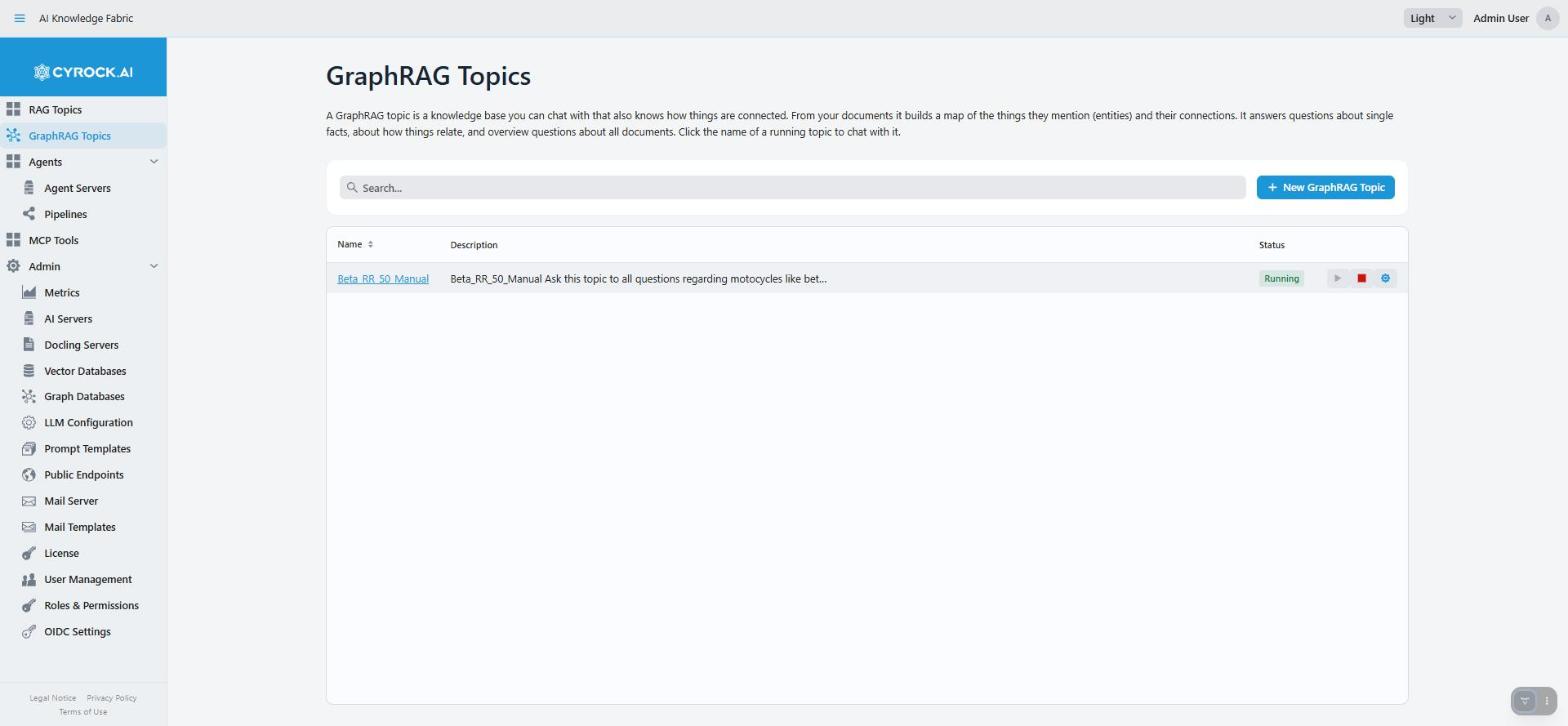
Above the list you find a Search box and the button + New GraphRAG Topic. The search box filters the rows by name and description while you type.
| Column | Meaning |
|---|---|
Name |
The Topic’s name. Becomes a link to its chat once the Topic is |
Description |
Free text from step 1 of the wizard, shortened in the list. Hover to read all of it |
Status |
The lifecycle badge — see below |
You need GRAPHRAG_VIEW to see the list at all. + New GraphRAG Topic needs GRAPHRAG_CREATE. If your
licence has no room for another GraphRAG Topic, pressing it shows a message instead of opening the
wizard. Like every list in the product, the rows are limited to the Topics your roles have access to. See
Roles & Permissions.
1. Starting and stopping
Three icons sit to the right of the status badge on every row:
| Icon | Action | Requires |
|---|---|---|
▶ (play) |
Start the Topic. Available when it is not running or starting |
|
■ (stop) |
Stop the Topic. Available while it is running, starting or in error. Uploaded documents are kept |
|
⚙ (gear) |
Open the Topic’s detail page |
|
Pressing Start works like starting a RAG Topic. The management application creates the start files (Docker Compose or Kubernetes) from the Topic’s saved settings and starts the Topic’s container. Nothing is started for the graph database or the vector database. Both are always external servers that the Topic only connects to, so starting a GraphRAG Topic never sets up your graph or vector store.
While a Topic is starting, the row shows a progress bar. The first start can take a few minutes, because the software is downloaded first. If you saved a change in the edit wizard and chose Restart Now, the row shows Restarting… until the new settings are active.
Status badges
| Status | Meaning |
|---|---|
|
Saved in the database, nothing running yet |
|
The container is being downloaded and started |
|
Ready for uploads and chat. The name becomes a link |
|
Container stopped. Settings and everything already uploaded are kept |
|
Start failed. Common causes: Docker not reachable, a wrong model or graph database server, or a required model left unset |
The same rules as for a RAG Topic apply. Docker (or Kubernetes) must be available, or a start ends in
Error. Stopping a Topic never deletes what it has ingested. Deleting a Topic is done on the Actions
tab, in the Danger Zone. See Configuration and functions.
The page checks the real state of the containers when you open it. A Topic in Running, Starting… or
Error is checked against its container’s health. A Topic whose container is up but cannot reach a
store shows Error, and shows Running again when the problem goes away.
|
|
2. The detail page
The gear icon opens the Topic’s detail page (/graphrag-topic?id=…). It has seven tabs, in this
order:
| Tab | Short description |
|---|---|
Configuration |
All settings of the Topic, read-only. Edit Configuration (needs |
Prompts |
Every prompt the Topic’s models use, plus the system prompt and the no-answer text |
Data Upload |
Add documents, and see and remove the Ingested Sources |
MCP Interfaces |
"Other topics as tools": let this Topic’s chat ask other Topics |
Actions |
Rebuild communities, download the start file, reset chats, delete the Topic |
Logs |
What the Topic is doing |
DEV Reports |
Detailed reports of uploads and answers, for troubleshooting |
You can only open a Topic’s detail page if one of your roles has access to that Topic. Otherwise you return to the list with a message.
The Actions tab
| Section | What it does | Requires |
|---|---|---|
Docker Compose (or Kubernetes YAML on Kubernetes) |
Downloads the file this application uses to start the Topic, with all current settings. Useful to check a setting or to start the Topic by hand. It contains secrets, so do not share it |
Access to the Topic |
Communities |
Recompute Communities Now groups the graph into communities again and writes a new summary for each one. Overview (GLOBAL) answers use only these summaries, so new or removed documents show up in them only after a rebuild. It can take several minutes. It runs in the background, so you can leave the page. Works only while the Topic is |
|
Reset GraphRAG Topic Data |
Deletes all chats of the Topic. The graph and the documents stay. Cannot be undone |
|
Danger Zone |
Stop & Delete GraphRAG Topic stops the Topic and deletes it here, with its chats, tool connections and keyword index. The graph and the search data are not deleted. They stay in your graph database and vector database, and you remove them there. Cannot be undone |
|
|
Reset and delete cannot be undone. Reset GraphRAG Topic Data deletes all chats of the Topic at once. Stop & Delete GraphRAG Topic deletes the Topic with its chats, tool connections and keyword index. Export or note anything you need before you use them. |
After a rebuild, the page tells you how many entities and relationships were grouped into how many communities, and how many of them got a summary. Fewer summaries than communities is normal, because a community with a single entity gets no summary. If the graph is empty or a rebuild is already running, you get a warning that nothing was done. This is not an error.
Removing a document
On Data Upload, the trash icon next to a source removes the text pieces of that source, and the entities and connections that only this source added. Those that other sources also contain stay. Community summaries are not rewritten, so overview answers can mention removed entities until the next rebuild. If the source is already gone (for example, someone else removed it), you get a warning, nothing changes, and the list refreshes. Sources that another system sent into the graph are only unlinked from their entities. They are not deleted. See How a document becomes graph.
DEV Reports
Two switches (Report uploads and Report chat answers) are always shown. A third, Report
community rebuilds, is shown only when the Topic’s software supports it. The tab needs the permission
DEV_REPORTING, and the Topic must be running. The reports contain full prompts and documents, so only
give this permission to people who may see that content.
Each tab is covered in detail on Configuration and functions, including which tab to open for which task. Bookmark that page once a Topic exists.