Agent Server — Creation, Configuration, Pipeline Assignment
An Agent is the runtime: its own server (a container) that runs pipelines. This page covers creating an Agent, configuring it, assigning pipelines to it, and what happens when it starts and stops.
| Permission (role editor label) | Allows |
|---|---|
|
See the list of Agents and open an Agent’s details |
|
The New Agent button |
|
The gear icon in the list, and the Edit button on the Configuration tab |
|
The start and stop buttons in the list |
|
Stop & Delete Agent on the Actions tab |
|
The name of a running Agent becomes a link to its chat |
|
The Logs tab |
|
The DEV Reports tab |
You also need access to the Agent itself: one of your roles must be among its Access Roles. Agents you have no access to do not appear in the list.
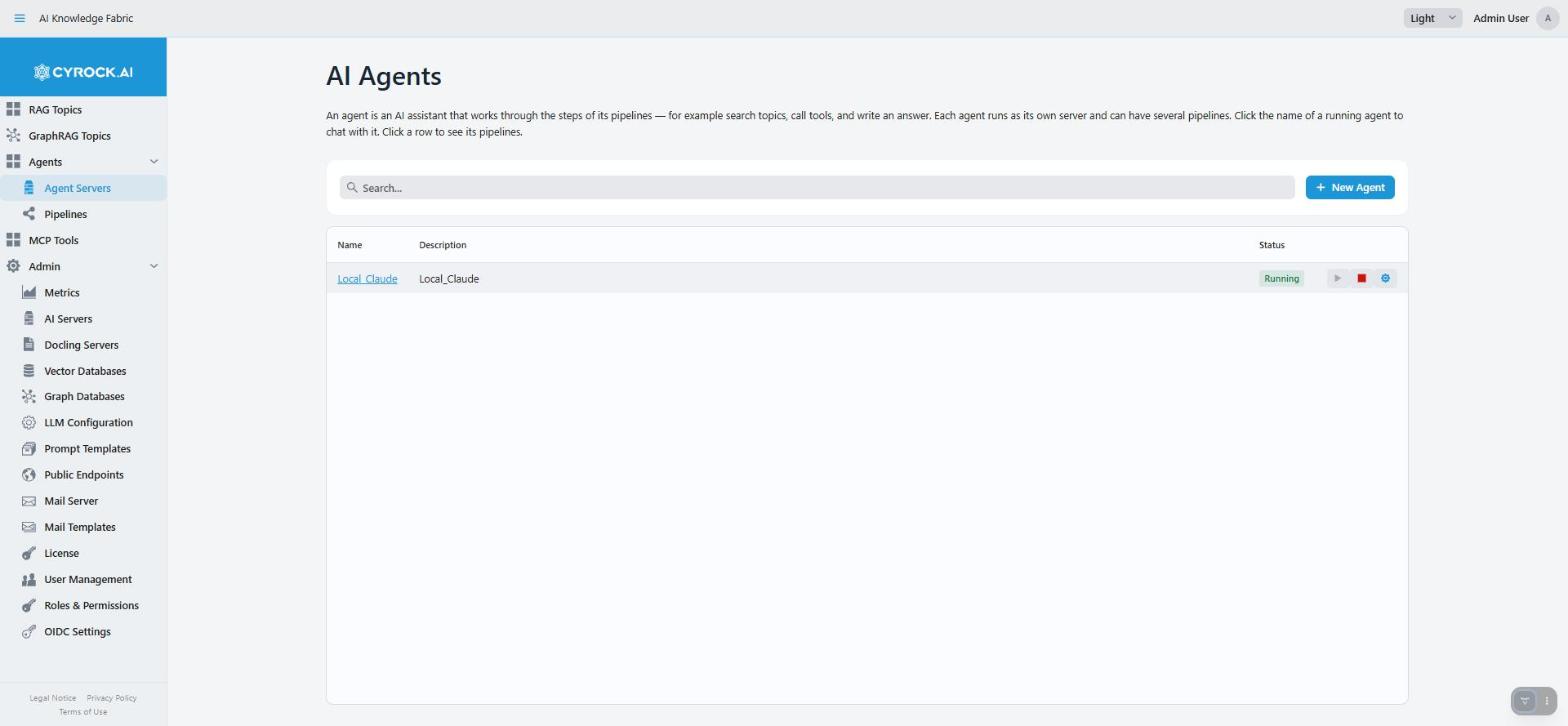
The list (AI Agents) shows name, description and status. The search box filters by name and description. Click a row to see the pipelines assigned to that Agent. The name is a link to the chat only while the Agent is running — a stopped Agent has nothing to talk to.
Each row has three buttons: start, stop and the gear icon (settings, pipelines, logs and reports). Stop is
also offered for an Agent in Error, because its container may still be up. Stopping an Agent also stops
running chats and scheduled runs.
When you open the list, it checks every Agent shown as Running or Starting…. An Agent whose container
is gone is shown as Stopped. An Agent whose container is up but does not answer its health check is shown
as Error.
1. Before you start
| Requirement | Notes |
|---|---|
At least one pipeline |
An Agent without pipelines starts but can do nothing. Design one first — Pipeline editor |
A free port |
Each Agent needs its own port on the server |
Docker or Kubernetes available |
Otherwise the start fails and the Agent goes to |
A valid license with room for another Agent |
Admin → License. Without a valid license no Agent can be created or started |
2. Creating an Agent
AI Agents → New Agent. The dialog is small on purpose: an Agent has almost no settings of its own, because the real work is defined in the pipelines it runs.
| Field | Notes |
|---|---|
Name |
Required. Shown in lists and in the chat. Letters only — a space becomes an underscore ( |
Description |
Free text, shown in the list |
Service Port |
Required. The port on the server where this Agent can be reached, for example 8090. The field accepts 1024 to 65535 |
Click Create. The Agent appears in the list with the status Created, and you see "Agent created.
Add pipelines in its settings, then start it." You assign pipelines afterwards on the Pipelines tab.
Access: a new Agent is always open to the ADMIN role and to every role you hold. You can change the
roles later on the Configuration tab.
License: without a valid license, New Agent shows "There is no valid license. Enter a license key under Admin → License, or contact cyrock.ai." When the license allows no more Agents, it shows "You have reached the limit of your license: … of … agents. Delete one, or contact cyrock.ai to upgrade your license." A license that does not include Agents at all shows "Your license does not include agents. Contact cyrock.ai to extend your license."
Lifecycle states
| Status | Meaning |
|---|---|
|
Saved, never started |
|
The container is starting; the app waits until the Agent answers and registers its pipelines |
|
The Agent answers and has received its pipelines |
|
The container is stopped. Settings and pipeline assignments are kept |
|
The start failed, the Agent did not answer in time, or its container is up but not healthy |
3. What happens on Start
This sequence explains most Agent problems:
1. The app writes the container definition (Docker Compose file or
   Kubernetes resources) with the Agent's settings, and starts it.

2. The app waits until the Agent answers — up to 120 seconds.
   On Kubernetes this time also covers downloading the image.

3. Every assigned pipeline is sent to the Agent, one by one.

4. Every pipeline the Agent still holds but that is no longer
   assigned is deleted from it.

5. Only now does the status become Running.
What can go wrong:
-
The Agent does not answer within 120 seconds. The status becomes
Error, and no pipeline is sent. You see "The agent could not be started: The agent did not answer within 120 seconds, so no pipelines were registered. Check its logs, then start it again — pipelines are only registered by a start." The administrator can change the 120 seconds in the app’s settings. -
The Agent refuses a pipeline. The other pipelines are still sent. The status becomes
Running, and you see a warning: "The agent is running, but one pipeline could not be registered: …", with the name and the reason for each refused pipeline. -
Removing old pipelines fails. The Agent keeps the old pipeline for now. The start does not fail, and the next start tries again.
Why step 4 exists: the Agent keeps every pipeline it receives and loads it again on its own restart. A pipeline you removed or renamed while the Agent was stopped would otherwise stay runnable there.
What the container gets
The app hands the container its settings when it starts:
-
its own ID, which the Agent uses to check that a user was given access to this Agent,
-
the secret it needs to check the sign-in of every request,
-
the license key,
-
the largest chat attachment it accepts,
-
its public address, if one is configured (see Public Address Override below),
-
where to send usage numbers, if metrics are configured.
Settings change only when the Agent starts. A change you save on the Configuration tab reaches a running Agent only after a restart.
Stored data
| Docker | Kubernetes | |
|---|---|---|
Pipelines the Agent received |
Kept in a volume |
Kept in a volume (persistent volume claim) |
Values saved with KV Store Write |
Kept in a second volume |
No volume. The values are lost when the Agent is stopped or its pod restarts |
On Stop |
Container removed, both volumes kept |
Deployment removed, volume kept |
On Delete |
Container and both volumes removed |
Deployment, service and volume removed |
4. The detail page
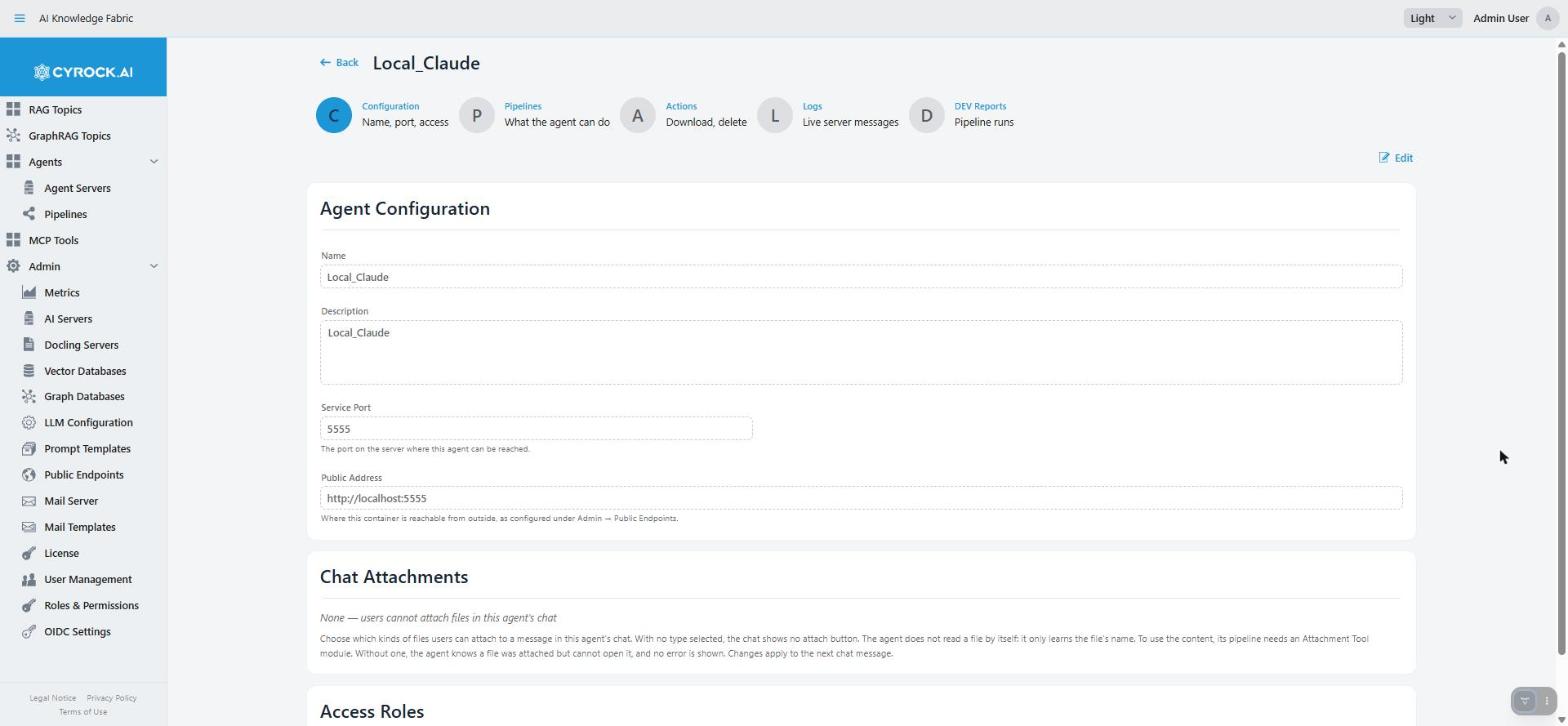
Five tabs (/agent?id=…):
| Tab | Contents |
|---|---|
Configuration |
Name, description, port, public address, chat attachments, Kubernetes resources (only on Kubernetes), access roles |
Pipelines |
Assign and remove pipelines |
Actions |
Download the container definition, delete the Agent |
Logs |
Live server messages |
DEV Reports |
One report per pipeline run, for developers tuning a pipeline |
Configuration
The tab shows the settings read-only. Edit (requires AGENT_EDIT) opens the form; Save Changes
saves, Cancel drops your changes. Each section shows a badge: Saved immediately or Requires
restart.
Agent Configuration — Saved immediately
| Field | What it does |
|---|---|
Name |
Shown in lists and in the chat. Letters only — a space becomes an underscore ( |
Description |
A short note for other users on what this Agent does. It is shown in the list and does not change how the Agent works |
Service Port — Requires restart
| Field | What it does |
|---|---|
Service Port |
The port on the server where this Agent can be reached, for example 8090. No other Topic or Agent may use the same port — otherwise the start fails. A change takes effect after a restart. On Kubernetes the app reaches the Agent inside the cluster on a fixed port, so there the port only matters for a public address pattern that uses |
Public Address Override |
Only for an Agent that is published under a different address than the pattern under Admin → Public Endpoints. Empty uses the pattern. The placeholders |
In read-only mode, Public Address shows where the Agent is reachable from outside, or Not configured.
Chat Attachments
| Field | What it does |
|---|---|
File types |
Which kinds of files users can attach to a message in this Agent’s chat: Text files, Documents, Images. None is selected for a new Agent. With no type selected, the chat shows no attach button. Changes apply to the next chat message |
Largest Chat Attachment (MB) |
The largest file a user can attach to one message, from 1 to 25 MB. Default: 10. Higher: bigger files can be handed to the pipeline’s attachment tool. Lower: bigger files are refused right away with a message. Applies after the Agent is restarted — this field counts as a restart change, even though the section badge says Saved immediately |
|
An attachment is only useful with an Attachment Tool module in the pipeline. The Agent does not read a file by itself: it only learns the file’s name. Without an Attachment Tool, the Agent knows a file was attached but cannot open it, and no error is shown. |
Kubernetes Resources — Requires restart, only shown when the app runs on Kubernetes
How much computing power and memory this Agent gets in the cluster. Leave a field empty to use the default for all Agents. A request is reserved for the Agent at all times; a limit is the most it may use. Higher values: the Agent stays fast under load, but less is left for others. Lower values: saves resources, but the Agent can get slow, and if it needs more memory than its limit it is restarted.
| Field | Example |
|---|---|
CPU Request |
|
Memory Request |
|
CPU Limit |
|
Memory Limit |
|
The defaults are set by the administrator — see Kubernetes installation, CPU and memory.
Access Roles — Saved immediately
Who can see and use this Agent, in the app and through the API. ADMIN always has access and cannot be
cleared. Select more roles to open the Agent to their users; clear a role to take access away. Changes
apply right away.
Restart Required. When you change the port, the public address override, the largest attachment or a Kubernetes resource while the Agent is running, a dialog asks what to do: "The agent is running. Your change takes effect only after a restart. A restart stops the agent for a short time — chats that are running are interrupted."
| Button | Does |
|---|---|
Cancel |
Saves nothing; the form stays open |
Save Only |
Saves. The Agent keeps the old values until you restart it |
Save & Restart |
Saves, stops the Agent and starts it again with the new values |
When the Agent is not running, such a change is saved directly, with the note "Saved. Restart the agent to apply the changes."
Pipelines
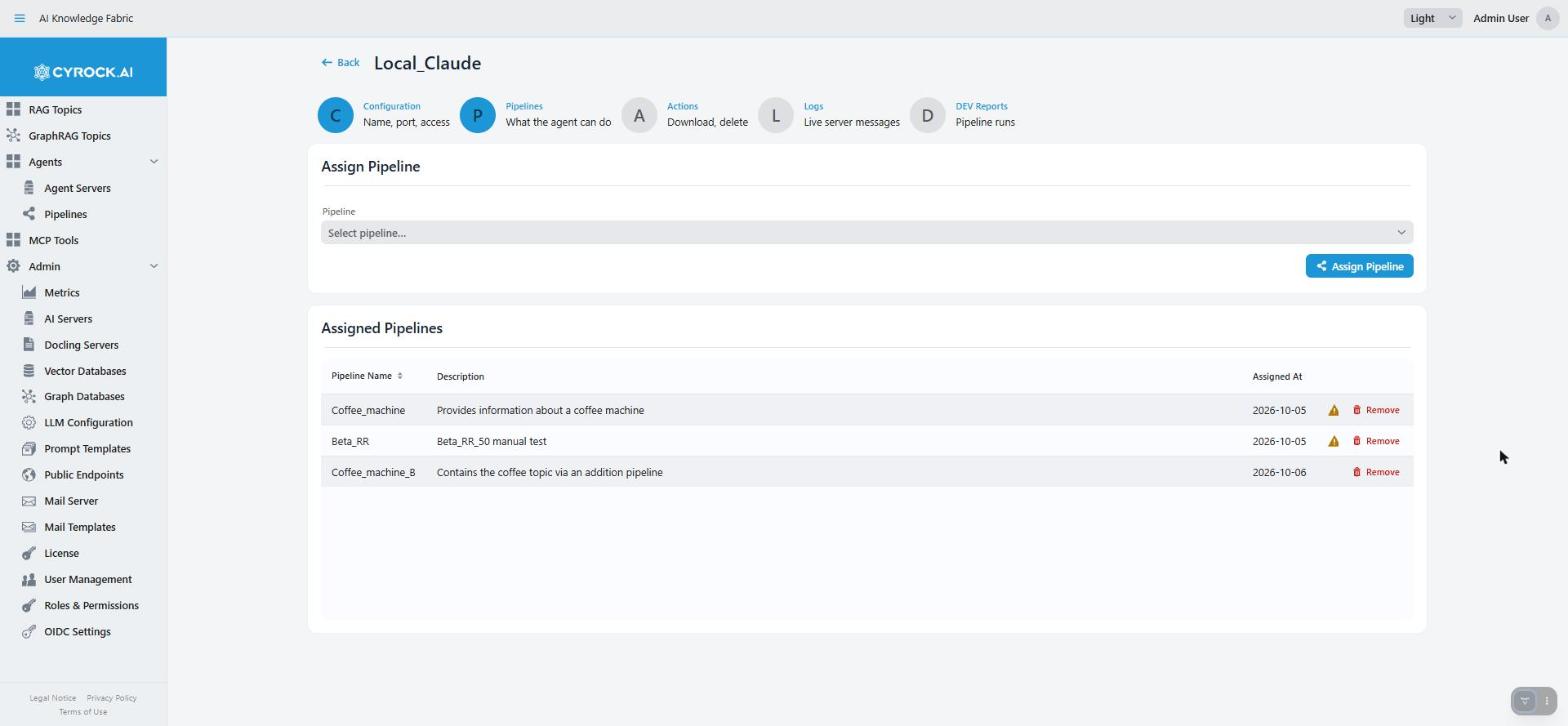
This is the tab you will use most. Assign Pipeline: choose a pipeline and click Assign Pipeline. Assigned Pipelines lists what the Agent has, with a Remove button per row.
Assigning.
-
When the Agent is running, the pipeline is sent to it right away: "Pipeline assigned. The running agent can use it now." If the Agent refuses it, you see "… could not be sent to the running agent: …", and the pipeline is not assigned.
-
When it is stopped, the Agent gets the pipeline at the next start: "Pipeline assigned. The agent gets it the next time it starts."
-
A pipeline with empty required fields is refused, not assigned: "… cannot be assigned yet. Fill in these fields in the Pipeline Designer first: …". The same applies to the pipelines it calls.
-
A pipeline that is already assigned is refused with "This agent already has this pipeline."
Called pipelines must be assigned too. A Pipeline module runs another pipeline by its name, on the same Agent. If the pipeline you assign calls pipelines this Agent does not have, the dialog Assign Called Pipelines? lists them. Those calls fail when the pipeline runs — unless you assign them too.
| Button | Does |
|---|---|
Assign All (n) |
Assigns the called pipelines first, then the selected one |
Only "…" |
Assigns only the selected pipeline — for example, if you assign the others by hand later |
Cancel |
Assigns nothing |
Removing. If another assigned pipeline still calls the one you remove, the dialog Pipeline Still Called names the callers; after the removal those calls fail. Remove Anyway removes it. What you see afterwards tells you whether the Agent itself dropped the pipeline:
| Message | Meaning |
|---|---|
"… is removed from this agent. It can no longer be run there." |
The running Agent deleted it right away |
"… is removed from this agent." |
The running Agent did not have it any more |
"… is removed. The agent deletes it when it is started the next time." |
The Agent is not running |
"… is removed from this list, but the agent could not be reached. It can still run the pipeline until it is started the next time — then it deletes it." |
Warning: the running Agent did not answer |
Warning triangle. When the tab opens, the app tries to reach every model server the assigned pipelines use. If one does not answer, the row shows a warning triangle. Hover over it to see which servers: "This app cannot reach these model servers, so the pipeline may fail when it runs: …". The check runs from this app, not from inside the Agent container — see Where the models come from.
One Agent can hold several pipelines, and the chat user picks one per conversation. That is the normal setup: one Agent as the runtime, several pipelines as its abilities.
Actions
Docker Compose (or Kubernetes YAML on Kubernetes) — Download docker-compose.yml (or Download
Kubernetes YAML) gives you the file this app uses to run the Agent. Use it to check the Agent’s settings,
or to run the Agent yourself. The file contains the Agent’s secrets in plain text, including the client secret
its scheduled runs act with, so only users with the permission Download Deployment Files (MANIFEST_DOWNLOAD, admin
role only) see it.
Danger Zone → Stop & Delete Agent (requires AGENT_DELETE, with a confirmation). Stops the Agent and
removes it, together with its stored data, its chats and its list of pipelines. This cannot be undone.
|
Deleting an Agent does not delete its pipelines. Pipelines are separate — they stay and can be assigned to another Agent. |
Logs
The Agent’s server messages: earlier lines first, then new lines as they come in. Requires LOGS_READ;
without it the tab says "You do not have the permission to view these logs."
-
Level shows this level and everything more serious.
WARNshows warnings and errors;ALLshows everything. -
Logger contains shows only lines from parts of the program whose name contains this text. Empty shows all lines.
-
Apply loads the logs again with these filters. Clear empties the view; the logs themselves are not deleted.
This is where pipeline runs explain themselves. The chat shows a result or an error. The log shows which module ran, which tool was called and where a run stopped. For anything unclear in a pipeline, read the log rather than guessing from the chat.
DEV Reports
For developers tuning a pipeline. The tab has one switch: Report pipeline runs. While it is on, every
pipeline run writes one report — whatever started it: the chat, a schedule, an MCP client or another
Agent. A pipeline that runs as a PIPELINE step or tool is part of the report of the run that called it.
-
Every module appears as a step with its input, output, state changes and duration.
-
Every model call is shown in full: the instructions, the tools offered, the conversation as the model got it (including what earlier agents passed on), the reply, thinking and tokens. This includes the calls outside the agents — guardrails, validator, structured output, narration, embedding.
-
Every tool call shows its arguments and its result; a
{"error": …}result is flagged. -
The control modules explain themselves: the guardrails or validator verdict with score and threshold and the branch taken, every loop pass and why the loop stopped, every iterator element, the path structured output took. A check that failed and let the value through unchecked is flagged.
-
A pause at Human approval keeps the report running; the answer and who gave it are added when the run continues. A run that is cut off ends as
INCOMPLETE. -
Each report contains the pipeline as it was registered, with API keys, passwords, connection strings and header values removed.
All switches are off when the Agent starts. The switch stays on until you switch it off or the Agent restarts. Reports are kept inside the Agent container and are gone when it is recreated — which a Stop and Start does.
Requires the DEV_REPORTING permission, and the Agent must be running. Reports contain full prompts,
documents and tool results, so grant the permission with care. The tab works the same way as on a Topic,
see Topic configuration, DEV Reports.
How a report is built and how to use it: DEV Reports — reading a report.
5. Assigning pipelines — the deployment model
Two ways lead to the same place:
| From | How |
|---|---|
The Agent |
Agent detail → Pipelines tab → Assign Pipeline |
The Pipeline |
Save the pipeline in the designer. If it is assigned to running Agents, a Deploy Changes? dialog offers Push Now |
The second way is the loop you will use while developing: edit → Save → Push Now → test in the chat. The dialog names every running Agent the pipeline is assigned to and sends the new version to all of them. Not Now leaves them on the old version until they are restarted.
|
Saving a pipeline does not send it to running Agents. Without Push Now, a running Agent keeps the version it received. If a change seems to have no effect, this is why — push it, or restart the Agent. If required fields of the pipeline are empty, the designer does not offer the push and says which fields are missing. |
6. Where the models come from
An Agent has no model settings. Every module in a pipeline that calls a model carries its own provider, model name, URL and optional API key.
What this means:
-
The model URL must be reachable from inside the Agent container.
localhostthere means the container itself. With Docker, usehost.docker.internal, or172.17.0.1on plain Linux Docker. -
The registered AI Servers are not used automatically. In the designer, the Select AI Server & Model button copies the values of a registered server into the module — use it instead of typing.
-
Modules in one pipeline may use different models on purpose: for example, a small fast model for checking, a large one for the main step.
7. Troubleshooting
| Symptom | Cause and fix |
|---|---|
Agent goes to |
Docker or Kubernetes not reachable, or the port is already in use. Read the error message, then the Logs tab |
Agent goes to |
The Agent did not answer within 120 seconds, so no pipeline was sent. Check the Logs tab, then start it again |
Agent is |
The Agent refused that pipeline. The message names it and gives the reason. Fix it in the designer, then push it or restart the Agent |
Assigning a pipeline is refused |
Required fields in it — or in a pipeline it calls — are empty. The message names them. Fill them in in the designer |
A pipeline fails when it calls another pipeline |
The called pipeline is not assigned to this Agent. Assign it on the Pipelines tab |
A removed pipeline still runs |
The Agent was not reachable when you removed it. It is deleted at the next start — restart the Agent |
Warning triangle next to a pipeline |
This app cannot reach a model server the pipeline uses. Check the URL and the server |
Pipeline changes have no effect |
The pipeline was saved but not pushed. Choose Push Now, or restart the Agent |
Chat says "This agent has no pipelines yet, so there is nothing to chat with." |
No pipeline is assigned. Assign one on the Pipelines tab |
Model calls fail with a connection error |
The model URL is not reachable from inside the container. Do not use |
No attach button in the chat |
No file type is selected under Chat Attachments |
The Agent ignores the content of an attached file |
The pipeline has no Attachment Tool module |
A new attachment size has no effect |
The Agent was not restarted after the change |
KV store values are gone after a restart (Kubernetes) |
On Kubernetes they are not kept on a volume |
A tool is never called |
The module cannot be used as a tool, is missing required settings, or its description does not say when to use it |
Buttons missing |
Missing permissions. If New Agent or Start refuses: no valid license, or the licensed Agent limit is reached |
Deleted an Agent — are the pipelines gone too? |
No — pipelines are separate and stay |