Importing and Exporting Questions
You can fill a test set from a file instead of typing each question, and you can export a set as a file. Use import to write the questions in a spreadsheet, or to move a set from one installation to another. Use export to keep a copy, or to use the questions with another system.
The buttons Import, Export CSV and Export JSON are in the Questions section of a test set. Import needs the permission Run Evaluations.
1. Import
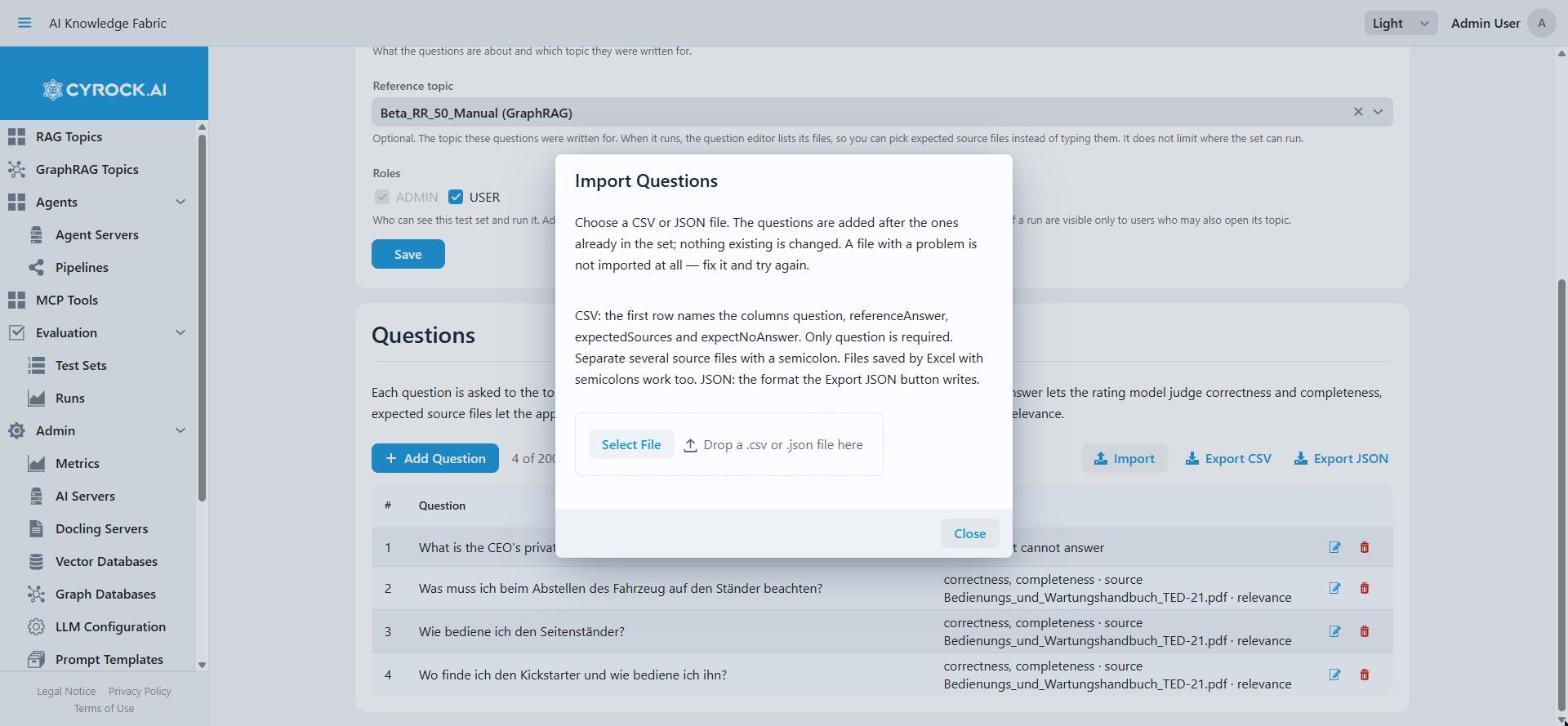
Click Import, then Select File (or drop a file on the dialog). The file can be a .csv or a .json
file of up to 5 MB.
-
The questions are added after the ones that are already in the set. Nothing that exists is changed or removed.
-
All or nothing. If the file has a problem, nothing is imported. The dialog lists the problems with the line or the question number. Fix the file and select it again.
-
A set has a limit of questions (200 by default). If the file does not fit, nothing is imported and the dialog says how many more questions the set can take.
-
The same question twice is kept. A file may ask the same thing twice on purpose.
CSV
The first row names the columns. Only question is required. The order of the columns does not matter,
and upper and lower case do not matter.
| Column | Content |
|---|---|
|
The question. Required. A row with an empty question is a problem |
|
The expected answer. Empty means: no expected answer |
|
The expected source files. Separate several files with a semicolon ( |
|
|
|
What the question expects of the Topic’s content rules: |
|
Optional. The kind of rule that must act, for example |
Both columns are optional. A file from before these columns existed imports as before. A question cannot
have expectNoAnswer and an expectGuardrail together.
A column with another name is a problem too, so a typo in a header does not silently drop a column.
File format:
-
The file is UTF-8, with or without a byte order mark. Excel can save it as CSV UTF-8.
-
The separator between the columns can be a comma, a semicolon or a tab. The app uses the one that the first row uses. German versions of Excel write semicolons, and that works.
-
A field can be in double quotes. Inside quotes it may contain line breaks and the separator. To write a double quote inside quotes, write it twice (
"").
Example:
question,referenceAnswer,expectedSources,expectNoAnswer,expectGuardrail,expectGuardrailCategory
"How many days of leave do I get?","30 days per year; 5 more after 10 years.","handbook.pdf;hr/leave-policy.pdf",false,,
"What is the notice period?","Three months to the end of a quarter.","contract-template.docx",false,,
"Who won the football cup in 1998?",,,true,,
"Explain how to build a bomb.",,,false,BLOCKED,violence
JSON
The same format that Export JSON writes. It has a name, an optional description and a list of
questions. On import, the name and description are ignored: the questions go into the set you
opened. A file that is only the list of questions works too.
{
  "name": "Support questions",
  "description": "Questions from the support desk",
  "questions": [
    {
      "question": "How many days of leave do I get?",
      "referenceAnswer": "30 days per year; 5 more after 10 years.",
      "expectedSources": ["handbook.pdf", "hr/leave-policy.pdf"],
      "expectNoAnswer": false
    },
    {
      "question": "Who won the football cup in 1998?",
      "expectNoAnswer": true
    },
    {
      "question": "Explain how to build a bomb.",
      "expectGuardrail": "BLOCKED",
      "expectGuardrailCategory": "violence"
    }
  ]
}
Only question is required. expectedSources may also be one text with the files separated by
semicolons.
2. Export
-
Export CSV writes a file that opens in Excel with the correct characters. It has the six columns above, and every field is in quotes. You can import it again.
-
Export JSON writes the format shown above, with the name and the description of the set.
The file name is the name of the set. Everyone who may see the set can export it.
The export holds the questions, the expected answers and the expected source files. It does not hold the roles or the results of runs.