Starting a Run
A run asks every question of one test set to one Topic and lets a rating model score the answers. It is the same as if a user typed each question into the chat of the Topic, one by one. The run goes on in the background. You can leave the page, close the browser and come back later.
Open Evaluation → Runs in the left menu. You need the permission Run Evaluations to start, stop or delete a run. To start a run you also need Use DEV Reporting: with every question the Topic records what it did, and this record contains text from your documents and the Topic’s settings. Without that permission the Start Run button is not shown. See Evaluation overview for who may do what.
1. Before you start
-
The Topic must be running, and you must be allowed to chat with it. A run is a chat.
-
The test set needs at least one question.
-
If you use a measure that needs the rating model, an AI server with a model must be registered under Admin → AI Servers, and the server must be reachable. The app checks this when you click Start and tells you if it is not.
-
Only one run can work on a Topic at a time. A second start for the same Topic is refused with the name of the user and the start time of the running one. Wait for it to finish, or stop it.
-
The installation has a limit for runs at the same time (2 by default). If it is reached, start your run when another one has finished.
2. The start dialog
Click Start Run on the Runs page. Or open the Actions tab of a running Topic and click Evaluate this topic in the section Evaluation. The dialog then has the Topic already chosen. The button is greyed out while the Topic is not running, and the section is not shown without the permissions Run Evaluations and Use DEV Reporting.
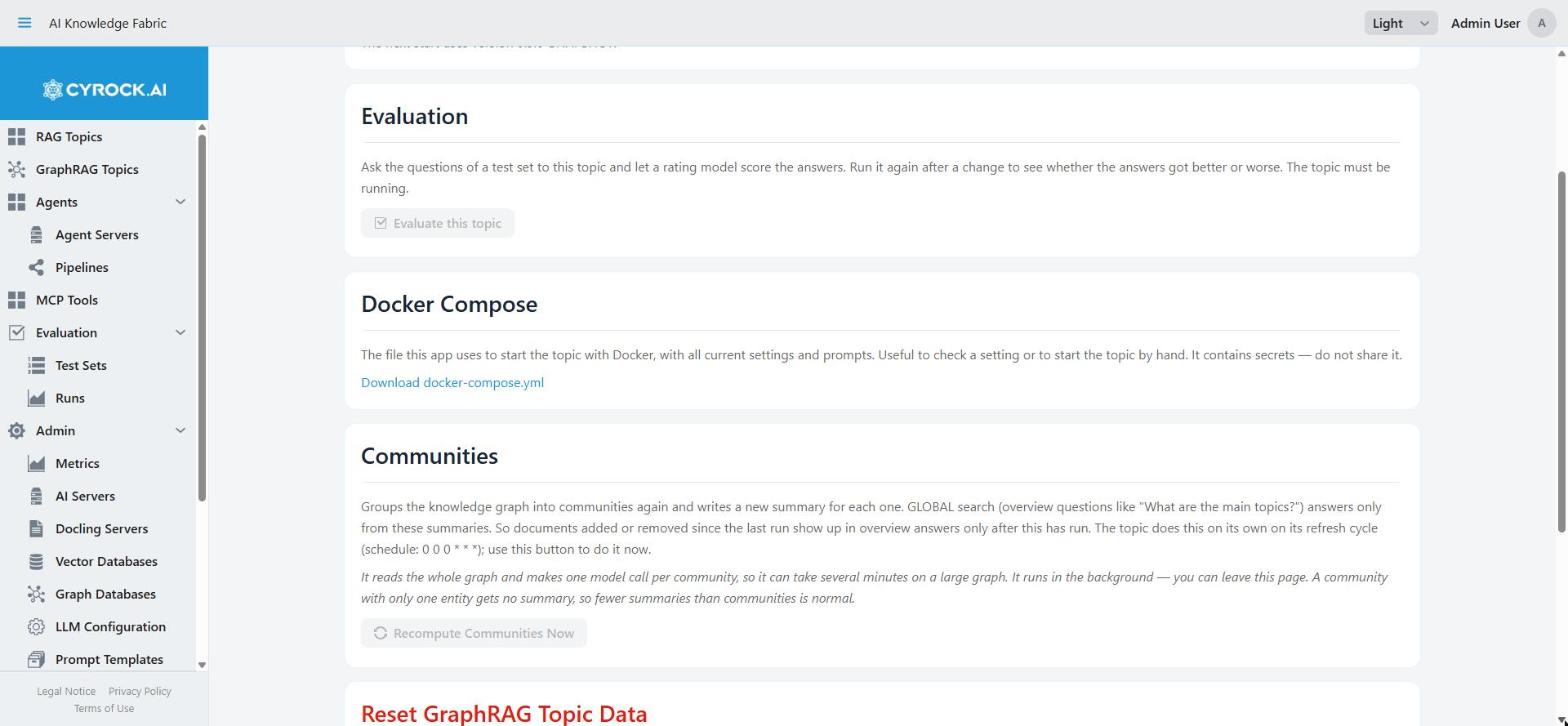
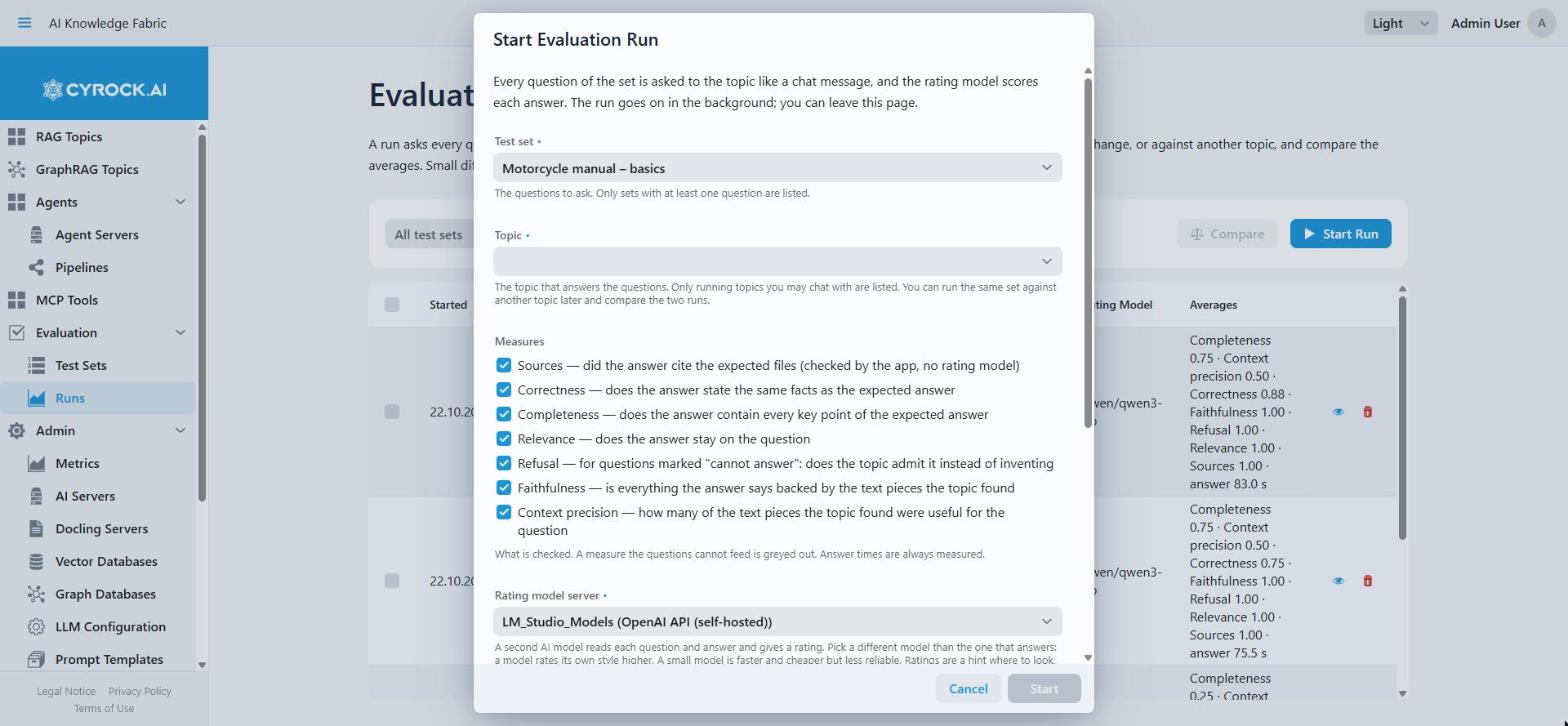
| Field | What it does |
|---|---|
Test set |
The questions to ask. Only sets that have at least one question are listed |
Topic |
The Topic that answers the questions. Only running Topics that you may chat with are listed, RAG Topics and GraphRAG Topics together. Run the same set against another Topic later, and compare the two runs |
Measures |
What is checked. See The measures. A measure that the questions of the set cannot feed is greyed out, and the dialog says why (for example "No question names expected source files."). Every measure that can be used is ticked at first. Answer times are always measured, so there is no box for them. Faithfulness and Context precision are greyed out when every question is marked "cannot answer". They also need the record of what the Topic did: a Topic that gives none is not rated on them (see below). Content rules is greyed out when no question expects the content rules to act |
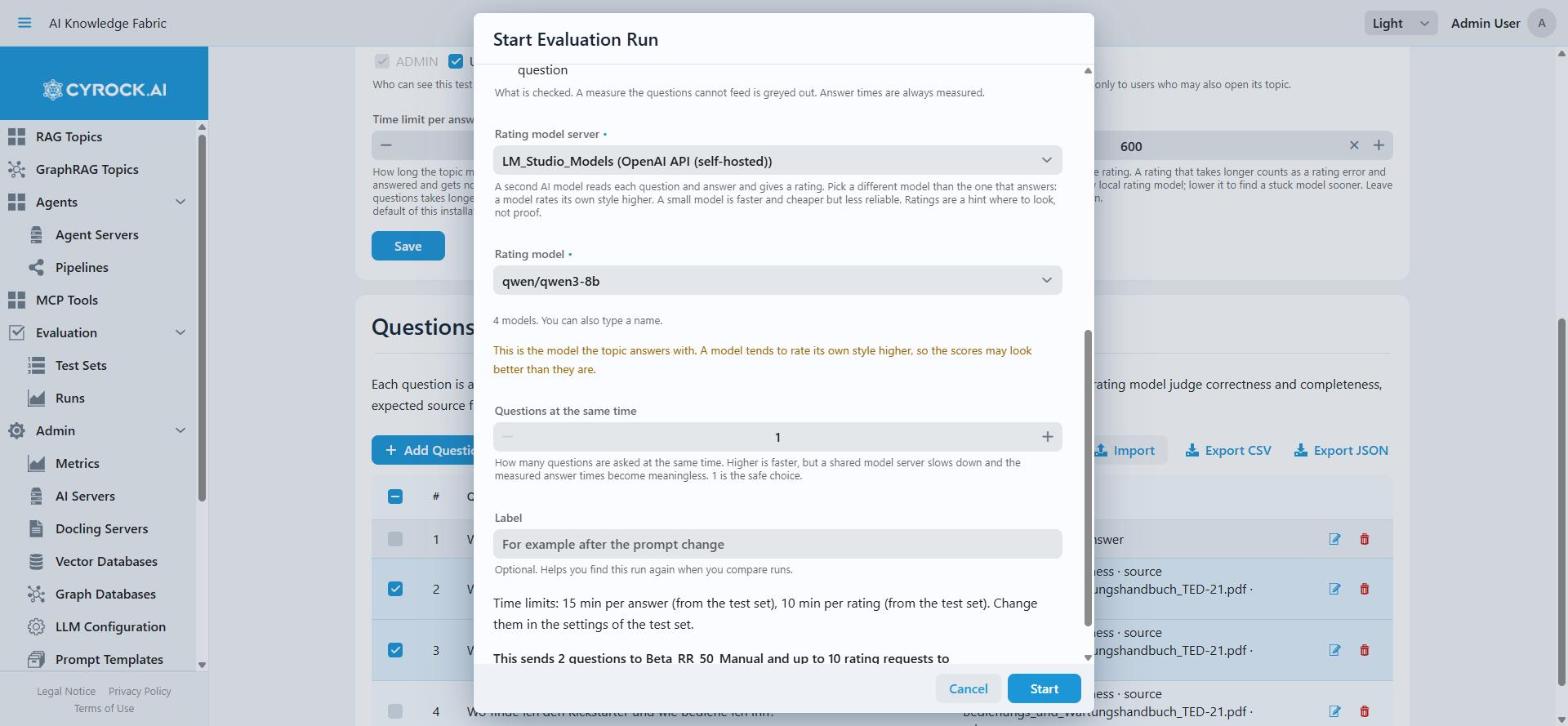
Rating model server and Rating model |
The AI model that rates the answers. Pick the server first, then the model from its list, or type the model name if the list is empty. Both fields are only used when you tick at least one measure that needs a rating. The model of your last run is chosen for you. See below |
Questions at the same time |
How many questions are asked at the same time, from 1 to 4. Higher finishes sooner, but a model server that other users share gets slower, and the measured answer times lose their meaning, because the questions slow each other down. Lower is slower but gives clean answer times and does not disturb other users. 1 is the safe choice |
Label |
Optional. A note that helps you find the run later, for example "after the prompt change". The label is the title of the run on its page |
Choosing the rating model
A second AI model reads each question and answer and gives a rating. The choice changes how much you can trust the numbers.
-
A Topic with content rules gets a note. When the Topic’s guardrails are on, the dialog says that a question or answer they block is marked in the results and left out of the findings, but that its ratings still count in the averages. To measure the search alone, switch the rules off for the run. A run that uses only the Content rules measure needs no rating model.
-
Pick a different model than the one that answers. A model rates its own style higher. The dialog warns you when the rating model is the same as the Topic’s answer model: "A model tends to rate its own style higher, so the scores may look better than they are."
-
A stronger model is more reliable, but slower and more expensive. A small model is faster and cheaper, but it makes more mistakes and more answers cannot be rated at all.
-
A local rating model needs room for long texts. For Faithfulness and Context precision the rating model also reads the text pieces the Topic found, up to about 40,000 characters. That is often more than a local model takes in its default setting. Then these ratings fail with "HTTP 400", and the message says that the input is longer than the context length. Load the model with a larger context, for example 32,768 tokens in LM Studio or Ollama. A larger context needs more memory on the model server.
-
Keep the same rating model for runs you want to compare. Another model rates in another way, so a change of ratings could come from the model and not from your change.
-
A cloud model receives your text. If the server is a cloud service, the dialog warns you: the questions, the expected answers and the answers of the Topic are sent to that service for rating. Pick a local server to keep them on your own servers. The documents of the Topic are not sent, but an answer can quote them.
The record of what the Topic did
Every question of a run asks the Topic for a record of its work: what the search found, which text pieces the model received, and which decisions were made. The run page shows it as What happened, and two measures use it. See Findings and "What happened".
-
The Topic needs a current software version. A Topic that was started with an older version sends no record. The run still works, but the answers of that Topic have no What happened and are not rated on Faithfulness and Context precision. A Topic gets the new version when you stop it and start it again.
-
A question that the Topic answered without searching has no text pieces either. It gets no rating on these two measures.
-
The record holds text from your documents. This is why starting a run needs Use DEV Reporting.
The line before you start
Below the fields the dialog shows what the run costs, for example:
This sends 40 questions to Support and up to 80 rating requests to Office Ollama.
Each question is one chat message to the Topic. Each rating is one request to the rating model, for each question and each measure that applies to it. So more measures and more questions mean more cost and more time. The number says "up to" because a question that a measure cannot rate does not need a request. If you tick only Sources, no rating model is used. Faithfulness and Context precision each add one request per question that the Topic answered with text pieces.
Starting the same run again
On the run page, the button Run again opens this dialog with the settings of that run already filled in: the test set, the Topic, the measures, the rating model and Questions at the same time. The Label is pre-filled as "Again after changes" (or "Again: " and the old label). You can change every field. Use it after you changed something in the Topic, so the two runs can be compared. See Suggestions and running again. If the Topic no longer exists, or you may not start runs, the button is not shown.
Asking only some questions
You can also start a run for a few questions only: tick them in the question table of the test set and click Run selected questions. The start dialog then says "Only the N chosen questions of this set are asked". Ask all questions instead goes back to the whole set, and so does choosing another test set. Such a partial run is faster and cheaper, but its averages cover only these questions. See Partial runs.
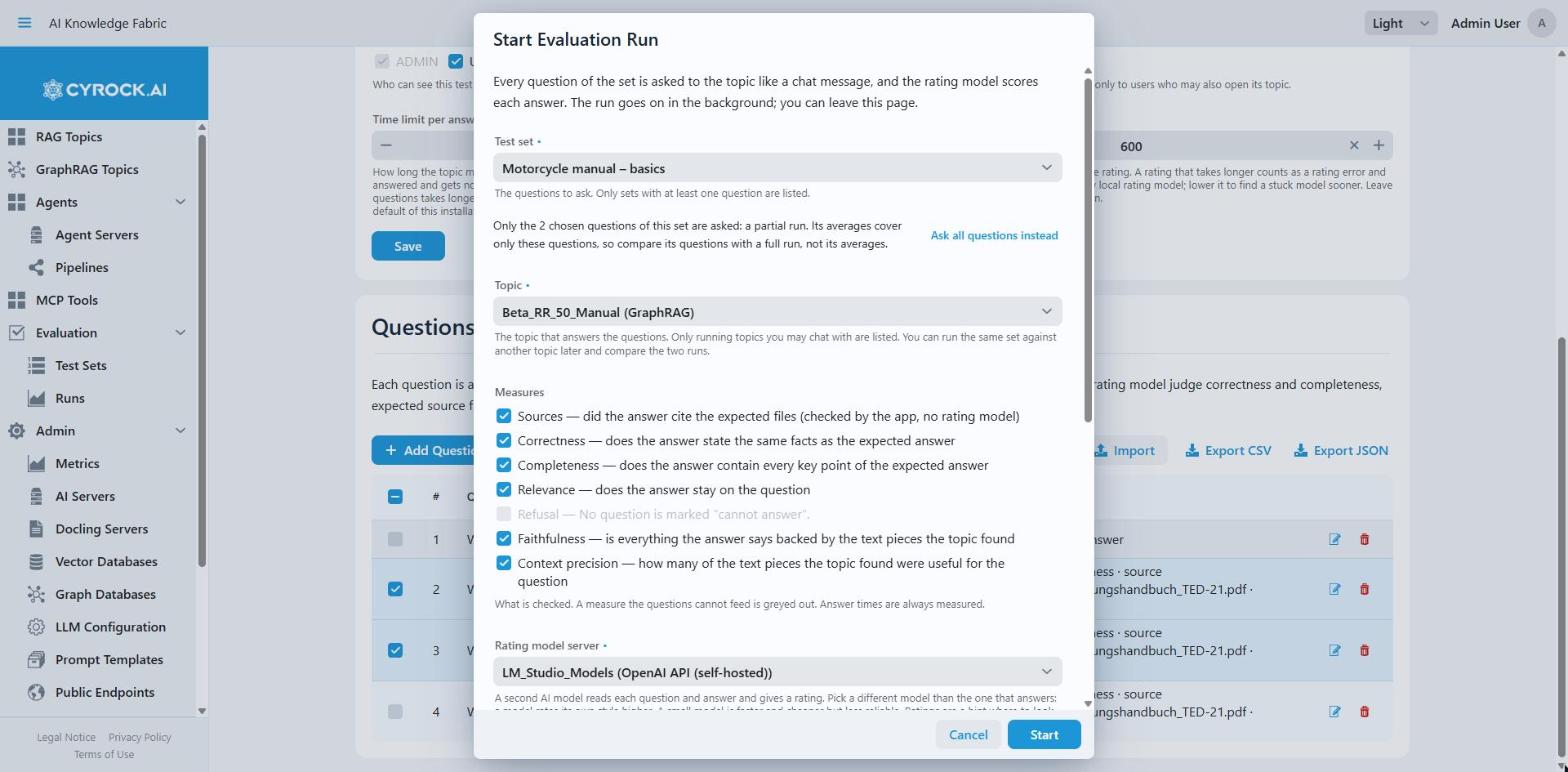
To ask some questions of a finished run again, failed or not, you do not need a new run: on the run page they are asked again in the same run, and every other question keeps its result. See Asking questions again.
Click Start. The dialog closes, the notification says how many questions were started, and the run appears in the list.
3. While the run works
The Runs page shows a progress bar and the number of finished questions, for example "Running 12 / 40". It updates by itself every few seconds, also for a run that was started by another user.
-
Stop ends the run after the questions that are being answered right now. The status becomes Stopped. The results so far stay and can be read.
-
A question that cannot be answered, for example because the Topic runs into an error, is stored with its error, and the run goes on.
-
If the Topic or its model server cannot be reached for three questions in a row, the run ends with the status Failed and the reason. Fix the Topic and start again. This is better than 200 empty rows.
-
A question that gets no complete answer within the time limit counts as not answered ("No complete answer within … seconds"). The limit is 5 minutes unless the test set or your administrator sets another one. The start dialog shows the limits the run will get, above the line with the number of requests. To change them, open the test set: see Test sets.
-
Every question starts a new conversation. The Topic does not remember the earlier questions.
-
If the app itself is stopped while a run works, the run ends as Failed a few minutes later ("The app instance running this evaluation stopped"). The results so far are kept. Start a new run.
The questions of a run are not saved in the chat history of the Topic. They do not appear in the chat window.
|
Runs count as chats in the Metrics dashboard. The Topic reports every question to the dashboard like a question of a user. A run of 40 questions adds 40 requests and their tokens to the Topic. Keep this in mind when you read the numbers on Admin → Metrics. The rating requests go to the rating model’s server and are not reported there. |
4. The list of runs
The list shows the runs you may see, newest first.
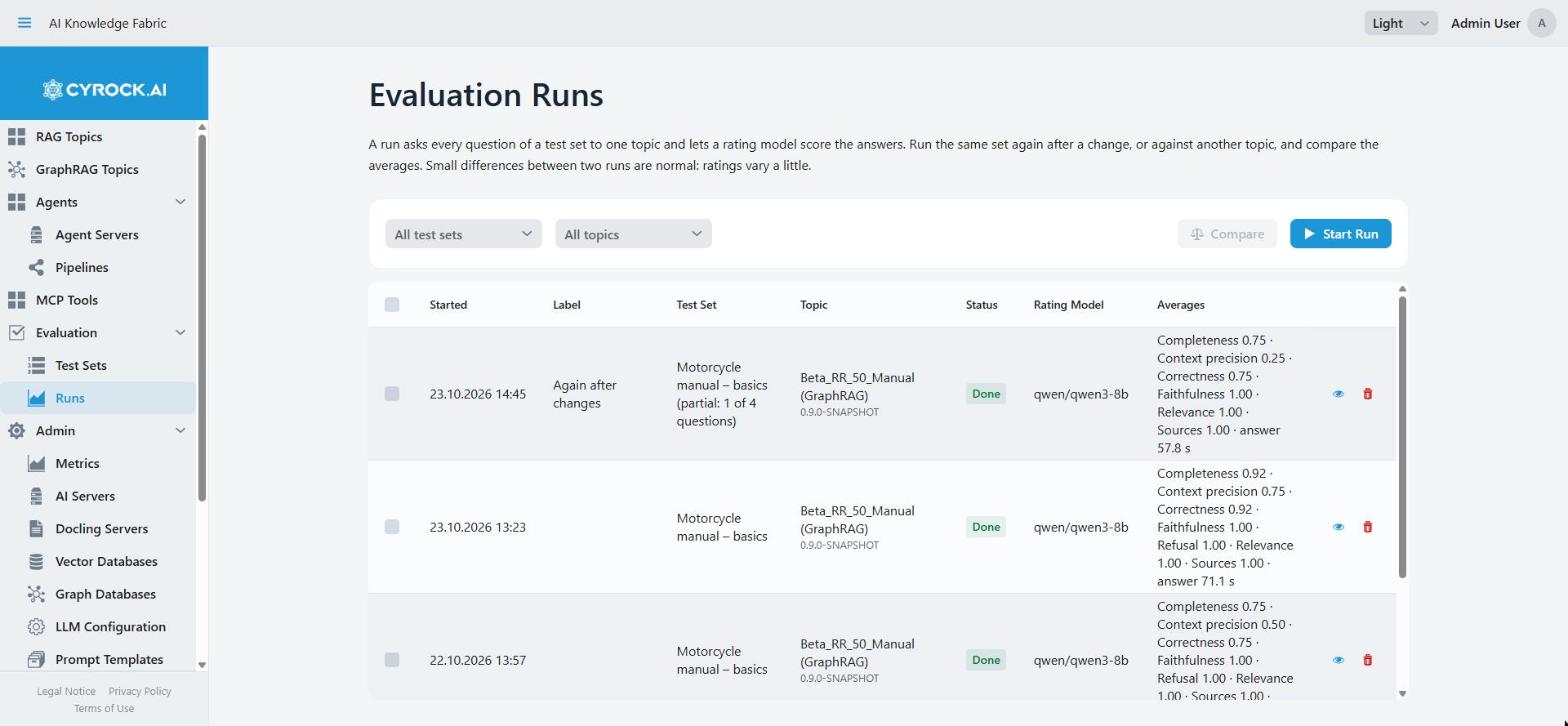
| Column | Content |
|---|---|
Started, Label |
When the run started, and its label |
Test Set |
The set that was asked |
Topic |
The Topic that was tested, with (RAG) or (GraphRAG) and its software version. The version is "version unknown" for a Topic that was started before the app recorded versions. "topic deleted" means that the Topic was deleted after the run. Such a run can still be opened and compared, but not started again |
Status |
Running, Done, Stopped or Failed. Below it: the number of failed questions and of failed ratings, if there were any. Point at the badge of a failed run to read the reason |
Rating Model |
The model that rated the answers. Point at it to see the server |
Averages |
The average rating per measure, from 0 to 1, and the typical answer time |
Use the two filters above the list (All test sets, All topics) to find runs. Click a row, or the eye icon, to open the run. Tick two runs and click Compare to put them side by side. See Comparing two runs.
The trash icon deletes a finished run with all its answers and ratings. This cannot be undone. A running run must be stopped first.
|
Old runs are deleted automatically. The app keeps the 50 newest finished runs of each test set (an administrator can change the number). When a run finishes, older ones of the same set are removed. Delete runs yourself, or export what you need to keep, before they reach this limit. |