Reading a Run
Click a run on the Runs page to open it. The page shows what was tested, the averages, every question with its ratings, and the settings of the Topic at the start. While the run is still working, the page updates by itself every few seconds, and the figures are the ones so far.
The page has these parts, from top to bottom: the facts of the run, the results, the Findings, the Suggestions, the question table and the settings of the Topic. Findings and What happened are described on Findings and "What happened", Suggestions on Suggestions and running again.
Use the ratings to find answers that are worth reading, not as proof. See Limits and good practice.
1. The colours
Every rating is shown as a small coloured number from 0 to 1.
| Colour | Rating | Meaning |
|---|---|---|
Green |
0.75 or more |
Good |
Yellow |
0.5 up to 0.75 |
Fair. Worth a look |
Red |
below 0.5 |
Poor. Read this answer |
Grey, with a dash |
no number |
Not rated. The measure did not apply to this question, or the rating failed |
A number between two steps (the Sources measure can give 0.33) gets the colour of the step below it.
2. The top of the page
| Fact | Content |
|---|---|
Test set |
The set that was asked. Click the name to open it, if you may see it |
Topic |
The Topic that was tested, its kind (RAG or GraphRAG) and its software version. "version unknown" means that the Topic was started before the app recorded versions. "topic deleted" means the Topic does not exist any more |
Rating model |
The model and the server that rated the answers. "None" when only measured checks were used |
Measures |
The measures of this run |
Started, Finished |
When, and by which user |
Questions at the same time |
How many questions were asked at the same time |
Time limits |
How long the Topic could take per answer and the rating model per rating in this run. They come from the test set, or from the defaults of your installation when the set has none. "not recorded" for runs from before this was stored |
Status |
Running (with progress and the Stop button), Done, Stopped or Failed. A failed run shows the reason in red under the facts |
The title of the page is the label of the run, or the name of the test set if the run has no label.
Compare with… at the top right compares this run with another one. See Comparing two runs.
3. Results
One tile for each rated measure shows the average as a coloured number, and below it how many answers were rated, for example "38 answers rated · 2 rating errors". The average counts only the answers that got a rating. A measure that has no rated answer yet reads "not rated yet".
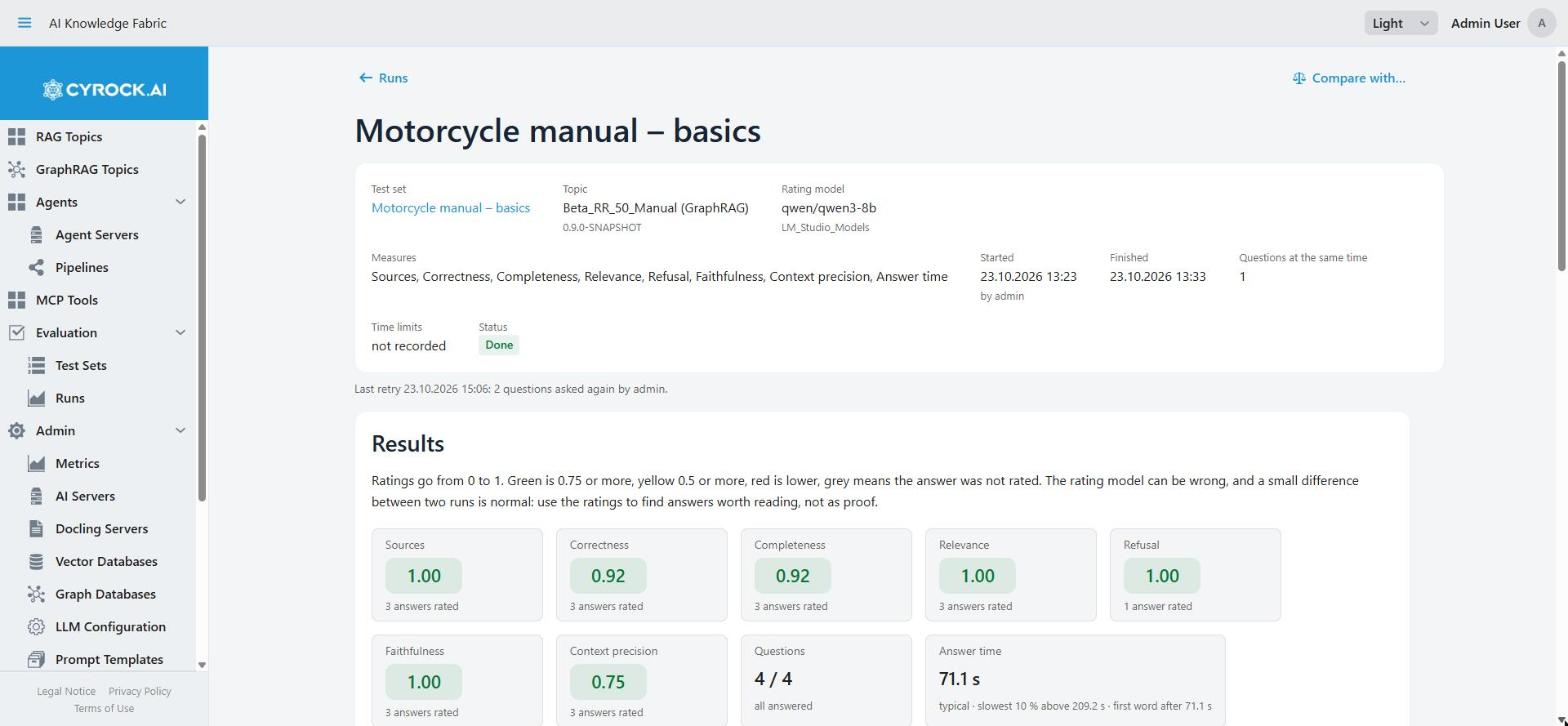
Two more tiles:
-
Questions: how many questions were answered, of all that were asked, and how many could not be answered.
-
Answer time: the typical time of an answer, the time that the slowest 10 % exceed, and the typical time until the first word. See The measures.
Averages per search mode (GraphRAG only)
A GraphRAG Topic chooses a search mode for each question (for example LOCAL for detail questions and GLOBAL for overview questions). For a GraphRAG run a table shows the number of questions and the average of each measure per mode. It tells you which kind of question works less well on your documents. A mode with few questions has a weak average: do not decide on two questions.
4. Questions
The table lists every question with the rating of each measure, the search mode (GraphRAG only) and the time. Click a column header to sort. For example, click a measure to see the weakest answers first or last. The sort order of the # column is the order of your test set.
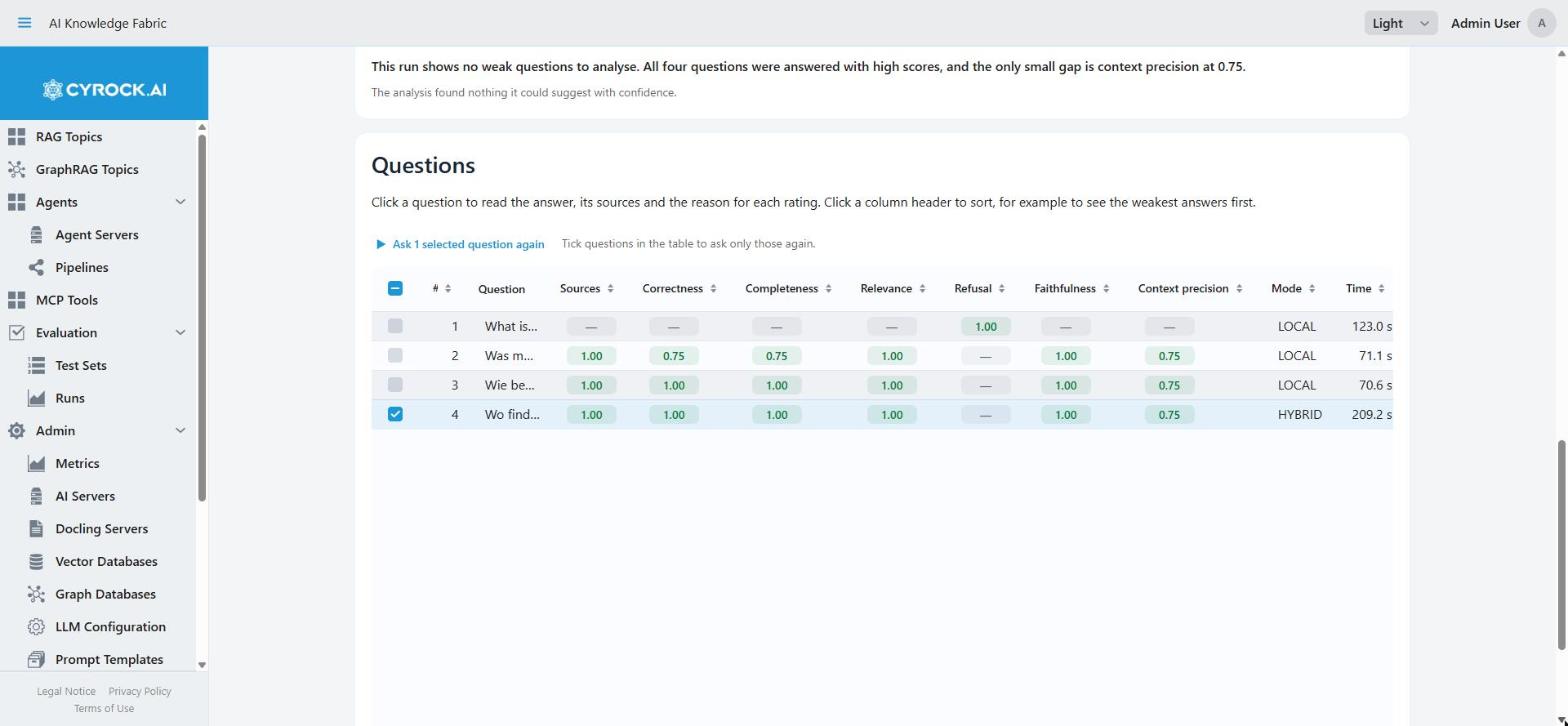
Some symbols at the end of a row point to a problem:
-
A red circle: the Topic did not answer this question. Point at it to read why.
-
A yellow "no entry" sign: the content rules (guardrails) of the Topic blocked the question or its answer, and you did not expect that. The ratings of this question say nothing about the search or the model. Open the question to see which rule acted. A question that is meant to be blocked (see Test sets) does not get this symbol.
-
A yellow triangle: one or more ratings failed.
-
A magnifier: the Topic noted a warning while it searched for this question. Open the question and read What happened. The magnifier is shown only with the permission Use DEV Reporting.
When you click a finding or a suggestion, the table shows only the questions of that finding. A line above the table says so, and the button Show all questions brings the full list back.
Asking questions again
You can ask questions of a finished run again in the same run. Only the results of these questions change; every other question keeps its result. There are three ways:
-
Retry failed questions (n) above the table asks every failed question again. A question failed when the Topic gave no answer (for example it took longer than the time limit) or when one of its ratings failed.
-
Tick questions in the first column of the table and click Ask selected questions again. This works for any question, also for one with a good result.
-
In the dialog of one question, click Ask this question again.
The Topic answers again and the rating model rates the new answer. The new result replaces the old one of that question. Then the averages and the findings are computed again. The run keeps its status and its end time. The top of the page shows the last retry, for example "1 question asked again by maria.". Clicking a checkbox only ticks the question; clicking anywhere else in the row opens the question as before.
A retry works only while the Topic is running with the same software version and the same settings as at the start of the run. If something changed, the app refuses with "Start a new run instead". Otherwise one run would mix answers of two setups, and comparing it would mislead you. A retry uses the run’s own copy of each question and its time limits, so editing the test set in between changes nothing. An analysis made before the retry is marked as outdated: analyze again to include the new answers.
You need the same permissions as for starting a run. While the retry works, the run shows Running and can be stopped. Questions that were not asked again keep their old result.
Partial runs
To try a change on a few questions after you changed the Topic, start a new run of only these questions: tick them in the test set and click Run selected questions there (see Starting a run). Such a partial run shows "partial: 2 of 20 questions" in the list of runs and Questions: 2 of 20 at the top of its page. Each question keeps its number from the test set. Its averages cover only the questions it asked, so do not compare them with the averages of a full run. Compare the questions instead: see Comparing two runs. Run again on a partial run asks the same questions again.
The question dialog
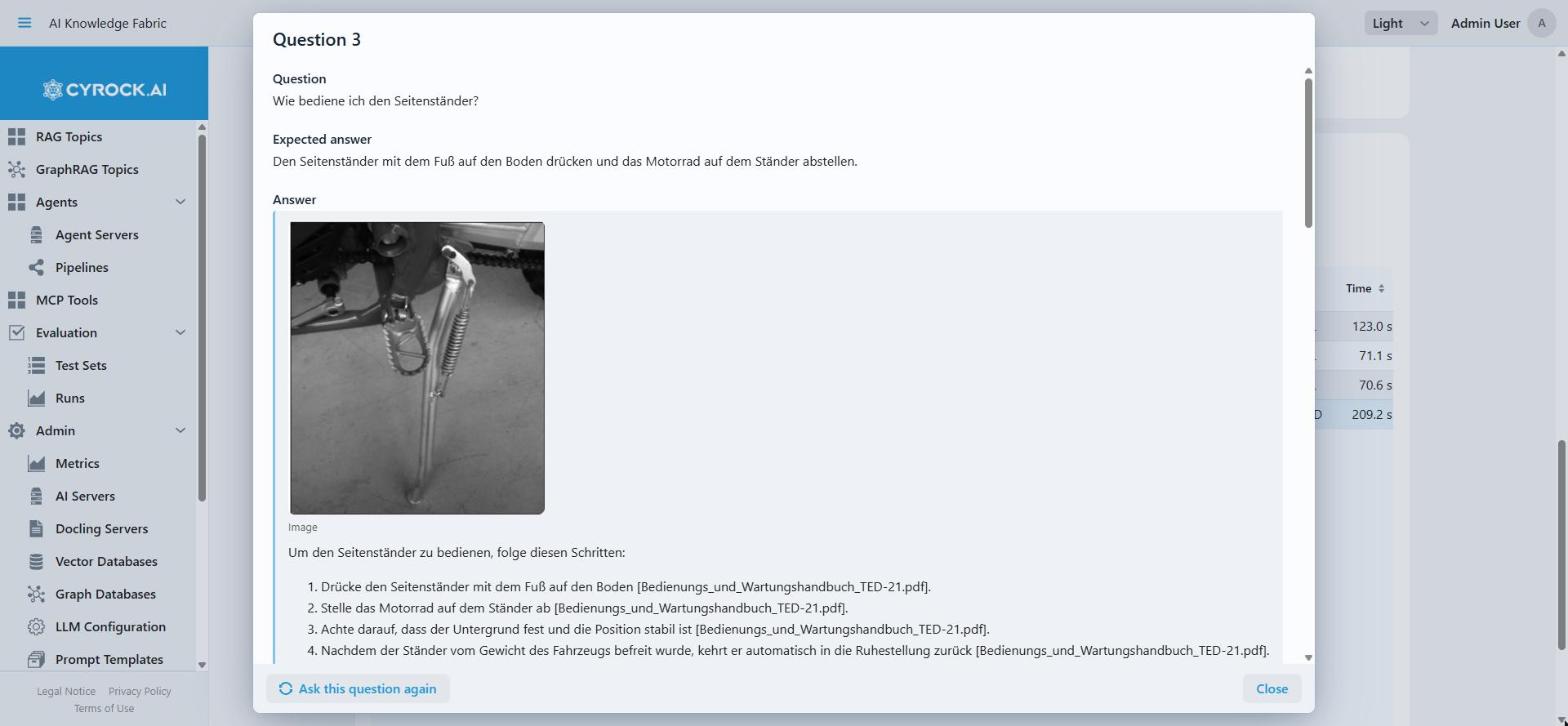
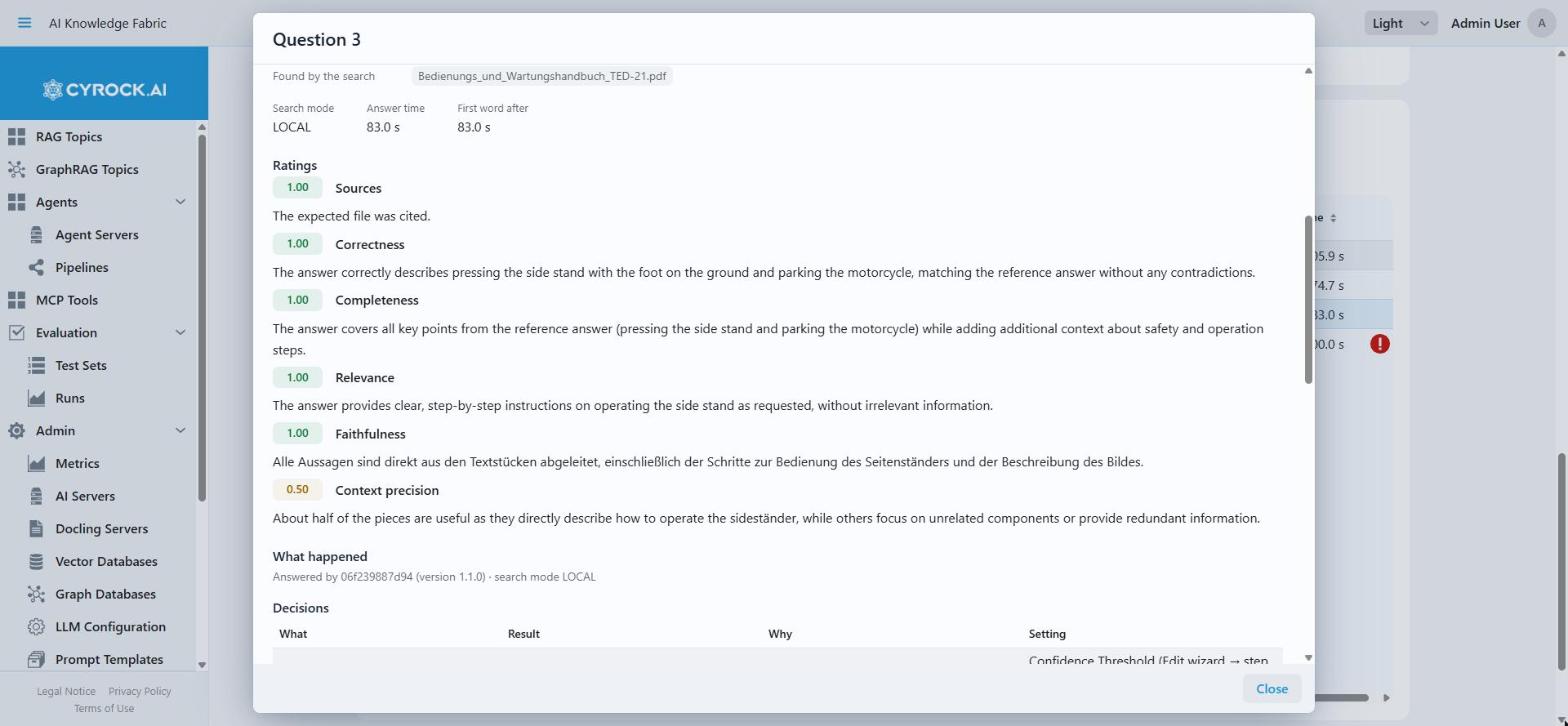
Click a row to read it in detail.
| Part | Content |
|---|---|
Question |
The question as it was asked. If you edited the question in the test set later, you still see the old text, because the run keeps its own copy |
Expected answer |
Your expected answer. For a "cannot answer" question it says that the Topic should admit it does not know |
Expected from the content rules |
Only for a question that expects the content rules to act: the question should be blocked, or the answer should contain blacked-out text, perhaps for one kind of rule |
Answer |
The answer of the Topic. Answers longer than 20,000 characters are cut. If the Topic did not answer, the reason is shown here instead. A picture the answer shows is loaded from the Topic, so you see it only while the Topic runs and you may chat with it. Otherwise "Image unavailable" stands in its place |
Content rules (guardrails) |
Shown when the Topic’s content rules acted on this answer: the message of each rule, for example that a question was blocked or that passages were blacked out |
Sources |
See below |
Facts |
Search mode (GraphRAG), Answer time and First word after |
Ratings |
For each measure: the rating and the reason that the rating model gave. If a rating failed, the dialog says so with the reason |
What happened |
What the Topic did for this question: its decisions, warnings and the text pieces its model received. Needs the permission Use DEV Reporting and a Topic with a current software version. See Findings and "What happened" |
Sources
The Sources part has up to three rows of file names:
-
Expected: the files you named, coloured by what happened:
-
Green: "Cited in the answer". All good.
-
Yellow: "Found by the search, but the answer does not cite it". The Topic found the right file, but the answer left it out or did not name it. Look at the Prompts tab of the Topic, for example the citation rules and the system prompt. Also check Top-K Results: a low value may leave the answer too little to cite.
-
Red: "Not found by the search". The search did not find the file. Check that the file is uploaded under exactly this name, and look at the search settings of the Topic: Retrieval Strategy, Top-K Results, Min. Similarity Score. Also check whether the question uses words that are not in the document.
-
-
Cited in the answer: the files the answer named as its sources.
-
Found by the search: every file the search returned for this question, also those that the answer did not use.
If the expected file is cited, but the answer is still wrong, the problem is in the answer, not in the search.
5. Topic Settings at Start
A collapsed list, Show N settings, holds the search and model settings of the Topic at the moment the run started: the retrieval strategy, how many pieces are cited, the minimum score, chunk size, the names of the models, and the prompts. It never holds passwords or keys.
A prompt is not shown as text. It shows as a short code such as custom #1a2b3c4d. If two runs show
different codes for the same prompt, the prompt was changed between them. A prompt that was never
changed has no entry.
Some names are the settings of the Topic: retrieval.maxCitedChunks is Top-K Results (Max Cited
Chunks on a GraphRAG Topic), retrieval.minScore is Min. Similarity Score, and retrieval.strategy
is Retrieval Strategy (RAG Topics only).
The list is most useful in a comparison, where the settings that differ are marked. See Comparing two runs.
6. What to do with it
-
Look at the tiles. Which measure is low?
-
Sort the question table by that measure and open the lowest answers.
-
Read the rating reason and the answer. Is the rating fair? If the expected answer in your test set is wrong or out of date, fix the test set.
-
Look at the sources. Red points to the search, yellow to the prompts.
-
Read What happened: were the right text pieces there? Read the Findings for patterns, and click Analyze if you want concrete suggestions.
-
Change one thing in the Topic, start a new run (Run again) and compare the two.
Change one thing at a time. With two changes you do not know which one made the difference.
Related
-
DEV Reports — to see why a single answer came out as it did