Suggestions and Running Again
After a run you know which answers are weak and, from the findings, where to look. The section Suggestions on the run page goes one step further: an analysis model reads the weak answers and proposes concrete changes to the settings, the prompts and the files of the Topic.
The analysis never changes anything. You decide what to apply, you apply it yourself, and then you run the test set again and compare. The button Run again makes the second step easy.
1. What you need
-
The run must be finished. For a running run the page says "The run can be analysed when it has finished."
-
The permissions Run Evaluations and Use DEV Reporting. The analysis model receives what the Topic recorded for each question, and that record holds text from your documents. Without both permissions the buttons are not shown, and the page says: "Analysing a run needs the permissions "Run Evaluations" and "Use DEV Reporting"."
-
The Topic of the run must still exist. There is nothing to change on a deleted Topic.
-
An AI server with a model that can follow a long text and answer in a fixed format. A stronger model gives better suggestions.
2. Asking for suggestions
Click Analyze in the section Suggestions. The dialog Analyze this run opens.
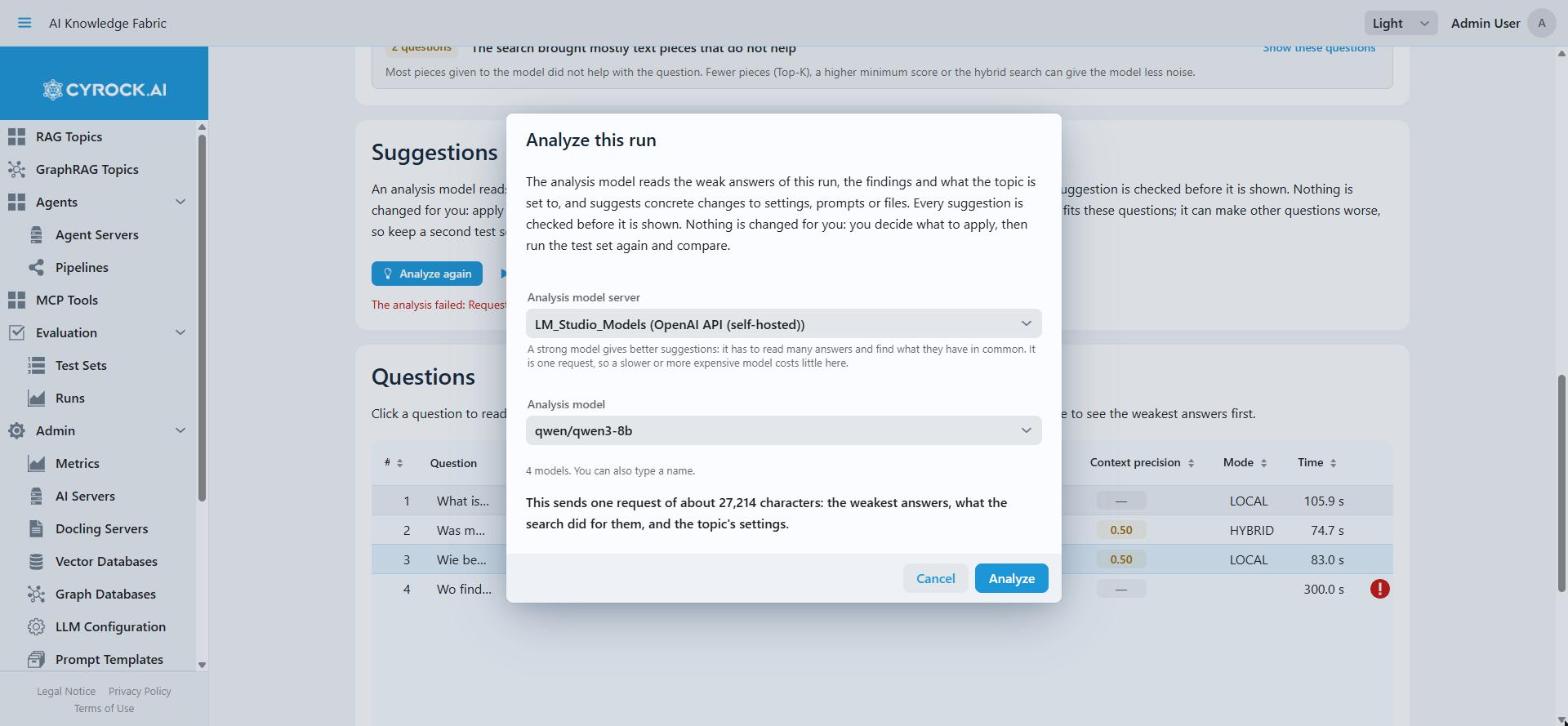
| Field | What it does |
|---|---|
Analysis model server and Analysis model |
The AI model that reads the run. Pick the server first, then the model from its list, or type the model name if the list is empty. The rating model of the run is chosen for you. A stronger model reads many answers better and finds what they have in common. It is only one request, so a slower or more expensive model costs little here |
The dialog shows the size of the request: "This sends one request of about N characters: the weakest answers, what the search did for them, and the topic’s settings." The model gets at most the 20 weakest questions, the worst first, and always the findings and the settings of the Topic as they are now.
A cloud model receives your text. If the server is a cloud service, the dialog warns you that the questions, the answers and text from your documents are sent to it. This is the same warning as for the rating model, and with the analysis it matters more, because the request includes text pieces of your documents. Pick a local server to keep everything on your own servers.
Click Analyze. The analysis works in the background and can take a few minutes. The page shows a progress bar and, when it is done, the result. You can leave the page. If the app is stopped during the analysis, it ends as failed after a while; start it again.
Analyze again starts a new analysis. Only the latest analysis of a run is kept: a new one replaces the old one. Copy what you need before you ask again.
3. Reading the suggestions
The page shows who analysed the run with which model, and a summary of two sentences: what limits this Topic most. Then follow up to six suggestions, the most useful first. Each suggestion has these parts:
| Part | Content |
|---|---|
Kind (badge) |
Setting, Prompt, Documents or Model. See below |
Title |
The problem in one sentence, with a number |
Why |
The likely cause |
The change |
What exactly to change. See below |
Expected |
What should get better |
Risk |
What could get worse |
The cost |
What it takes for the change to reach the answers. See below |
Show questions … |
Filters the question table to the questions that the suggestion is about |
The kinds of change
-
Setting: a value on the Topic’s pages, shown as "Name of the setting: old value → new value", with the place where you find it, for example Configuration tab → Retrieval Configuration. The button Copy copies the new value. The value is checked against what the setting allows: a number must be in its range and a choice must be one of the options.
-
Prompt: a change to a prompt on the Prompts tab. A prompt suggestion is an addition: "Add this paragraph at the end". You see the paragraph alone, with Copy, and the whole new text under Show the whole new text. The current text is never thrown away. For a few short texts, such as the no-answer text, the suggestion may be a complete new text: "Replace the text with".
-
Documents: a problem in the files, for example a file that is missing from the Topic or whose text was not converted well. You see the file names and what to do.
-
Model: the model is the limit, for example it does not follow clear instructions. You get advice what kind of model helps, never a model name.
What a change costs
Not every change reaches the answers at once. Each suggestion names its cost:
| Label | Meaning |
|---|---|
Applies to the next question |
You change it and the next question already uses it |
Needs a stop and start of the topic |
The change reaches the Topic only when you stop it and start it again |
Applies to files uploaded afterwards; upload a file again to apply it there |
Files that are already in the Topic keep the old result until you upload them again |
Cannot be changed on this topic: needs a new topic and a full upload |
The value is fixed when the Topic is created, for example the chunk size or the embedding model |
Needs a stop and start, then "Recompute communities" on the Actions tab |
GraphRAG only. The community summaries are rebuilt only when you ask for it |
Cheap changes come first. Prefer a change that applies at once or after a restart over one that needs all files uploaded again.
Suggestions that are not shown
Every suggestion is checked before it is shown. A suggestion that names an unknown setting, a value outside the allowed range, a setting that already has this value, or a prompt change that would break the prompt is dropped. The page counts them: "N suggestions were not shown because they did not pass the check, for example a value outside the allowed range." If the model found nothing it could suggest with confidence, the page says so. That is a valid result.
4. Applying a suggestion
Nothing is applied for you. Open the Topic, go to the place named in the suggestion, change the value and save. Change one thing at a time when you can, so you know what helped. Then use Run again.
A suggestion fits these questions. It can make other questions worse. Keep a second test set that the analysis never saw, and check the change on it. See Limits and good practice.
5. Run again
Run again is next to Analyze. It opens the start dialog with the settings of this run already filled in: the same test set, Topic, measures, rating model and Questions at the same time. The label starts with "Again". Click Start, and the run opens when it has started. The two runs can then be compared.
The button is shown only if you may start runs and the Topic still exists. If you changed the Topic so that it is not running (for example for a restart), start it again first: a run needs a running Topic.
The routine:
-
Read the Findings and the suggestions.
-
Change one thing on the Topic. Stop and start it if the cost says so.
-
Click Run again.
-
When the new run is done, tick both runs on the Runs page and click Compare. See Comparing two runs. The part Topic Settings at Start shows what differs between the two runs.