Comparing Two Runs
A comparison puts two runs of the same test set side by side. It shows, for every measure and every question, the rating in the first run, the rating in the second run and the change. Use it to answer "did this change help?".
The two runs can test the same Topic before and after a change, or two different Topics, for example a RAG Topic and a GraphRAG Topic that hold the same documents.
1. How to open a comparison
-
From the list of runs: tick the boxes of exactly two runs of the same test set, and click Compare. The button stays greyed out until the two runs fit. Point at it to read what is missing: "Tick two runs of the same test set to compare them", or "Only runs of the same test set can be compared".
-
From a run: click Compare with… at the top right of the run page. Choose the other run in the dialog (it lists the other runs of the same test set that you may see) and click Compare.
You can compare running and unfinished runs too, but you get a warning. See the warnings below.
You see a comparison only if you may see both runs. Each run needs access to its test set and its Topic.
2. A and B
The older run is shown as A and the newer one as B, however you opened the page. The change is always B minus A. A positive change means that the newer run is rated better.
If you want it the other way round, click Swap A and B at the top of the page.
3. How to read the changes
The rating model does not give exactly the same rating twice for the same answer. So a small change between two runs often means nothing. The app uses one step of the scale, 0.25, as the limit:
| Colour of the change | Change | Meaning |
|---|---|---|
Green |
+0.25 or more |
B is rated better. A real change |
Red |
−0.25 or less |
B is rated worse. A real change |
Grey |
between |
"Within rating noise": the difference is as large as the usual rating variation. Do not draw a conclusion from it |
Grey, a dash |
no number |
Not rated in both runs |
A change is written like +0.25, −0.50 or ±0.00. The answers of a Topic also vary from run to run, because a language model does not give the same wording twice. For a safe conclusion look at many questions, not at one.
The averages in Results use the same colours and the same limit. They are the better sign: an average over many questions is more stable than a single question. But an average that moves by less than 0.25 is grey too, and with a small test set it may still be noise. Add more questions to the set if many changes stay grey.
4. The page
Runs
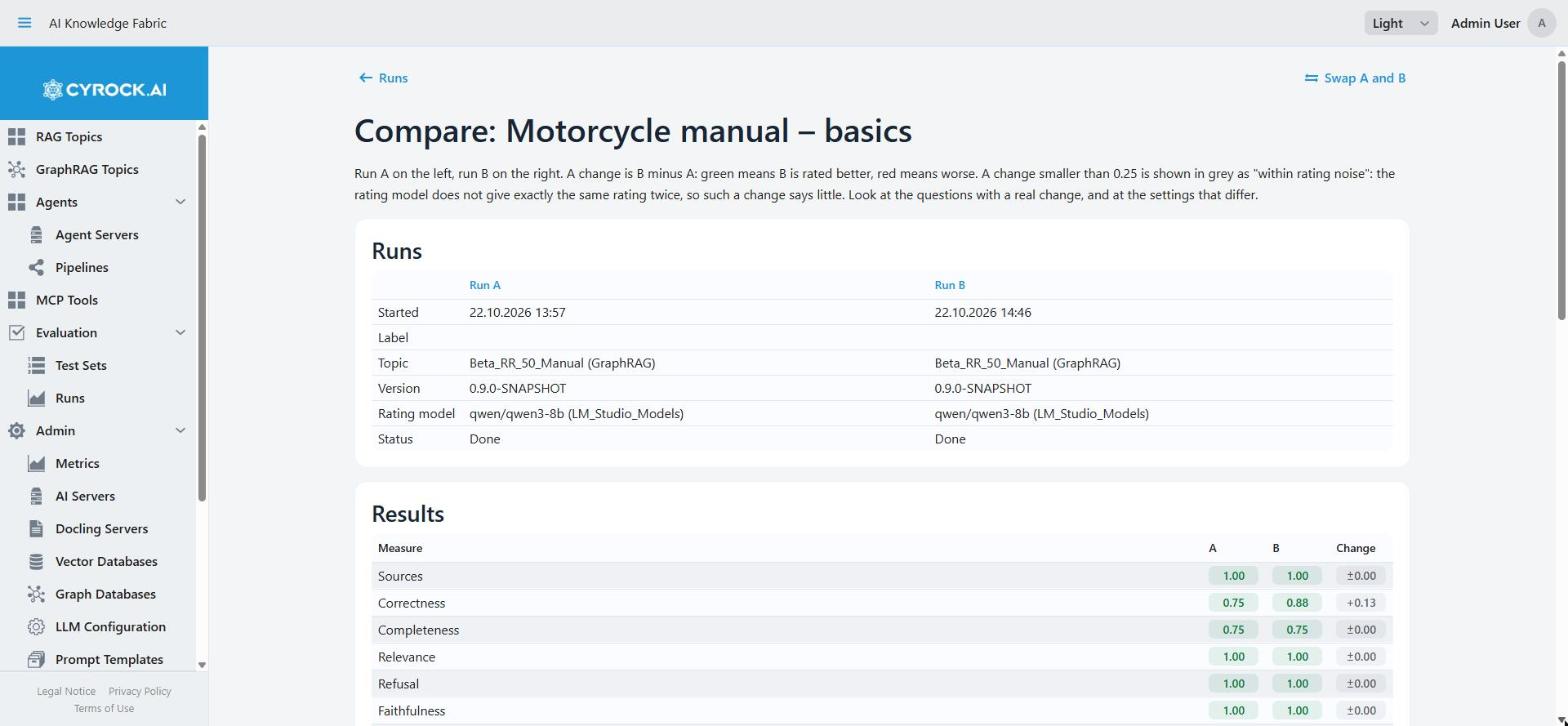
A table with run A and run B: start, label, Topic, version, rating model and status. The headings Run A and Run B link to the runs. A value that differs between the two runs has a coloured background (not the start, the label and the status, which always differ).
Below the table you may see warnings:
-
Different rating models: "The two runs used different rating models." Each model rates in its own way, so compare the ratings with care. The source check and the answer times are not affected. The comparison is still shown.
-
A run is still going: its figures change until it is finished.
-
A run did not finish (stopped or failed): questions it did not ask are shown without ratings on its side.
-
A partial run: "Run B asked only 2 of the 20 questions of the set." Its averages cover other questions than the other run’s, so the change of an average says little. Compare the questions in the table below.
Results
One row per rated measure with A, B and the change. Under them: Questions answered, Answer time (typical) and First word after (typical). Times are in seconds, the change is shown as for example "+1.2 s".
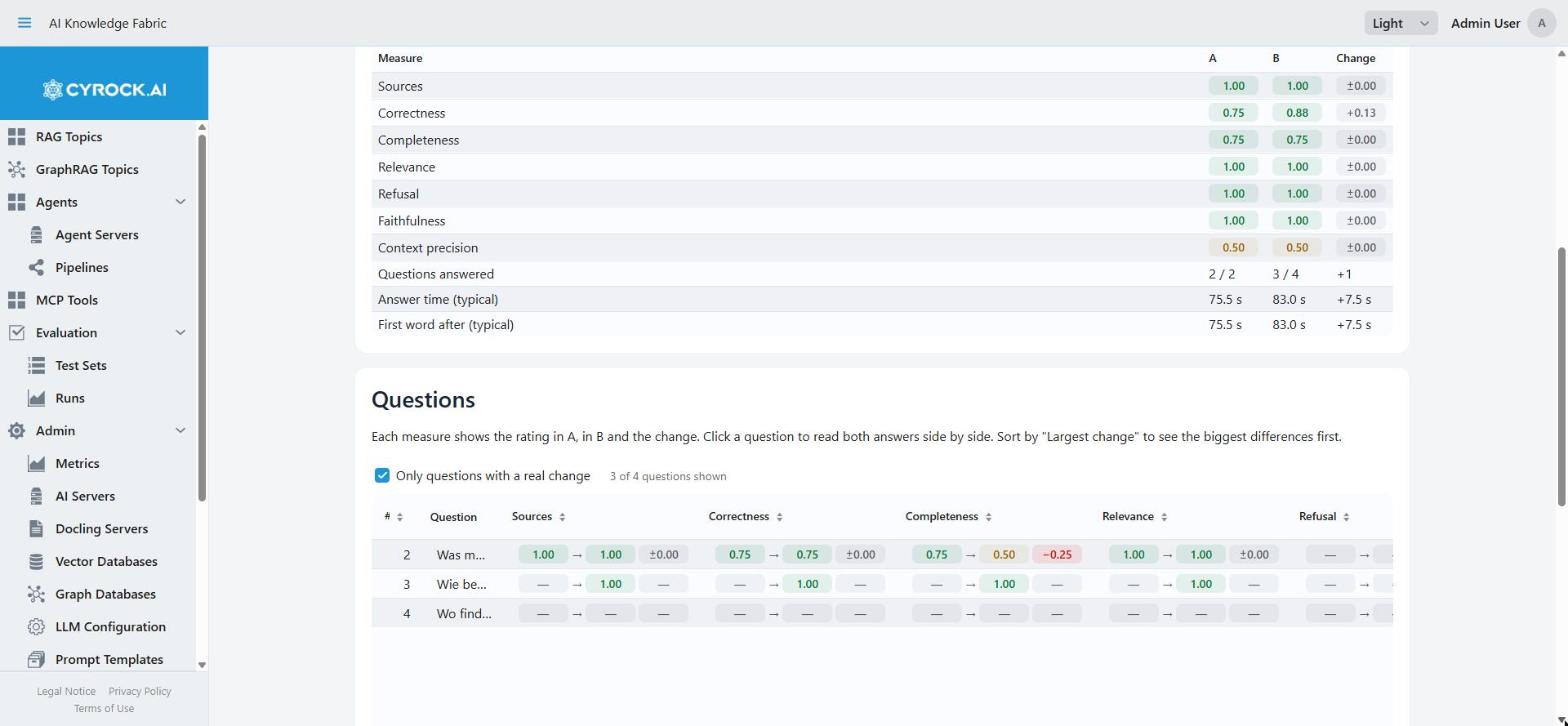
Questions
A table with every question, in the order of the test set. For each measure it shows the rating in A, an arrow, the rating in B and the change. Largest change shows the biggest change of any measure for the question. Click the header to sort by it, to see the biggest differences first. Click any other measure to sort by its change.
-
The box Only questions with a real change is ticked at first. It hides the questions where every measure changed by less than 0.25. It never hides a question that has no number to compare: a question that only one of the runs asked, a question that only one run could answer, and a question that was edited between the runs. The line next to the box says how many questions are shown.
-
A note at the end of a row explains why a question stands out: only in A, only in B (the test set changed between the runs), A did not answer, B did not answer, or question edited.
-
Click a row to read both answers side by side, with the sources and the ratings of both runs. Under each answer, What happened shows what the Topic did in that run: the decisions, warnings and text pieces. Compare the two sides to see why the answers differ, for example a piece that the new run found and the old one did not. It needs the permission Use DEV Reporting and, for each run, a Topic with a current software version. See Findings and "What happened".
The runs are matched by the question in the test set, not by the text. If you edit a question between two runs, the two runs still belong together, and the dialog shows both versions of the text. If you delete a question and add a new one, the pair does not match and each question is shown only in A or only in B.
Topic Settings at Start
The search and model settings of the Topic when each run started, side by side. The line above says how many settings differ. This is the list to read when a measure changed: a difference here is a likely reason. The box Only settings that differ is ticked when there are differences.
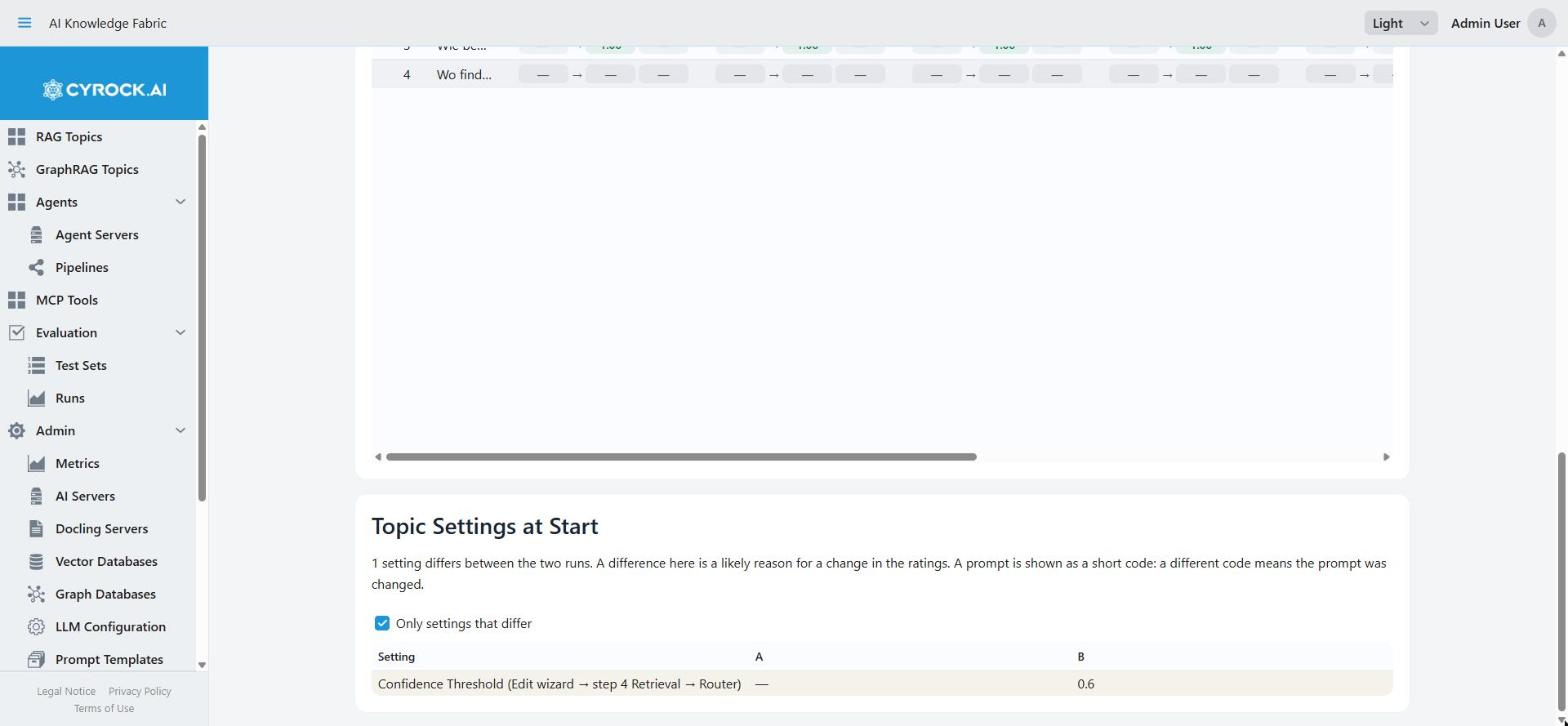
If the two runs tested different Topic types, one side lacks some settings and shows a dash. A prompt shows as a short code: a different code means the prompt was changed. See Reading a run.
5. A good comparison
-
Change one thing between two runs. Then a real change has one likely cause. The button Run again on the run page starts the second run with the same settings.
-
Use the same test set and the same rating model. The app warns you when the rating models differ.
-
Use the same value for Questions at the same time. This keeps the answer times comparable.
-
Run the same setup twice if you want to know how large the noise is in your case. The change between two identical runs shows how much of a difference to ignore.
-
Do not tune only for the test set. A change that helps these questions may hurt others. Check it with a second set.